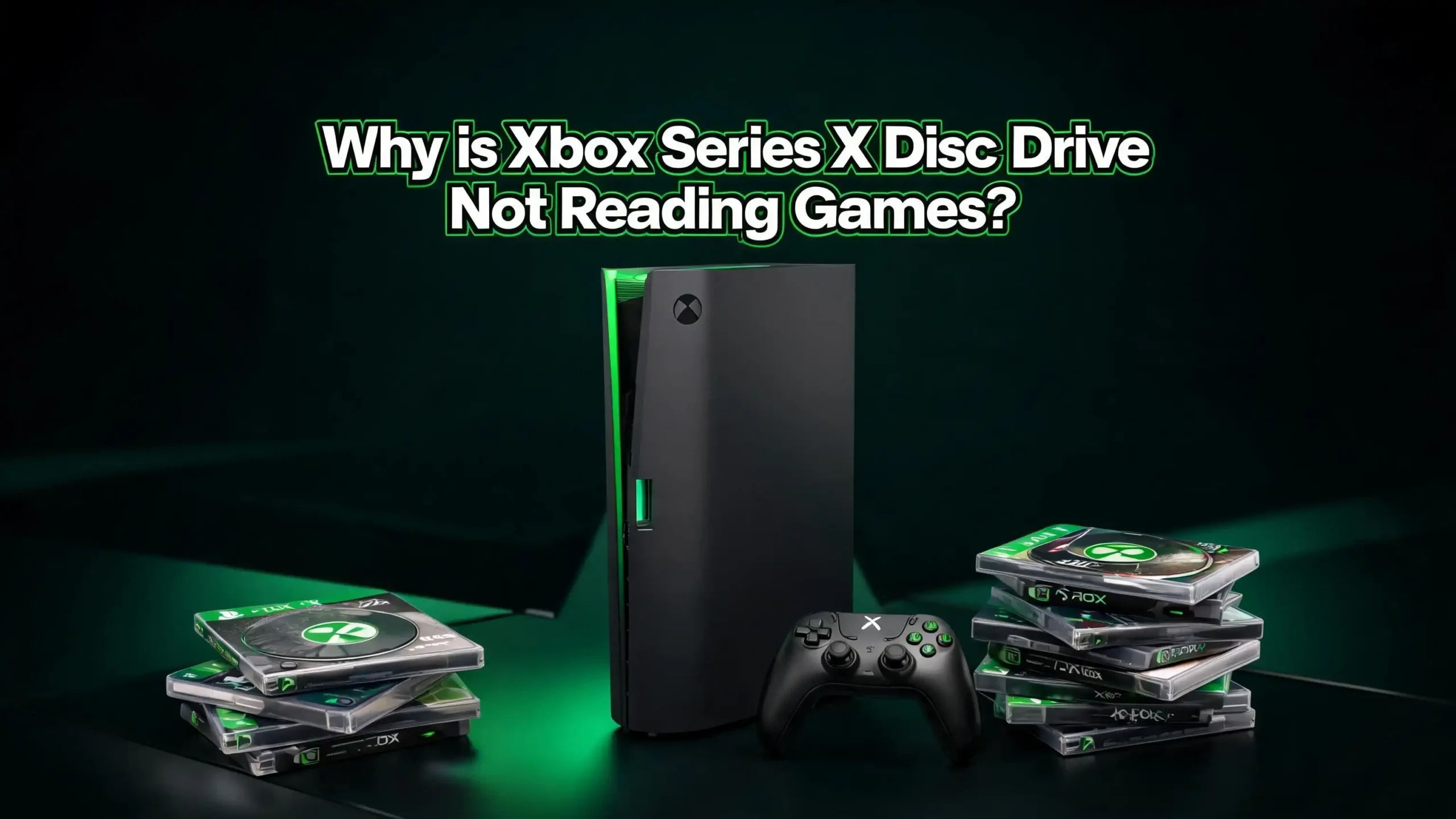
Why Is Xbox Series X Disc Drive Not Reading Games?
You just picked up a game, slid the disc into your Xbox Series X, and… nothing happened. Or maybe the console made a strange grinding noise and spit the disc back out. Perhaps you got an error message telling you the disc is dirty even though it looks spotless. Whatever the exact symptom, the result is the same: your Xbox Series X disc drive is not reading games, and you want answers.
This is one of the most common and frustrating problems Xbox Series X owners face. The good news is that most disc drive issues do not mean your console is broken beyond repair. In fact, many of these problems have simple fixes you can do at home in minutes. Some require a bit more effort, but all of them are well within reach if you follow the right steps.
In this post, we will walk you through every possible reason your Xbox Series X refuses to read game discs. We will cover quick software fixes, disc cleaning methods, power cycling tricks, cache clearing steps, and even hardware solutions for more serious problems. By the end, you will know exactly what to try and in what order.
In a Nutshell
- A dirty or scratched disc is the most common cause. Before you assume the console is broken, inspect your game disc carefully. Even tiny smudges or hairline scratches can prevent the laser from reading data correctly. Clean your disc with a soft microfiber cloth, wiping from the center outward, and try again.
- Power cycling your Xbox Series X fixes many disc read errors. A simple restart is not enough. You need to hold the power button for 10 seconds, unplug the console for at least 30 seconds, and then plug it back in. This clears the system cache and resolves many temporary software glitches that block the disc drive.
- Outdated system software can cause disc recognition failures. If your console is not running the latest firmware, it may struggle to read certain game discs. Always check for system updates before assuming you have a hardware problem.
- The Blu-ray persistent storage cache can interfere with disc reading. Xbox stores temporary Blu-ray data that can sometimes become corrupted. Clearing this cache through the console settings has resolved disc read errors for many users.
- Incorrect disc insertion and console orientation matter. The disc label must face up when the console is standing vertically. Some users have also reported success by placing the console on its side, which can help the disc seat properly against the laser mechanism.
- If all software fixes fail, the laser lens may need cleaning or the disc drive may need repair. Hardware problems like a dirty laser lens, worn rollers, or a failing disc drive motor require opening the console. This is more advanced but still possible as a DIY repair if you are comfortable with electronics.
Understanding Why Your Xbox Series X Disc Drive Fails to Read Games
The Xbox Series X uses a Blu-ray optical disc drive to read game discs, movie discs, and other media. This drive contains a laser lens that reads the data encoded on the disc surface. Several things can go wrong with this system, and understanding the root causes will help you pick the right fix.
The most frequent causes fall into three categories. The first is disc-related issues such as scratches, dirt, fingerprints, or region incompatibility. The second is software-related issues such as corrupted cache, outdated firmware, or glitched power settings. The third is hardware-related issues such as a dirty laser lens, worn internal rollers, or a failing drive motor.
Software and disc problems account for the majority of cases. These are easy to diagnose and fix without any tools. Hardware problems are less common but do occur, especially on consoles that have been used heavily or exposed to dust.
The key is to work through the solutions in order, starting with the simplest fixes and moving to more advanced ones only if needed. This saves you time and prevents you from opening your console unnecessarily.
Check Your Game Disc for Damage and Dirt
Before you troubleshoot the console itself, take a close look at the disc. Hold it under a bright light and inspect both sides. Look for fingerprints, dust, smudges, food residue, or scratches. Even a small mark in the wrong spot can prevent the laser from reading the data track.
Clean the disc using a soft, lint-free microfiber cloth. Wipe gently from the center of the disc straight out to the edge. Do not wipe in a circular motion because this can create scratches that follow the data track and cause more read errors. If the disc is particularly dirty, you can dampen the cloth slightly with water. Some users also report success using a tiny drop of dish soap, rinsing thoroughly with water, and drying completely before reinserting.
If you see deep scratches on the disc, the disc itself may be the problem rather than your console. Test multiple discs in your console to confirm. If other discs work fine but one specific disc does not, that disc is likely too damaged to read. Some game stores offer disc resurfacing services that can repair minor to moderate scratches.
Also confirm the disc is the right format. Your Xbox Series X plays Xbox Series X games, Xbox One games, and select backward-compatible Xbox 360 titles. It does not play original Xbox discs that are not on the backward compatibility list.
Power Cycle Your Xbox Series X
A standard restart does not always clear the temporary files and cache that can interfere with the disc drive. A full power cycle is more effective and takes just a minute.
Follow these steps to power cycle your console. Press and hold the Xbox button on the front of the console for a full 10 seconds. The console will shut down completely. Once it is off, unplug the power cable from the back of the console. Wait at least 30 to 60 seconds. This waiting period allows the internal capacitors to fully discharge and clears the system cache.
After waiting, plug the power cable back in and press the Xbox button to turn the console on. You will notice the startup animation takes a bit longer than usual, which confirms the cache was cleared. Now insert your game disc and see if the console reads it.
This fix alone resolves the problem for a surprising number of users. Many people on Xbox forums report that their disc drive stopped working after a system update or after leaving the console in sleep mode for an extended period. The power cycle clears these temporary glitches and restores normal disc drive function.
If you find yourself needing to do this frequently, it may indicate a deeper issue with your power settings, which we will cover next.
Change Your Power Mode Settings
The Xbox Series X offers two power modes: Sleep and Shutdown (energy saving). Sleep mode keeps the console in a low power state so it boots faster and can download updates in the background. However, this mode has been linked to disc drive recognition problems for some users.
The reason is that Sleep mode does not fully shut down the disc drive between sessions. Over time, the drive can enter a state where it fails to initialize correctly when you insert a disc. Switching to Shutdown mode forces a clean startup each time, which can fix this issue.
To change your power mode, press the Xbox button on your controller. Go to Profile & system, then Settings, then General, and select Power options. Choose Shutdown (energy saving) as your power mode. After making this change, do a hard restart by holding the power button for 10 seconds.
Once the console restarts, insert your game disc and test it. Many users have found that this simple settings change permanently fixed their disc read problems. You can switch back to Sleep mode later if you prefer, but if the disc issue returns, you will know the power mode is the culprit.
Update Your Console System Software
Running outdated firmware on your Xbox Series X can cause various problems, including disc drive failures. Microsoft regularly releases system updates that fix bugs, improve disc drive compatibility, and patch known issues.
To check for updates, press the Xbox button on your controller. Go to Profile & system, then Settings, then System, and select Updates. If an update is available, download and install it. Make sure your console stays connected to the internet during the update process and do not turn it off until the update completes.
If your console cannot connect to the internet, you can perform an offline system update. Download the update file from the Xbox support website on a computer. Copy the file to a USB flash drive formatted to NTFS. Plug the USB drive into your Xbox Series X and follow the on-screen instructions to install the update.
After updating, restart your console and try your game disc again. Some disc read errors are directly caused by firmware bugs that Microsoft has already patched. Keeping your console updated is one of the easiest preventive measures you can take.
Clear the Blu-ray Persistent Storage
Your Xbox Series X stores temporary data related to Blu-ray disc playback in a cache called persistent storage. This cache can sometimes become corrupted, and when it does, it can interfere with the console’s ability to read any disc, not just Blu-ray movies.
Clearing this cache is quick and risk-free. Press the Xbox button on your controller and go to Profile & system, then Settings, then Devices & connections, and select Blu-ray. You will see an option labeled Persistent storage. Select it and choose Clear persistent storage.
After clearing the cache, restart your console with a full power cycle. Hold the power button for 10 seconds, unplug for 30 seconds, plug back in, and turn it on. Now try inserting your game disc.
This fix has helped many users who experienced the “disc is dirty or damaged” error message even when their discs were clean and scratch-free. The corrupted cache was sending incorrect signals to the disc drive, making it reject perfectly good discs. Clearing it resets the system and allows the drive to read discs normally again.
Make Sure You Are Inserting the Disc Correctly
This may sound basic, but the Xbox Series X disc slot can be a bit confusing depending on how your console is positioned. If you insert the disc the wrong way, the laser cannot read the data side, and the console will either reject the disc or fail to recognize it.
When the console is standing upright in its vertical position, the disc label should face to the left (toward the outside of the console). The data side, which is the shiny side, should face right. When the console is lying on its side, the label should face up.
If you have been inserting the disc correctly and it still does not read, try a different approach that some users swear by. Place your Xbox Series X on its side if it is currently standing up, or stand it up if it is on its side. Insert the disc in this new orientation. Some users have found that changing the console’s position helps the disc seat more evenly against the drive’s spindle and laser.
After the disc loads in the new position, restart the console. Some users report that this one-time fix resolves the issue permanently, even after switching the console back to its original orientation.
Install a Game Disc While Offline
Some Xbox Series X owners have discovered an unusual but effective workaround. Installing a game disc while the console is offline can bypass certain errors that occur when the console tries to simultaneously read the disc and download updates from the internet.
To try this fix, go to Settings, then General, then Network settings, and select Go offline. Now insert the game disc and let it install from the disc alone. The console will focus entirely on reading and installing data from the physical disc without any network interference.
Once the installation completes, go back to Network settings and reconnect to the internet. The console will then download any required updates for the game. This method has worked for users who saw the “installation stopped” error or whose consoles seemed to struggle with disc recognition during online installation.
The reason this works is that some games trigger a large download simultaneously with the disc installation. This can overwhelm the system or cause conflicts that make the disc drive stop reading mid-installation. Going offline removes that conflict entirely.
Use a Lens Cleaning Disc
Over time, dust and debris can accumulate on the laser lens inside your Xbox Series X disc drive. A lens cleaning disc is a special disc with tiny brushes attached to its surface. When you insert it into the console, the brushes gently sweep across the laser lens and remove dust particles.
You can find lens cleaning discs at most electronics retailers. Insert the cleaning disc into your Xbox Series X and let it spin for the recommended time, usually about 30 seconds to a minute. Follow the instructions that come with your specific cleaning disc because some require you to apply a few drops of cleaning solution first.
Results with lens cleaning discs are mixed. Some users report immediate improvement, while others see no change. If a lens cleaning disc does not solve the problem, the laser lens may need a deeper manual cleaning, which requires opening the console. However, the lens cleaning disc is worth trying first because it is non-invasive and takes less than a minute.
Keep in mind that if your console does not recognize the cleaning disc at all, the problem may be more severe than a dusty lens. A completely unresponsive drive may have a motor issue, a cable connection problem, or a failed laser assembly.
Perform a Console Reset Without Deleting Games
If none of the previous fixes have worked, a console reset can resolve deeper software problems. The Xbox Series X offers a reset option that keeps your installed games and apps while resetting all system settings back to their defaults.
Press the Xbox button on your controller. Go to Profile & system, then Settings, then System, and select Console info. Choose Reset console and then select Reset and keep my games & apps. The console will take a few minutes to complete the process.
After the reset, you will need to sign back into your Xbox account and reconfigure your settings. But all your games, save data synced to the cloud, and apps will remain intact. Try inserting your game disc again after the reset completes.
If the disc drive still does not work after this soft reset, you can try the more drastic option: Reset and remove everything. This returns the console to its original factory state. It erases all accounts, saved data, installed games, and settings. Before doing this, make sure your important save data has been synced to the Xbox network so you do not lose your progress permanently.
A factory reset is typically the last resort before moving on to hardware-level troubleshooting.
Eject a Stuck Disc
Sometimes the problem is not that the drive cannot read a disc. The problem is that a disc is physically stuck inside the drive, preventing you from inserting a new one or causing the drive to malfunction.
First, try the standard eject methods. Press the physical eject button on the front of the console, located next to the disc slot. If that does not work, press the Xbox button on your controller, highlight the disc icon on the Home screen, and press the X button to eject.
If the console is frozen, hold the power button for 10 seconds to force a shutdown. Wait a moment, turn it back on, and try ejecting again.
When none of these methods work, you need to manually eject the disc using a paperclip. Unplug all cables from the console. Straighten a large paperclip so it is at least 2 inches long. Locate the manual eject hole on the bottom of the console near the disc drive area. Insert the paperclip into the hole and push gently. The disc should pop out slightly so you can grab it with your fingers.
Handle the disc carefully when pulling it out so you do not scratch it further. Once the stuck disc is removed, test the drive with a different disc to make sure the drive itself is still functional.
Clean the Disc Drive Laser Lens Manually
If software fixes and a cleaning disc have not solved the problem, the laser lens inside the disc drive may need a manual cleaning. This fix requires opening your Xbox Series X and removing the disc drive, so proceed only if you are comfortable working with electronics.
Start by unplugging all cables from the console. Remove the outer casing of the Xbox Series X by removing the screws on the bottom and carefully separating the panels. Locate the disc drive and disconnect its ribbon cables and power connector from the motherboard. Remove the screws holding the disc drive in place and lift it out.
Open the disc drive by removing the screws from its metal cover plate. Inside, you will see the laser assembly, the spindle motor, and the rollers that pull discs in and out. Use isopropyl alcohol (90% or higher) and a cotton swab to gently clean the laser lens. Move the swab in a small circular motion with very light pressure. Do not press hard because you can scratch or misalign the lens.
While the drive is open, also clean the rubber rollers with isopropyl alcohol. Dirty rollers are a common reason discs fail to load properly or get stuck. Use compressed air to blow out any loose dust, pet hair, or debris from inside the drive.
Reassemble the drive in reverse order and reinstall it into the console. This cleaning process fixes disc read problems in a large percentage of cases where the laser had become too dusty to function correctly.
When to Contact Xbox Support or a Professional Repair Service
If you have tried every fix in this guide and your Xbox Series X disc drive still does not read games, the problem is likely a hardware failure that requires professional repair. The laser assembly may have burned out, the spindle motor may be failing, or the drive’s circuit board may be damaged.
Contact Xbox Support first. If your console is still under warranty or you have an extended protection plan, Microsoft may repair or replace it at no cost. Visit the Xbox support website and select your console to check your warranty status and request a repair.
If your warranty has expired, you have two options. You can replace the disc drive yourself or take it to a professional repair shop. Keep in mind that the Xbox Series X disc drive has a circuit board that is paired with the motherboard. If you replace the entire drive, you must move the original circuit board from your old drive to the new one. Without this paired board, the new drive will not communicate with the motherboard, and you will get errors or no disc recognition at all.
Professional repair shops that specialize in game consoles can handle this swap properly. Expect to pay between $80 and $150 for a disc drive repair depending on your location and the specific issue.
Frequently Asked Questions
Why does my Xbox Series X say the disc is dirty when it is not?
This error message usually points to a corrupted Blu-ray persistent storage cache or a dirty laser lens rather than an actual dirty disc. Clear the persistent storage cache through Settings, then Devices & connections, then Blu-ray. If that does not fix it, the laser lens inside the drive may be coated with dust and need cleaning. A power cycle can also resolve this error in many cases.
Can I replace the Xbox Series X disc drive myself?
Yes, but it requires some technical skill and caution. The most important thing to know is that the disc drive circuit board is paired to your specific motherboard. You cannot simply swap in a new complete drive. You must remove the circuit board from your old drive and install it onto the replacement drive. Without this step, the new drive will not function. If you are not comfortable with electronics repair, a professional repair shop is the safer option.
Why does my Xbox Series X disc drive make a grinding or clicking noise?
A grinding or clicking noise usually indicates a mechanical problem inside the disc drive. The spindle motor may be struggling to spin the disc, or the laser assembly may be stuck on its track. Try placing the console in a different orientation and reinserting the disc. If the noise continues, the drive likely needs to be opened and inspected for debris, a misaligned component, or a failing motor.
Will a factory reset fix my Xbox Series X disc drive problem?
A factory reset can fix disc drive problems that are caused by software glitches, corrupted system files, or misconfigured settings. It will not fix hardware failures such as a burned out laser, broken motor, or damaged circuit board. Try a soft reset (keeping games and apps) first. Only perform a full factory reset if the soft reset does not work, and understand that it erases all personal data from the console.
How do I prevent disc drive problems on my Xbox Series X?
Keep your discs clean and store them in their cases when not in use. Place your console in a well-ventilated area away from excessive dust, pet hair, and smoke. Use Shutdown (energy saving) power mode instead of Sleep mode if you experience frequent disc recognition issues. Regularly check for and install system updates. Avoid moving the console while a disc is spinning inside the drive, as this can scratch the disc or damage the laser mechanism.
Does the Xbox Series X Digital Edition have a disc drive?
No. The Xbox Series X Digital Edition does not include a disc drive. It plays only digital games purchased and downloaded from the Microsoft Store. If you own physical game discs, you need the standard Xbox Series X with the built in Blu-ray drive. There is no way to add an external disc drive to the Digital Edition for playing games.

Hi, I’m Amy! I’m passionate about tech and love breaking down complex product specs into simple, actionable advice. I review gadgets, compare tools, and write buying guides to help you spend smarter. Got a question? Drop me a message — I’d love to hear from you!