How to Fix Google Drive Sync Taking Forever?
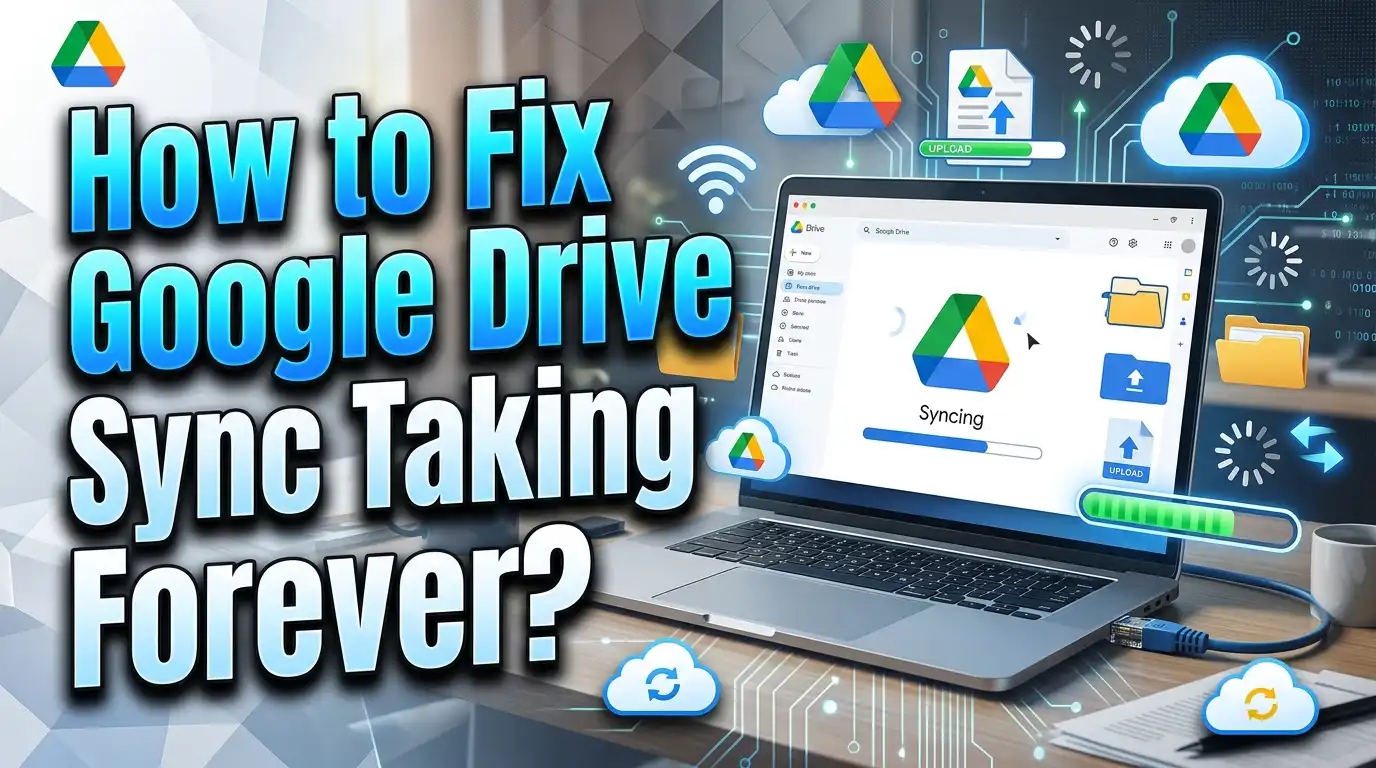
We have all been there. You add files to Google Drive, click sync, and then wait. And wait. And wait some more. The progress bar barely moves. Hours pass, and your files still sit in limbo. Google Drive sync taking forever is one of the most common and frustrating cloud storage problems people face every day.
The good news? This problem is almost always fixable. Slow syncing usually comes down to a handful of causes. These include poor internet, bad settings, outdated software, or too many files in the queue. Once you identify the root cause, the fix is often quick and simple.
This guide walks you through 15 practical solutions to speed up your Google Drive sync. Each solution includes clear steps you can follow right now. By the end of this post, your files will sync faster and your workflow will run smoother.
In a Nutshell
- Check your internet connection first. A weak or unstable Wi-Fi signal is the most common reason Google Drive sync crawls. Run a speed test and make sure your upload speed is at least 5 Mbps for smooth syncing.
- Restart Drive for Desktop. A simple restart of the Google Drive app clears temporary glitches and often gets sync moving again. This takes less than a minute and solves the problem for many users.
- Remove bandwidth limits in settings. Google Drive lets you set upload and download rate caps. If someone configured these limits, your sync speed drops. Check Preferences and remove any restrictions.
- Reduce file sizes and upload in batches. Large files take longer to sync. Compressing files before upload and breaking big folders into smaller batches helps Google Drive process everything faster.
- Update or reinstall Drive for Desktop. Older versions of the app contain bugs that cause slow syncing. Downloading the latest version from Google often fixes performance issues instantly.
- Check your storage space. Google Drive gives you 15 GB of free storage. If your account is full or close to full, sync will slow down or stop completely. Free up space or upgrade your plan if needed.
Check Your Internet Connection
Your internet speed is the single biggest factor in Google Drive sync performance. A slow or unstable connection will cause sync to drag on for hours or even days. Upload speed matters more than download speed here because syncing sends files from your computer to the cloud.
Run a speed test at speedtest.net or fast.com. Look at your upload speed. For smooth syncing, you need at least 5 Mbps upload speed. If you see anything below 2 Mbps, your internet is likely the bottleneck.
Switch from Wi-Fi to a wired Ethernet connection if possible. Ethernet provides a stable, consistent connection without the interference that slows Wi-Fi. This single change can double or triple your effective upload speed.
If you must use Wi-Fi, move closer to your router. Walls, floors, and other obstacles weaken the signal. Also, disconnect other devices from the network during large syncs. Every phone, tablet, or smart TV on your network competes for bandwidth. Fewer connected devices means more speed for your sync.
Contact your internet provider if your speeds are consistently low. You may need a plan upgrade to handle cloud syncing along with your other online activities. Many providers offer plans with higher upload speeds specifically for users who work with cloud storage.
Restart Google Drive for Desktop
Sometimes Google Drive gets stuck. The app encounters a temporary error, and the sync process freezes. A restart clears these glitches and gets everything moving again. This is the fastest fix you can try, and it works surprisingly often.
On Windows, look for the Google Drive icon in your system tray at the bottom right of your screen. Click the icon, then click the gear icon. Select Quit from the menu. Wait about 10 seconds, then open Google Drive again from your Start menu or desktop shortcut.
On Mac, find the Google Drive icon in the menu bar at the top right of your screen. Click it, click the gear icon, and select Quit. After a brief pause, relaunch the app from your Applications folder or Spotlight search.
After the restart, Google Drive will automatically begin checking and syncing your files. Watch the sync status to see if progress resumes normally. If files start uploading again, the temporary glitch is fixed.
Restart your computer too if restarting the app alone does not help. A full system reboot clears memory issues and resets network connections. This resolves deeper problems that a simple app restart cannot fix. Many users report that this combination of app restart plus system reboot resolves their stuck syncs.
Pause and Resume the Sync Process
Google Drive has a built in pause and resume feature that can break through sync stalls. This method forces the app to stop the current sync process and start fresh. It is like giving Google Drive a gentle nudge to get moving again.
Click the Google Drive icon in your system tray (Windows) or menu bar (Mac). You will see a Pause syncing option. Click it to stop all sync activity. Wait about 30 seconds to give the app time to fully halt all processes.
Then click the same icon again and select Resume syncing. Google Drive will re-evaluate all pending files and begin the sync process from scratch. This often resolves situations where a specific file is blocking the entire sync queue.
This method works well for syncs that are technically running but show zero progress. Sometimes a single corrupted or locked file can stall the entire queue. Pausing and resuming forces Google Drive to skip past problem files and continue with the rest.
If you notice that sync always stalls at the same file, that file may be the issue. Try removing it from the sync folder temporarily. Then resume the sync. Once all other files finish, you can add the problem file back or try uploading it separately through the Google Drive web interface.
Adjust Bandwidth Settings in Drive for Desktop
Google Drive for Desktop includes bandwidth controls that limit upload and download speeds. If these limits are set too low, your sync will crawl. Many users do not realize these settings exist or that they may have been changed at some point.
Open Drive for Desktop and click the gear icon. Select Preferences from the menu. Then navigate to the Advanced Settings section. Look for the bandwidth settings panel that controls upload and download rates.
Remove any caps on upload and download speeds. Set both values to unlimited or leave the fields blank. This allows Google Drive to use as much bandwidth as your internet connection provides. Click Apply to save the changes.
If you share your internet connection with others at home or in an office, you may want to set a moderate limit rather than no limit at all. A value of 75% of your total upload speed is a good balance. This gives Google Drive enough speed to sync quickly while leaving bandwidth for other users and activities.
Check these settings periodically. Software updates can sometimes reset preferences to default values. A quick check ensures your bandwidth settings stay where you want them. Proper bandwidth configuration alone can cut sync times in half for many users.
Clear the Google Drive Cache
Google Drive stores temporary files in a local cache on your computer. Over time, this cache grows large and can slow down sync performance. Clearing the cache removes outdated temporary data and gives the app a fresh start.
On Windows, click the Google Drive icon in your system tray. Click the gear icon and go to Preferences or Settings. Look for an option to Delete cache or Clear cached files. Click it and confirm the action.
On Mac, you can find cached files at this path: Users/YourUsername/Library/Application Support/Google/DriveFS. You can delete the contents of this folder after quitting Google Drive. Then restart the app to rebuild the cache from scratch.
After clearing the cache, Google Drive will need to re-index your files. This takes a few minutes depending on how many files you have. But once complete, sync speeds should improve because the app is working with clean, current data instead of bloated temporary files.
Make cache clearing a regular habit. Doing it once a month keeps Google Drive running at peak speed. Set a calendar reminder if you tend to forget. Users with thousands of files benefit the most from regular cache maintenance because their cache files grow faster.
Check Your Google Drive Storage Space
Google provides 15 GB of free storage shared across Google Drive, Gmail, and Google Photos. If your storage is nearly full, sync will slow down or stop entirely. Google Drive cannot upload new files when there is no room in your account.
Check your current storage by visiting drive.google.com and looking at the storage indicator in the bottom left corner. You can also visit one.google.com/storage for a detailed breakdown of what uses your space.
Delete files you no longer need. Empty the trash folder in Google Drive because trashed files still count against your storage quota. Remove old email attachments in Gmail and check Google Photos for duplicate or unwanted images.
Google Docs, Sheets, and Slides do not count against your storage limit. Converting files to these native Google formats frees up space. For example, a Word document uploaded as a .docx file uses storage, but the same document converted to a Google Doc does not.
If you regularly need more space, consider upgrading to Google One. Plans start at affordable rates for 100 GB, and larger options provide up to 2 TB. Paid plans also offer faster sync speeds because Google allocates more server resources to paying customers. Check your storage before every major sync to avoid slowdowns.
Update or Reinstall Drive for Desktop
Older versions of Google Drive for Desktop often contain bugs that cause slow syncing. Google releases regular updates that fix performance issues and improve sync speed. Running an outdated version is one of the most overlooked causes of slow sync.
Check your current version by clicking the Drive icon, then the gear icon, and looking for version information in the About section. Visit google.com/drive/download to see the latest version available.
If an update is available, download and install it. The installer will automatically replace the old version while keeping your settings and account information intact. No files will be lost during the update process.
If updating does not help, try a full reinstall. Uninstall Google Drive for Desktop from your computer. On Windows, use Settings then Apps then find Google Drive and click Uninstall. On Mac, drag the Google Drive app from your Applications folder to the Trash.
After uninstalling, restart your computer. Then download a fresh copy from the Google Drive website and install it. Sign in to your Google account and let the app re-index your files. This process takes time for large libraries but results in a clean, optimized setup. A fresh install eliminates corrupted configuration files that slow down sync.
Reduce File Sizes Before Syncing
Large files take longer to sync. A single 4 GB video file will take much longer than a hundred 10 MB documents. Reducing file sizes before adding them to your Google Drive folder speeds up the entire sync process.
Compress files before syncing. Use ZIP or RAR compression for folders with many small files. This bundles everything into a single smaller package that uploads faster. Most operating systems include built in compression tools. Right click a folder and select Compress (Mac) or Send to Compressed folder (Windows).
For images, reduce resolution or convert to efficient formats like JPEG. A 20 MB RAW photo might compress to a 2 MB JPEG with minimal visible quality loss. Batch processing tools can resize hundreds of images at once.
For videos, use modern compression codecs like H.265/HEVC. These reduce file sizes by up to 50% compared to older formats while maintaining quality. Free tools like HandBrake make video compression simple for any user.
Split very large files into smaller parts. Some files exceed Google Drive’s size limits or cause sync problems due to their size. File splitting tools can break a 10 GB file into five 2 GB parts that sync individually. This approach also makes it easier to resume if the sync gets interrupted, because only the interrupted part needs to re-upload.
Upload Files in Batches Instead of All at Once
Dumping thousands of files into Google Drive at the same time overwhelms the sync engine. The app struggles to track, process, and upload too many files simultaneously. Breaking your uploads into smaller batches improves speed and reliability.
Start with the most important files first. Add one folder at a time to your sync location. Wait for that folder to finish syncing before adding the next one. This gives Google Drive a manageable workload and prevents the queue from backing up.
A good rule is to sync no more than 500 files or 5 GB at a time. Once the batch finishes, add the next set. You can monitor progress by clicking the Drive icon and viewing the sync status window.
Batch uploading also helps you identify problem files. If a specific batch stalls, you know the problem file is in that group. You can narrow it down quickly instead of searching through thousands of files for the culprit.
Be patient with initial syncs. If you just installed Google Drive and pointed it at a folder with 50 GB of data, the first sync will take time. Break that initial sync into smaller chunks. Start with the folders you need access to first, then add the rest gradually over several hours or days.
Disable Antivirus and Firewall Interference
Security software sometimes interferes with Google Drive sync. Antivirus programs scan every file that Google Drive tries to upload or download. This scanning adds significant overhead and can slow sync speeds dramatically.
Check if your antivirus software is scanning Google Drive folders in real time. If it is, add the Google Drive folder as an exception or exclusion in your antivirus settings. This tells the security software to skip those files during real time scans while still scanning them during scheduled full system scans.
On Windows, also check your firewall settings. The Windows Firewall should allow Google Drive for Desktop through both private and public networks. Go to Control Panel, then System and Security, then Windows Firewall, then Allow an app through the firewall. Find Google Drive in the list and make sure both checkboxes are checked.
System cleaner apps like CCleaner can also cause problems. Google’s official support page warns that these apps may edit Google Drive’s configuration data. This can cause sync errors and even data loss. Avoid using system cleaners on Google Drive’s app data folders.
If you recently installed new security software and sync became slow immediately after, that software is likely the cause. Try temporarily disabling it to test. If sync speeds improve, adjust the software’s settings to accommodate Google Drive rather than leaving it disabled.
Switch Between Stream and Mirror Mode
Google Drive for Desktop offers two sync modes: streaming and mirroring. Each mode works differently, and the wrong choice for your situation can cause slow performance. Understanding the difference helps you pick the right option.
Stream files mode keeps all files in the cloud and downloads them only when you open them. This saves local disk space and reduces the volume of data that needs to sync. It works best for users with limited hard drive space or large Google Drive libraries.
Mirror files mode downloads every file to your computer and keeps both copies in sync. This gives you full offline access but requires enough local storage. It also means every file change triggers a sync operation both ways.
If sync is slow and you use mirror mode, try switching to stream mode. Open Drive for Desktop, click the gear icon, go to Preferences, and find the sync mode option under Google Drive settings. Select Stream files and apply the change.
This switch reduces the total amount of data Google Drive needs to manage. Stream mode only syncs files you actively use, which dramatically speeds up the process for users with large file libraries. You still get full access to all your files through the virtual drive letter that Google Drive creates on your computer.
Check for Conflicting Files and Sync Errors
Sometimes Google Drive sync slows down because it encounters files it cannot process. Conflicting files, locked files, and unsupported characters in file names all cause sync to stall or slow to a crawl.
Click the Google Drive icon and check the sync status. Look for any error messages or warnings. Google Drive will tell you if specific files failed to sync and why. Common errors include permission issues, file name problems, and size limit violations.
File names with special characters like #, %, &, or { } can cause sync failures. Rename these files using only letters, numbers, spaces, and basic punctuation. Google Drive also has a 400 character limit for file paths. Deeply nested folders with long names can exceed this limit.
Duplicate files and version conflicts also slow sync. If you edit the same file on two devices before sync completes, Google Drive creates conflict copies. These extra files add to the sync queue and create confusion. Resolve conflicts by keeping the version you want and deleting the duplicate.
Check the Lost and Found folder on your computer if files seem to disappear during sync. On Windows, this folder is at C:\Users\YourName\AppData\Local\Google\DriveFS\lost_and_found. On Mac, it is at Users/YourName/Library/Application Support/Google/DriveFS/lost_and_found. Move any files found here back to your Drive folder.
Disconnect and Reconnect Your Google Account
If nothing else works, disconnecting and reconnecting your Google account can reset the entire sync relationship. This is a more aggressive fix that forces Google Drive to start fresh with your account.
Open Drive for Desktop and click the gear icon. Go to Preferences and find your account settings. Click the option to Disconnect account. Confirm the action when prompted. This stops all sync activity and removes the link between your computer and Google Drive.
Wait at least 30 seconds after disconnecting. Then click Sign in and enter your Google credentials again. Google Drive will reconnect to your account and begin re-indexing all your files.
This process takes longer than a simple restart because Drive needs to compare every file on your computer with every file in the cloud. For large libraries, this can take several hours. But it fixes deep sync issues that other methods cannot resolve.
Before disconnecting, make sure all your important files are safely backed up. The disconnection itself does not delete files, but reconnecting can sometimes trigger unexpected behavior if files were moved during the disconnected period. A quick backup gives you peace of mind.
Check Google Workspace Status for Server Issues
Sometimes the problem is not on your end at all. Google’s servers occasionally experience outages that slow or stop sync for all users. Checking the server status saves you from troubleshooting a problem you cannot fix locally.
Visit the Google Workspace Status Dashboard at workspace.google.com/status. This page shows the current operational status of every Google service including Google Drive. Green dots mean everything is normal. Yellow or red dots indicate problems.
You can also search for “Google Drive outage” on social media platforms or sites like Downdetector. These community reports often appear faster than official status updates. If other people report the same issue at the same time, a server problem is likely.
During a server outage, the best action is to wait. Google’s engineering teams typically resolve outages within a few hours. Pause your sync to avoid repeated failed attempts, and resume once the service returns to normal.
Keep in mind that Google performs maintenance on its servers regularly. These maintenance windows can temporarily slow sync for some users. If you notice periodic slowdowns at the same time each week, scheduled maintenance may be the reason.
Use the Web Interface for Urgent Uploads
If Drive for Desktop sync is too slow for an urgent file, upload directly through the Google Drive website as a workaround. The web interface sometimes handles uploads faster because it bypasses the desktop app’s queue and indexing process.
Open drive.google.com in your browser. Click the New button in the top left corner. Select File upload or Folder upload depending on what you need. Choose the files from your computer and the upload begins immediately.
The web upload runs independently from Drive for Desktop. This means it does not compete with the desktop app’s sync queue. For a single file or small group of files you need in the cloud right away, this method is often faster.
You can drag and drop files directly into the browser window for even quicker uploads. Open Google Drive in one window and your file explorer in another. Drag the files over and drop them into the Drive window. The upload starts instantly.
After uploading through the web, Drive for Desktop will detect the new files in the cloud and skip syncing them since they already exist. This prevents duplicate uploads and keeps everything consistent. Use this approach as a supplement to desktop sync, not a full replacement. The web interface works best for small, urgent transfers while the desktop app handles ongoing background sync.
FAQs
Why is my Google Drive sync so slow even with fast internet?
Fast download speed does not guarantee fast uploads. Most internet plans offer much lower upload speeds than download speeds. Check your upload speed specifically with a speed test tool. Also verify that no bandwidth limits are set in Google Drive Preferences. Background apps, other devices on your network, and antivirus software can also consume bandwidth and slow your sync.
How long should Google Drive take to sync files?
Sync time depends on file sizes, number of files, and your upload speed. A rough estimate: 1 GB of files takes about 15 minutes on a 10 Mbps upload connection. Large initial syncs with tens of gigabytes can take several hours or even a full day. Batch uploading and compressing files before sync can reduce this time significantly.
Can I sync Google Drive faster by using a VPN?
A VPN typically slows your connection because it routes traffic through an additional server. However, if your internet provider throttles cloud storage traffic, a VPN can bypass that throttling and improve speeds. Test your sync speed with and without the VPN to see which option works better for your specific situation.
Does Google Drive sync faster with a paid Google One plan?
Google does not officially guarantee faster sync speeds for paid plans. However, paid Google One subscribers report smoother performance because they have more storage available and their accounts may receive priority server allocation. The primary benefit of upgrading is more storage space, which prevents sync from stopping due to a full account.
Why does Google Drive keep syncing the same files repeatedly?
Repeated syncing of the same files usually indicates a conflict. The file may be open on another device, or a third party app might be modifying the file constantly. Check for sync conflicts in the Drive status panel. Close files on other devices before syncing, and ensure no backup tools or other apps are editing files in your Google Drive folder simultaneously.
How do I know if Google Drive sync is stuck or just slow?
Click the Google Drive icon in your system tray or menu bar. The status window shows how many files remain and the current sync progress. If the number of pending files does not change for more than 30 minutes, your sync is likely stuck. Try pausing and resuming sync, or restart the app entirely. If a specific file name keeps appearing, that file may be causing the stall.

Hi, I’m Amy! I’m passionate about tech and love breaking down complex product specs into simple, actionable advice. I review gadgets, compare tools, and write buying guides to help you spend smarter. Got a question? Drop me a message — I’d love to hear from you!