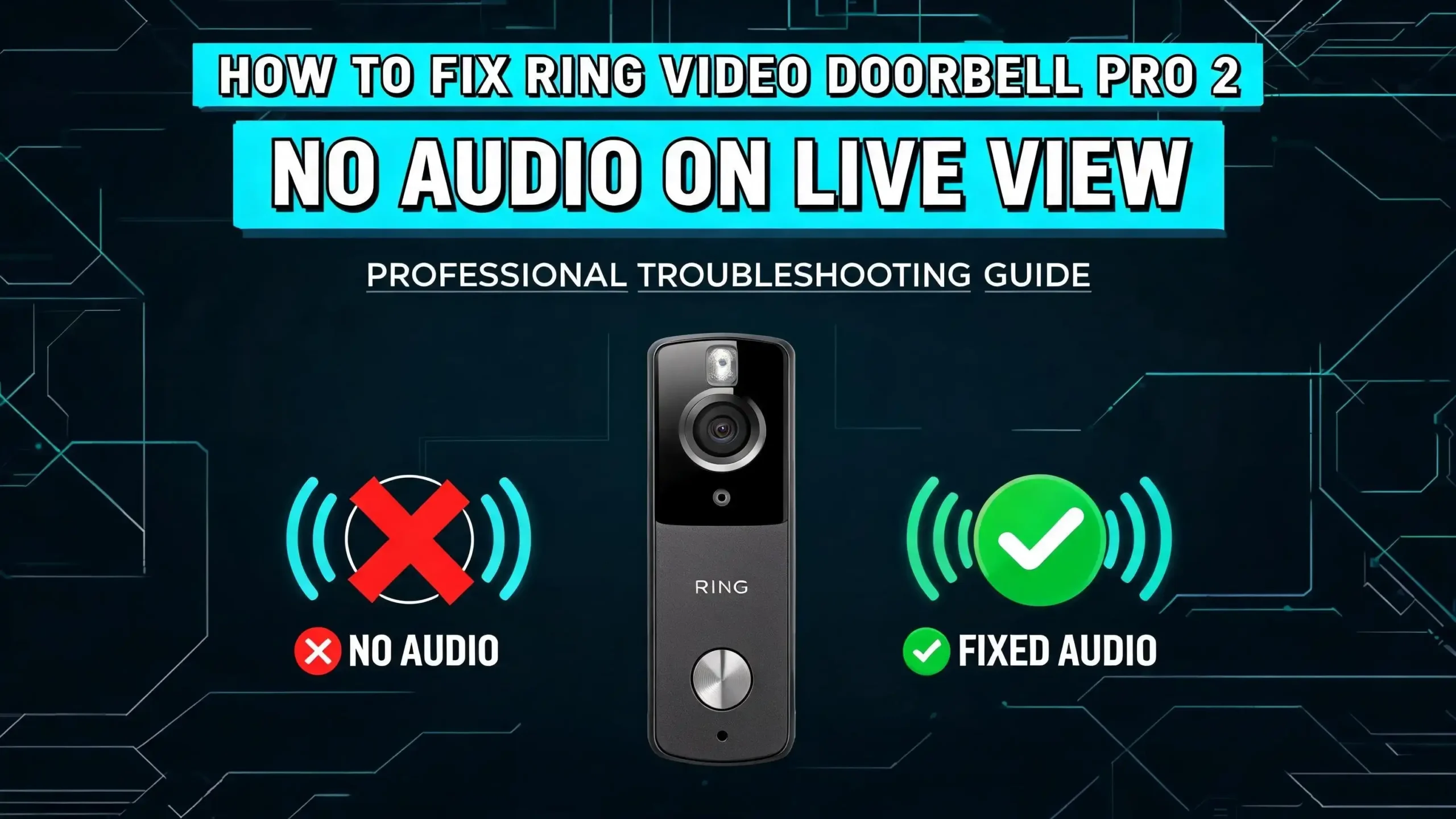
How To Fix Ring Video Doorbell Pro 2 No Audio On Live View?
You press Live View on your Ring Video Doorbell Pro 2, and the video loads just fine. But there is zero sound. You cannot hear the person standing at your door, and the entire experience feels broken. This is a frustrating problem, and you are far from the only one dealing with it.
The Ring Video Doorbell Pro 2 is a powerful smart doorbell with crisp 1536p HD video and built in two way audio. But many users report sudden audio loss during Live View, recorded events, or both. Sometimes the issue appears after a firmware update. Other times it happens out of nowhere with no clear trigger.
The good news is that most audio problems on the Ring Pro 2 can be fixed at home without replacing the device. The causes range from muted in app icons to Wi-Fi signal weakness, incorrect privacy settings, outdated firmware, and even phone permission conflicts. This guide walks you through every solution in a clear, step by step format so you can get your audio back fast.
In a Nutshell
- Check the Live View audio icons first. The microphone and speaker buttons inside the Ring app’s Live View screen are muted by default. You must tap them to enable sound. A slash through the icon means audio is off. This simple step solves the problem for a surprising number of users.
- Verify your phone’s microphone permissions for the Ring app. If your iPhone or Android device has not granted the Ring app access to the microphone, two way audio will not work. Go to your phone’s settings and confirm that the Ring app has full microphone access enabled.
- Enable Audio Streaming and Recording in the Ring app’s Privacy Settings. Ring includes a privacy toggle that controls whether audio is streamed or recorded. If this toggle is turned off, you will hear nothing during Live View or in saved recordings. Navigate to Device Settings, then Privacy Settings, and turn this feature on.
- A weak Wi-Fi signal causes audio to drop or fail entirely. Ring devices need a strong, stable connection to transmit both video and audio. Check your RSSI value in the Ring app under Device Health. A value between 0 and minus 40 is excellent. Anything worse than minus 60 can cause audio problems.
- Performing a factory reset and firmware update is the most effective fix for persistent audio loss. Many users confirm that holding the reset button for 20 seconds, then re adding the device in the Ring app, triggers a firmware update that restores audio immediately.
- Contact Ring Support if nothing else works. If your device is still under warranty and the audio problem persists after all troubleshooting, Ring may replace the unit. Some users have received replacements after confirming a hardware level microphone failure.
Understanding Why Audio Fails On Ring Video Doorbell Pro 2
Audio issues on the Ring Video Doorbell Pro 2 happen for several reasons. The most common cause is a software related glitch rather than a hardware failure. The Ring app uses multiple layers of audio control, and if any single layer is disabled, you will hear nothing.
The Ring Pro 2 streams audio and video over your Wi-Fi network to Ring’s cloud servers, then to your phone. This chain has several potential failure points. Your phone’s microphone permission, the Ring app’s internal audio toggle, your Wi-Fi bandwidth, and the doorbell’s firmware all play a role in delivering sound to your ears.
Firmware updates are another frequent culprit. Several Ring Pro 2 owners have reported that audio disappeared right after a firmware update rolled out to their device. In these cases, the microphone hardware still works because visitors can hear the homeowner speak through the doorbell. But the incoming audio feed stops transmitting to the app.
It also helps to understand that the Ring Pro 2 uses a half duplex audio system by default, meaning only one person can speak at a time. This can sometimes feel like an audio failure when it is actually a design behavior. Knowing these basics helps you narrow down the actual cause before jumping into fixes.
Check The Microphone And Speaker Icons In Live View
This is the first thing to check because it is the most commonly overlooked. When you open Live View in the Ring app, the microphone and speaker icons are muted by default. You have to manually tap them to turn on audio.
Look at the bottom of your Live View screen. You will see two icons. One is a microphone icon and the other is a speaker or megaphone icon. If either icon has a slash through it, that audio channel is turned off. Tap each icon once to remove the slash and enable sound.
The microphone icon controls whether the person at the door can hear you. The speaker icon controls whether you can hear them. Both need to be active for full two way communication. Many users assume audio should work automatically when Live View opens, but Ring intentionally mutes these by default for privacy.
If you have been struggling with this issue and the icons were muted the entire time, you are not alone. This is one of the most reported “fixes” across Ring community forums and support threads. Always check these icons first before moving on to more advanced solutions.
Verify Phone Microphone Permissions For The Ring App
Your smartphone controls which apps can access the microphone. If the Ring app does not have microphone permission, two way audio will not function during Live View. This applies to both iPhone and Android devices.
On an iPhone, go to Settings, scroll down to Ring, and tap it. You will see a list of permissions including Microphone. Make sure the toggle is turned on. If it was off, turn it on and restart the Ring app. Then open Live View again and test the audio.
On an Android device, go to Settings, then Apps, then find Ring in the app list. Tap Permissions and look for Microphone. Make sure it says “Allow” or “Allowed only while using the app.” If the permission was denied, grant it and restart the Ring app.
This setting can sometimes reset itself after a phone software update or after reinstalling the Ring app. So even if you granted permission before, it is worth double checking. A quick permission check takes less than 30 seconds and can save you hours of unnecessary troubleshooting.
Enable Audio Streaming And Recording In Privacy Settings
The Ring app has a built in privacy feature that lets you disable audio streaming and recording entirely. If someone in your household turned this off, or if it was disabled after an app update, your Live View will show video but play no sound at all.
Here is how to turn it back on. Open the Ring app and go to your main dashboard. Tap the menu icon in the top left corner. Tap Devices and select your Ring Video Doorbell Pro 2. Tap the Device Settings tile, then tap Privacy Settings. You will see a toggle for Audio Streaming and Recording. Make sure this toggle is turned on.
This setting also affects recorded events. If Audio Streaming and Recording is disabled, your motion recordings and doorbell press videos will also have no audio. So if you noticed silence in both Live View and saved clips, this toggle is very likely the cause.
Some users have also noted that Ring requires this setting to be enabled for two way talk to function. It is a single toggle that controls all audio input and output on the device. Turning it on should restore sound across all features immediately.
Check Your Wi-Fi Signal Strength
A weak or unstable Wi-Fi connection is one of the biggest causes of audio problems on Ring devices. Video may still load because Ring prioritizes video data, but audio packets get dropped when bandwidth is limited. This results in silence, static, or choppy sound.
You can check your Wi-Fi signal strength directly in the Ring app. Open the app, tap your Ring Video Doorbell Pro 2, and look for the Device Health section. Find the value labeled RSSI, which stands for Received Signal Strength Indicator. A number between 0 and minus 40 is ideal. Between minus 41 and minus 55 is acceptable. Anything worse than minus 60 is likely causing your audio problems.
If your signal is weak, consider moving your Wi-Fi router closer to the front door. You can also add a Wi-Fi extender or a mesh network node near the doorbell’s location. Ring also sells a device called the Ring Chime Pro, which acts as both a chime and a Wi-Fi extender specifically for Ring products.
Another tip is to make sure your doorbell is connected to your router’s 5 GHz band if possible. The Ring Pro 2 supports dual band Wi-Fi, and the 5 GHz band often provides faster speeds with less interference, which helps maintain stable audio streaming.
Restart Your Ring Doorbell Pro 2
A simple restart can fix many temporary software glitches that cause audio failure. The Ring Video Doorbell Pro 2 is hardwired, so you cannot just pull out a battery. Instead, you need to cut power at the circuit breaker or use the Ring app.
To restart using the breaker, locate the circuit breaker that controls your doorbell transformer. Flip it off and wait for 30 seconds. Then flip it back on. Your Ring Pro 2 will take about two to three minutes to fully reboot and reconnect to your Wi-Fi network.
You can also restart the device through the Ring app. Open the app, go to your doorbell’s Device Health page, and look for the option to reboot the device. This performs a soft restart without cutting physical power.
After the restart, open Live View and test the audio. Make sure both the microphone and speaker icons are unmuted. Many users find that a restart clears whatever software bug was blocking the audio feed. If the problem comes back after a few days, you may need to perform a full factory reset, which is covered in a later section.
Update The Ring App And Your Phone Software
Outdated software on either the Ring app or your phone can create compatibility issues that break audio. Ring regularly releases app updates that include bug fixes for audio and video problems. Running an old version may leave a known bug unfixed on your device.
On your iPhone, open the App Store and search for Ring. If an update is available, tap Update. On Android, open the Google Play Store, search for Ring, and tap Update if one is listed. After updating, close the app completely and reopen it before testing Live View audio.
You should also check your phone’s operating system. Go to your phone’s Settings and look for Software Update. Install any available updates. Older OS versions sometimes have microphone or audio routing bugs that affect third party apps like Ring.
After updating both the app and your phone OS, restart your phone before testing. A fresh start ensures all updates are fully applied. Then open Live View on your Ring Pro 2 and check if the audio has returned. This combination of updates resolves the issue for many users who had been ignoring pending updates.
Perform A Factory Reset On The Ring Pro 2
If basic troubleshooting has not worked, a factory reset is the next step. This solution has been confirmed effective by many Ring Pro 2 owners who experienced complete audio loss during Live View and recordings.
To perform a factory reset, remove the faceplate from your Ring Video Doorbell Pro 2. You will find a small reset button. On the Pro 2 model, this is typically an orange or red button located on the right side of the device. Press and hold this button for 20 full seconds. The front light on the doorbell will flash, indicating the reset is in progress.
After the reset, the doorbell will need to be set up again through the Ring app. Open the app and follow the on screen prompts to reconnect the device to your Wi-Fi network. During this setup process, the doorbell will often download and install the latest firmware. This firmware update is frequently what actually fixes the audio problem.
Several users on Ring community forums and Reddit confirmed that after a factory reset and firmware update, their audio returned immediately and remained stable. One user noted that simply holding the side button and reconnecting without deleting the device from the app also triggered the firmware update and fixed the issue.
Check For Firmware Issues
Firmware is the internal software that runs on your Ring Video Doorbell Pro 2. Ring pushes firmware updates automatically, but sometimes these updates install incorrectly or introduce new bugs that affect audio.
You can check your current firmware version in the Ring app. Go to Device Health for your doorbell and scroll down to find the firmware version number. Compare this to the latest version listed on Ring’s support website. If your firmware is outdated, the device may need a reset to force a fresh download.
Firmware related audio bugs have been widely reported by Ring Pro 2 owners. In some cases, audio worked perfectly before an update and then stopped immediately after. The most reliable fix for this is the factory reset process described above, which forces the device to re download and install firmware from scratch.
If you suspect a firmware bug, you can also contact Ring Support directly. They can sometimes push a firmware update remotely to your device or confirm whether a known bug is affecting your model. Keeping your doorbell powered on and connected to strong Wi-Fi ensures that any automatic firmware patches install properly when Ring releases them.
Disable VPN And Bluetooth Interference
If you use a VPN (Virtual Private Network) on your phone, it can interfere with the Ring app’s ability to stream audio. VPNs route your internet traffic through remote servers, which adds latency and can block certain data packets needed for real time audio.
Open your phone’s settings and check if a VPN is active. If it is, turn it off temporarily and then open Live View on your Ring Pro 2. Test the audio. If sound returns with the VPN off, you have found the cause. You can either keep the VPN off while using the Ring app or add Ring as an exception in your VPN’s split tunneling settings if that feature is available.
Bluetooth connections can also cause audio routing problems. If your phone is connected to Bluetooth headphones, a car stereo, or a wireless speaker, the Live View audio may be routed to that device instead of your phone’s speaker. Disconnect all Bluetooth devices and test again.
Some users also report that having multiple audio apps running in the background can cause conflicts. Close any music, podcast, or video apps before opening the Ring app. This ensures your phone’s audio output is fully available for the Live View stream without competition from other applications.
Try Using A Different Device
Sometimes the problem is not with your Ring doorbell at all. It is with the phone or tablet you are using to access Live View. Testing on a second device is a quick way to confirm this.
Install the Ring app on another smartphone or tablet. Log in with the same Ring account credentials. Open Live View and check if audio works on this second device. If it does, the issue is specific to your primary phone. You may need to reinstall the Ring app on that phone, reset its audio settings, or check for a phone level software bug.
You can also test using a computer. Visit ring.com and log in to your account. Access Live View from the web browser. If audio works in the browser but not on your phone, this further confirms a device specific problem. Check your computer’s speaker and microphone settings to ensure they are properly configured.
This step is important because it saves you from performing unnecessary resets on your Ring doorbell when the doorbell itself is working fine. It also helps Ring Support diagnose the problem more accurately if you need to contact them later.
Inspect The Doorbell Hardware
If none of the software solutions above have fixed your audio, the problem might be hardware related. The Ring Video Doorbell Pro 2 has a built in microphone and speaker that can fail due to moisture, dust, or manufacturing defects.
Start by visually inspecting the doorbell. Look at the small holes where the microphone and speaker are located. If you see dirt, debris, or insect nests blocking these openings, gently clean them with a soft brush or compressed air. Do not use water or liquid cleaners.
Check the wiring connections as well. The Ring Pro 2 is hardwired and requires a proper power supply. Insufficient voltage can cause the device to prioritize video over audio to conserve power. Verify that your doorbell transformer provides at least 16 volts AC. You can test this with a multimeter at the doorbell’s wiring terminals.
If the microphone has physically failed, no amount of software troubleshooting will fix the issue. In this case, you need to contact Ring Support for a warranty replacement. Ring typically offers a one year limited warranty. If your device is still within the warranty period, they should replace it at no cost.
Contact Ring Support For Further Help
When all troubleshooting steps fail, Ring’s customer support team is your best resource. They have access to diagnostic tools that can check your device remotely and identify problems that are not visible from the app.
You can reach Ring Support through the Ring app by tapping the menu icon and selecting Help. You can also visit their support website or call their phone support line. When you contact them, be ready to describe the exact symptoms. Tell them whether audio is missing in Live View, recordings, or both. Mention every step you have already tried.
Ring Support may ask you to perform a few tests while on the call. They can also push firmware updates remotely and check your device’s connection logs. If they determine the hardware is defective, they will guide you through the warranty replacement process.
Some users report that Ring has offered discount codes for a replacement device when the warranty has expired. While this is not guaranteed, it is worth asking if your device is just past the warranty window. Be polite and persistent, and clearly explain that the issue is a known problem affecting many Pro 2 users.
Prevent Audio Issues From Happening Again
Once you have fixed the audio problem, a few preventive steps will help keep it from returning. These are simple habits that maintain your Ring Pro 2’s performance over time.
First, keep your Ring app updated at all times. Enable automatic updates on your phone so you always have the latest version. This ensures you receive bug fixes as soon as Ring releases them. Do the same for your phone’s operating system.
Second, monitor your Wi-Fi signal strength regularly. Check the RSSI value in the Ring app’s Device Health section at least once a month. If you notice the signal getting weaker, investigate the cause. A new appliance, furniture rearrangement, or a neighbor’s new router can all affect Wi-Fi performance.
Third, clean the doorbell’s microphone and speaker openings every few months. A quick pass with compressed air removes dust and debris that can muffle audio over time. Also check that the faceplate is seated properly, as a loose faceplate can affect sound quality.
Finally, avoid turning off the Audio Streaming and Recording toggle in Privacy Settings unless you have a specific reason to do so. This single toggle controls all audio features on the device, and accidentally disabling it is one of the most common causes of audio loss.
Frequently Asked Questions
Why does my Ring Video Doorbell Pro 2 have video but no audio?
This usually happens because the audio icons in Live View are muted by default. Tap the speaker and microphone icons to enable them. If that does not fix it, check your Privacy Settings in the Ring app and make sure Audio Streaming and Recording is toggled on. A weak Wi-Fi signal can also cause the device to transmit video without audio.
How do I unmute audio during Live View on the Ring app?
When you open Live View, look at the bottom of the screen for the microphone and speaker icons. If either icon has a slash through it, tap it once to unmute. The microphone lets the visitor hear you, and the speaker lets you hear the visitor. Both need to be active for full two way communication.
Will a factory reset delete my Ring doorbell settings?
Yes, a factory reset erases all settings on the device and returns it to its original state. You will need to set it up again through the Ring app, including reconnecting to Wi-Fi and reconfiguring motion zones. However, your Ring account, subscription plan, and previously saved recordings in the cloud will not be affected.
What RSSI value does my Ring Pro 2 need for good audio?
An RSSI value between 0 and minus 40 is excellent. Between minus 41 and minus 55 is acceptable for most functions including audio. If your RSSI is worse than minus 60, you will likely experience audio drops, delays, or complete silence during Live View. Consider adding a Wi-Fi extender to improve the signal.
Can I fix Ring Pro 2 audio problems without a factory reset?
Yes, in many cases you can. Start with the simpler fixes like unmuting the Live View audio icons, checking phone microphone permissions, enabling Audio Streaming and Recording in Privacy Settings, and restarting the doorbell. A factory reset should be a last resort when these basic steps do not solve the problem.
Should I replace my Ring Pro 2 if the audio still does not work?
If you have tried every troubleshooting step including a factory reset and the audio still does not work, the microphone hardware may be defective. Contact Ring Support to discuss a warranty replacement. If your warranty has expired, ask about discount options for a new device. A hardware failure is uncommon but does happen with some units.

Hi, I’m Amy! I’m passionate about tech and love breaking down complex product specs into simple, actionable advice. I review gadgets, compare tools, and write buying guides to help you spend smarter. Got a question? Drop me a message — I’d love to hear from you!