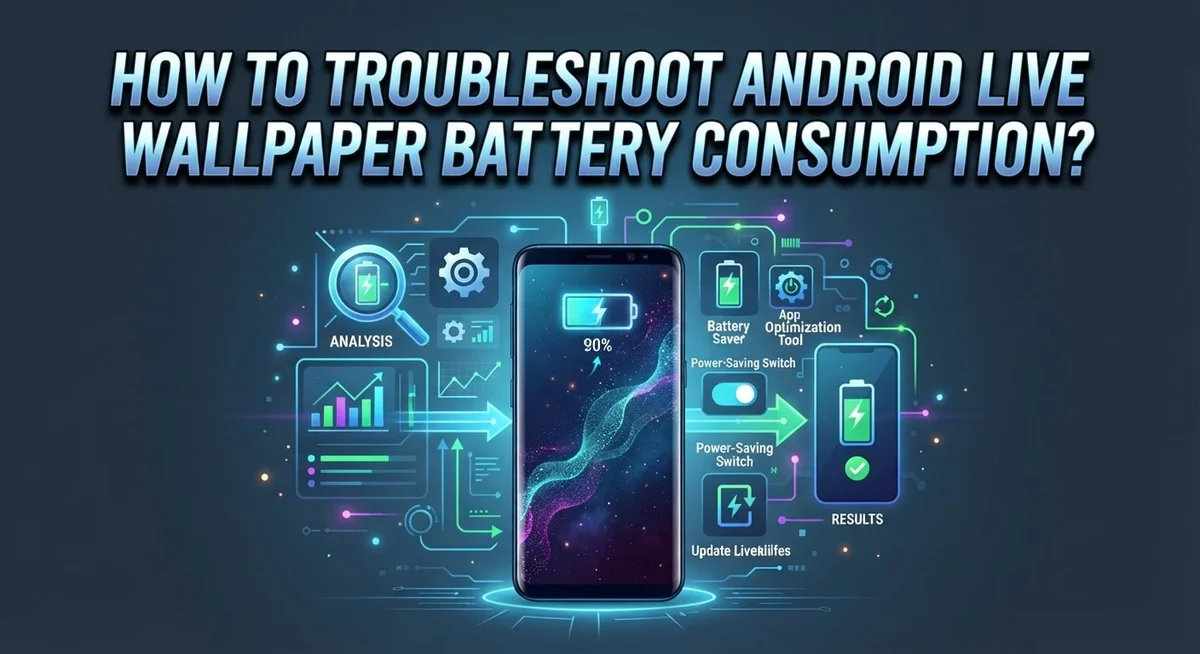
How To Troubleshoot Android Live Wallpaper Battery Consumption?
Your phone looks amazing with that moving wallpaper. But your battery life? Not so amazing.
If you have noticed your charge dropping faster than usual, your live wallpaper might be the reason. Live wallpapers use constant animation, and that means constant power use too.
Here is something many people do not realize. Your live wallpaper keeps draining battery even when your home screen is not visible. It runs in the background, quietly using up your charge.
The good news is that you can fix this problem. This guide walks you through simple steps to troubleshoot battery drain from live wallpapers.
By the end, you will know exactly how to spot the problem and fix it. Your battery will thank you.
Let us get started and help your phone last longer through the day.
In a Nutshell
- Live wallpapers always drain battery, even when your home screen is not visible. The animation keeps running in the background.
- Check your battery usage first. Go to Settings > Battery > Battery Use to see exact numbers.
- Look for your live wallpaper app in the battery list. This shows you how much power it actually uses.
- Switch to a static or black wallpaper if you want the biggest battery savings. This stops the animation completely.
- Turn off extra features like vibration, haptic feedback, and voice activation. These small settings add up over time.
- Lower your screen brightness manually. This helps reduce power use alongside your wallpaper choice.
- Set a shorter auto-off timer for your display. Less screen time means less battery drain overall.
Why Live Wallpapers Drain Your Battery
Live wallpapers work differently than static images. A static wallpaper sits on your screen without any movement or updates. Your phone loads it once and leaves it alone. A live wallpaper, however, runs animations constantly. These animations keep playing even when you are not looking at your home screen.
Your device’s CPU and GPU handle these animations. Both processors consume power whenever they work. The more complex the animation, the more power it uses. Simple moving patterns drain less battery than detailed 3D scenes with multiple layers.
Here’s the key issue: live wallpapers run in the background. Your phone continues rendering animations even when you are using other apps or when the screen is locked. This background activity drains your battery steadily throughout the day. You might not see the wallpaper, but your phone still powers it.
The drain rate depends on several factors. Wallpapers with bright colors use more energy than darker ones. Animations that refresh quickly drain more battery than slower ones. High resolution wallpapers demand more processing power than lower resolution options.
Your display also works harder with live wallpapers. The screen must refresh more frequently to show the animations smoothly. This constant screen activity adds to the overall battery consumption. The combination of CPU usage and display refresh creates noticeable drain over hours.
Different devices experience different drain levels. Older phones with less powerful processors struggle more with live wallpapers. Newer devices handle them more efficiently, but still consume extra battery. Budget phones often show the most dramatic battery loss because their processors are less optimized.
Understanding this drain helps you make better choices. You now know that live wallpapers consume power continuously. This knowledge is the first step toward fixing your battery problems. Recognizing the cause lets you decide whether to switch wallpapers or adjust other settings to compensate for the drain.
How to Check Battery Usage on Your Android Device
Finding your battery usage information is straightforward. Open your Settings app and look for the Battery section. Different Android phones place this menu slightly differently, but you’ll usually find it under Settings > Battery or Settings > Device Care > Battery.
Once you’re in the Battery menu, look for an option called “Battery Usage” or “Battery Use.” This shows you which apps consumed the most power since your last full charge. Scroll through the list and find your live wallpaper app. It will likely show a percentage of total battery drain.
Pay attention to the timeframe displayed. Most phones show battery usage for the last 24 hours or since your last charge. This helps you understand how much power your live wallpaper actually uses during normal daily activity.
You’ll notice that some apps show as “Running” or “Active” in the background. Live wallpapers often appear here because they continue drawing animations even when you’re not looking at your home screen. This is important information.
Some Android devices offer additional battery details. Tap on your live wallpaper in the list to see more specific information. You might see options like “Battery Saver” or “Optimize.” These features can help reduce consumption.
Take screenshots or notes of the battery percentage your live wallpaper uses. This gives you a baseline to compare against. After you make changes like switching wallpapers or adjusting settings, check back here to see if battery drain improved.
Don’t skip this step. Many people assume their live wallpaper drains too much battery without actually checking the numbers. Your specific wallpaper might use less power than you think, or it could be a major drain. Only the battery usage data tells the real story. This information guides your next troubleshooting decisions.
Step-by-Step: Identifying the Live Wallpaper’s Power Impact
Start by accessing your device’s battery settings to see actual power consumption data. Go to Settings, then find Battery or Battery and Device Care. Look for an option labeled “Battery Usage” or “Battery Use” to view which apps consume the most power.
Scroll through the app list carefully. Your live wallpaper app should appear here if it’s using significant battery. The display will show a percentage next to each app. This percentage tells you how much of your total battery drain comes from that specific app since your last full charge.
Pay close attention to the timeframe shown on your screen. Most Android devices display battery usage over the last 24 hours or since the last charge. This helps you understand whether your live wallpaper drains power consistently or only at certain times.
Check if your live wallpaper shows as “Running” or “Active” in the background. This confirms that your wallpaper continues consuming power even when you’re not looking at your home screen. Some devices provide additional details like CPU usage or screen-on time associated with each app.
Take a screenshot or write down the exact percentage your live wallpaper uses. This creates a baseline for comparison. If your wallpaper uses more than 5 percent of your daily battery, it’s worth investigating further.
Don’t skip this checking step. Many people assume their live wallpaper drains too much battery without verifying the actual numbers. You might discover that your wallpaper uses minimal power, or you might find a genuine problem worth fixing.
Some Android devices show more detailed battery information if you dig deeper into Settings. Look for options like “Advanced” or “Details” within the battery menu. These sections sometimes reveal CPU and GPU usage tied to your live wallpaper.
Adjusting Display and System Settings to Reduce Drain
Your display settings have a direct impact on how much battery your live wallpaper consumes. The screen is one of the biggest power drains on any Android device, and live wallpapers make this worse. Adjusting these settings can significantly reduce overall battery usage.
Start by lowering your screen brightness. Live wallpapers demand more power when your display is bright. Go to Settings, then Display, and find Brightness. You can set it to a lower level manually or enable adaptive brightness. Adaptive brightness learns your preferences and adjusts automatically based on your surroundings.
Next, reduce your screen timeout duration. This setting controls how long your display stays on before turning off. Navigate to Settings > Display > Screen Timeout. Choose a shorter interval like 30 seconds or 1 minute instead of 5 or 10 minutes. Your live wallpaper won’t drain battery when your screen is off.
Disable unnecessary visual effects that work alongside your live wallpaper. Go to Settings > Display and look for options like “Smooth Display” or “Motion Smoothness.” These features increase refresh rates and consume extra power. Turn them off if your device offers them.
Check your animation settings in Developer Options. Enable Developer Options by tapping Build Number seven times in About Phone. Then access Settings > Developer Options and reduce animation scale to 0.5x or turn animations off completely. This reduces the computational load on your CPU.
Deactivate vibration and haptic feedback in Settings > Sound and Vibration. These features consume battery power with every notification and touch. Disabling them helps preserve energy.
Finally, review your system services in Settings > Battery > Battery Optimization. Make sure your live wallpaper app isn’t excluded from optimization. This allows Android to manage its power consumption automatically. These adjustments work together to minimize the impact of your live wallpaper on battery life.
Using Battery Optimization Tools Effectively
Battery optimization tools on Android help reduce power drain from live wallpapers. These tools work by limiting background activity and managing resource usage. Let’s explore how to use them effectively.
Start by accessing your device’s built-in battery optimizer. Go to Settings, then find Battery or Device Care. Most Android phones have a battery optimization feature that automatically manages app performance. Enable the battery saver or power saving mode when you notice your live wallpaper consuming too much power.
Next, manually optimize individual apps. Open Settings and navigate to Battery, then Battery Optimization or App Battery Management. Find your live wallpaper app in the list. You’ll see options to restrict background activity or put the app into sleep mode. Select the option that prevents the wallpaper from running when your screen is off.
Many devices offer adaptive battery features that learn your usage patterns. This tool automatically restricts apps you rarely use. Your live wallpaper may get restricted if the system detects high power consumption. You can whitelist important apps, but live wallpapers usually don’t need this exception.
Check your device’s app management settings regularly. Some phones let you limit CPU usage for specific applications. Look for options like “Restrict” or “Limit Background Activity.” These settings directly impact how much battery your live wallpaper uses.
Monitor the results after applying these optimizations. Return to your battery usage screen after one full day. Compare the percentage your live wallpaper shows now versus before. If consumption remains high, consider switching to a simpler wallpaper design.
Don’t overlook system-wide optimizations. Disable location services, reduce background data, and turn off unnecessary Bluetooth connections. These changes reduce overall system load, which indirectly helps your live wallpaper consume less battery. Optimization tools work best when combined with these broader adjustments.
Common Mistakes When Diagnosing Battery Drain
Many people make critical errors when trying to figure out why their live wallpaper drains battery. These mistakes often lead to wasted time and incomplete solutions.
The biggest error is skipping the actual battery data check. People assume their wallpaper causes problems without looking at real numbers. You need to open Settings, go to Battery, and see the exact percentage your wallpaper uses. Guessing wastes your troubleshooting efforts.
Another common mistake is not understanding when live wallpapers drain power. Many users think the drain only happens when they look at their home screen. This is false. Your live wallpaper runs continuously in the background, even when you’re using other apps. It keeps consuming CPU resources all day long. This is why the battery impact matters even when you’re not viewing it.
People also ignore battery optimization settings on their devices. Your phone has built in tools to manage power consumption. If you skip these settings, you miss easy ways to reduce drain. Check what your device offers in the battery optimization section.
Some users disable features without checking results. They turn off vibration, lower brightness, or adjust timeouts, but never verify if these changes actually helped. Always monitor your battery usage after making changes. This tells you which adjustments actually matter.
Another mistake is not considering your device type. Older phones drain faster with live wallpapers than newer ones. A wallpaper that uses 5% on a new phone might use 15% on an older device. Understanding your specific phone’s limitations helps you set realistic expectations.
Finally, people often overlook animation complexity. A simple animated wallpaper drains less than a complex one with many moving elements. Not all live wallpapers are equal. The specific wallpaper you choose makes a big difference in power consumption.
Advanced Troubleshooting for Persistent Battery Issues
When your live wallpaper drains battery faster than expected, advanced troubleshooting goes beyond basic settings. You need to dig deeper into your device’s system processes and background activity.
Start by checking which services run in the background. Open Settings, go to Battery, then Battery Optimization. Look for services tied to your wallpaper application. Some devices let you restrict background activity for specific apps. Disable services you don’t need. This prevents your wallpaper from consuming resources when your phone sits idle.
Next, examine your device’s running processes. Access Developer Options again and find the Running Services section. Look for any wallpaper related processes that shouldn’t be active. Some live wallpapers create multiple background threads. Stopping unnecessary processes reduces drain significantly.
Check your RAM usage patterns. A live wallpaper consuming excessive RAM forces your processor to work harder. This creates a cycle where battery drains faster. If RAM usage stays high, your wallpaper may have a memory leak. Consider switching to a different wallpaper to test this theory.
Review your notification settings. Some wallpapers update based on notifications or weather data. Each update triggers CPU activity. Disable real time updates in your wallpaper settings if available. This alone can cut battery consumption by 10 to 15 percent.
Test your device in Safe Mode. This disables third party apps and services. If battery drain stops in Safe Mode, a background app or service causes the problem. Restart normally and remove recently installed apps one at a time.
Finally, check your device’s system logs. Some Android devices offer diagnostic tools in Settings. These logs show which processes consumed the most power. Look for unexpected entries related to your wallpaper. Unusual activity indicates a problem worth investigating further.
Final Thoughts
Live wallpapers add charm to your phone. But they also demand extra battery power.
The good news is that you now have real solutions to fix this problem.
Checking your battery usage data is the first step you should always take. This tells you exactly how much power your live wallpaper uses.
Guessing never solves battery drain issues. Data does.
Remember that live wallpapers drain battery even when your home screen isn’t active. This surprises many people. Your phone keeps rendering animations in the background.
Simple fixes often work best. Switch to a static or black wallpaper if drain feels severe. Lower your screen brightness. Set a shorter auto-off timer for your display.
These small changes add up over time.
Don’t skip your battery optimization settings either. Your device already has tools built in to help you. Use them alongside the manual fixes we covered.
Turn off features you don’t need. Disable OK Google voice activation if you don’t use it. Switch off vibration and haptic feedback too.
Every small adjustment reduces the load on your battery.
If problems continue, try the advanced steps. Check your running processes. Review your RAM usage. Test Safe Mode to see if your live wallpaper is really the cause.
This helps you pinpoint the exact source of drain.
Battery troubleshooting takes patience. Complex live wallpapers naturally use more power than simple ones. Your device type also plays a role in how much drain you notice.
Test one change at a time. Track results after each adjustment. This way, you know what actually works for your phone.
Live wallpapers don’t have to ruin your battery life. With the right checks and small tweaks, you can enjoy them without constant charging.
Stay consistent with these habits. Your battery will thank you.
Frequently Asked Questions
Do live wallpapers drain battery when I’m not looking at my home screen?
Yes, they do. Live wallpapers continue running animations even when your home screen is hidden. Your phone keeps rendering those animations in the background. This happens whether you’re using an app or your screen is locked. The animation process consumes CPU resources continuously throughout the day.
How can I check which app is using the most battery?
Open your Settings app. Look for the Battery or Battery Use section. You’ll see a list of apps ranked by their power consumption. Find your live wallpaper in this list to see exactly how much battery it’s using. Check this data after a full charge cycle for accurate results. This number tells you whether your wallpaper is the real culprit.
What’s considered normal battery drain from a live wallpaper?
Drain varies based on wallpaper complexity and your device type. Simple animations use less power than detailed, colorful ones. High refresh rate displays consume more energy. If your live wallpaper uses 3 to 5 percent of daily battery, that’s typical. Anything significantly higher suggests an overly complex wallpaper or a device issue.
Can I reduce battery drain without removing my live wallpaper?
Yes. Lower your screen brightness manually. Set your display to turn off quickly when not in use. Disable vibration and haptic feedback. Turn off voice activation features like OK Google. Switch to a simpler live wallpaper with fewer animations. These changes reduce the overall load on your battery while keeping your wallpaper active.
Why should I check battery settings before trying other fixes?
Checking actual data prevents you from wasting time on unnecessary changes. You might discover your wallpaper isn’t the problem at all. Real numbers guide your troubleshooting efforts. Guessing leads nowhere. Battery settings show you exactly what’s consuming power on your device.

Hi, I’m Amy! I’m passionate about tech and love breaking down complex product specs into simple, actionable advice. I review gadgets, compare tools, and write buying guides to help you spend smarter. Got a question? Drop me a message — I’d love to hear from you!