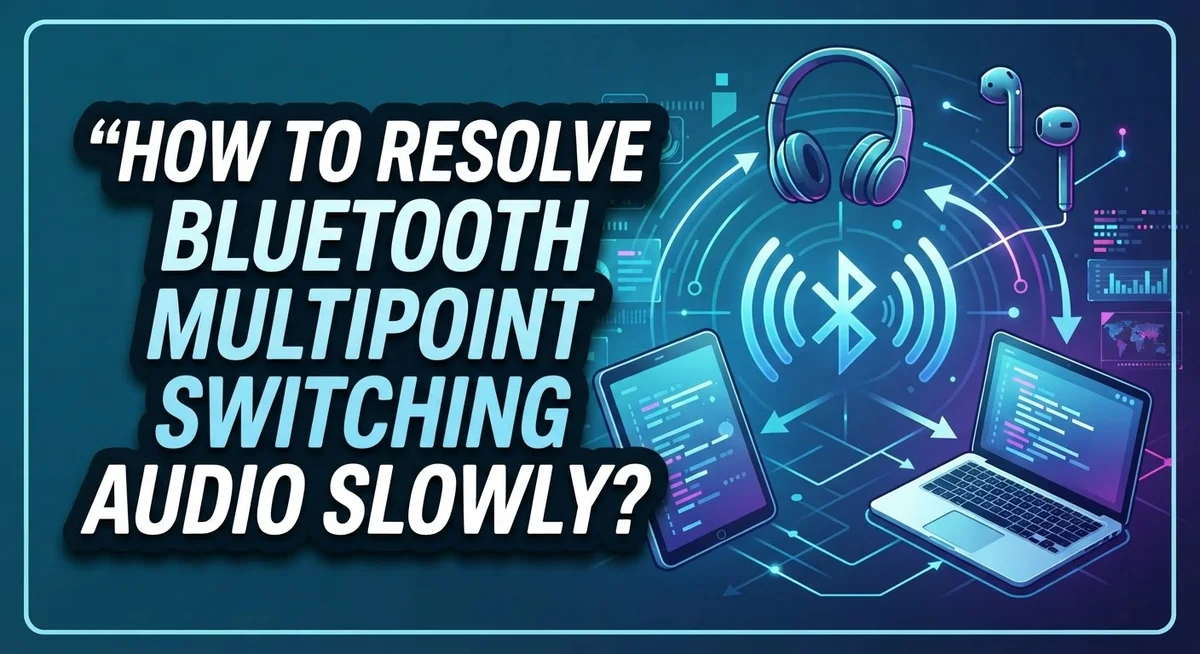
How To Resolve Bluetooth Multipoint Switching Audio Slowly?
You’re in the middle of an important call on your laptop when a notification pops up on your phone. You try to switch your Bluetooth headset over, and then… nothing. Just a long, awkward pause.
Bluetooth multipoint switching lets a single headset stay connected to two or more devices at the same time. It sounds perfect in theory, but slow or delayed audio switching is one of the most common frustrations users face.
The good news? Most of the time, this problem is completely fixable.
Slow switching usually comes down to a few simple causes, like outdated drivers, wrong codec settings, or a multipoint feature that was never properly enabled in the first place.
This guide walks you through exactly why Bluetooth multipoint audio switching feels sluggish and how to fix it step by step.
In a Nutshell
- Bluetooth multipoint lets one headset connect to two or more devices at the same time, but audio switching can feel slow or delayed.
- The most common causes are outdated Bluetooth drivers, wrong codec settings, and wireless interference from nearby devices.
- Always enable the multipoint feature first before pairing your second device. Skipping this step is the number one mistake people make.
- Auto-switch functionality reduces manual delays. Turning this on in your headphone app or device settings makes transitions much faster.
- Adjusting your codec settings can lower latency and speed up how quickly audio moves between devices.
- Testing switching in both directions after setup is important. Some devices only switch one way without extra configuration.
What Is Bluetooth Multipoint and How Does Audio Switching Work?
Bluetooth multipoint is a feature that lets a single headset maintain active connections to two or more devices simultaneously. Instead of disconnecting from one device to connect to another, your headphones stay paired with both at the same time.
How audio switching works is straightforward. When you start playing audio on a connected device, your headphones detect this and route the sound from that source. The switching happens through your headphones’ processor, which listens for incoming audio signals from all paired devices and prioritizes the active stream.
The process involves several steps. Your headphones first establish a connection with a primary device during initial pairing. Then you enter pairing mode and connect a second device through that device’s Bluetooth settings. Once both connections are active, your headphones can receive audio from either source.
Audio switching delays occur because your headphones need time to recognize which device is sending audio and redirect the signal accordingly. This transition typically takes a few hundred milliseconds, though it can feel longer depending on your specific hardware and settings.
The switching can happen in two ways. Automatic switching occurs when your headphones detect active audio from a different device and redirect the sound without your input. Manual switching requires you to select which device’s audio you want to hear through your headphones’ controls or companion app.
Most modern headphones support multipoint, but the feature must be explicitly enabled before you pair multiple devices. Simply pairing two devices without enabling multipoint won’t give you simultaneous connections. Your headphones will still work, but they’ll only maintain one active connection at a time, forcing you to manually disconnect and reconnect.
Why Does Bluetooth Multipoint Audio Switching Feel Slow?
Bluetooth multipoint audio switching feels slow because your headphones need extra time to detect which device is sending sound and redirect the audio stream. This process involves several steps that happen in quick succession, but even small delays add up.
The main reason for sluggish switching is latency. When you play audio on a second device, your headphones must recognize the new signal, pause the current connection, and establish a fresh audio link. This handoff takes milliseconds, but you notice it as a pause or dropout.
Your headphones also need to process codec information during the switch. Codecs are compression formats that convert audio data. If your codec settings are not optimized, this conversion takes longer, creating noticeable delays between devices.
Wireless interference plays a major role too. Other devices like microwaves, WiFi routers, or cordless phones operate on the same 2.4 GHz frequency as Bluetooth. This crowded airspace forces your headphones to work harder to maintain stable connections, which slows down switching speed.
Outdated Bluetooth drivers on your connected devices also contribute to slow switching. Drivers are software that help your phone or computer communicate with your headphones. Old drivers lack improvements that reduce switching delays.
The feature itself requires explicit activation on most headphones. If multipoint is not properly enabled, your headphones may struggle to maintain simultaneous connections, making audio switching feel clunky and unreliable.
Distance between devices matters as well. The farther your headphones are from your phone or computer, the weaker the Bluetooth signal becomes. Weak signals cause your headphones to take longer to detect and respond to audio requests from different devices.
How To Properly Enable Multipoint on Your Headset and Devices
Enabling multipoint on your headset involves a few straightforward steps. Start by checking if your headphones support this feature. Most modern headsets do, but you need to activate it manually through settings or a companion app.
First, open your headphone settings or app. Look for an option labeled “multipoint,” “dual connection,” or “simultaneous connections.” Enable this feature. This step is critical because multipoint won’t work without it activated.
Next, pair your first device using standard Bluetooth pairing. Turn on your headphones and put them in pairing mode. Go to your device’s Bluetooth settings and select your headphones from the available list. Complete the pairing process.
Once your first device is connected, put your headphones back into pairing mode. On your second device, open Bluetooth settings and search for available devices. Select your headphones again to establish the second connection.
After pairing both devices, test the connection in both directions. Play audio from your first device, then switch to your second device. Listen for any delays or interruptions. This testing helps you identify if switching works smoothly from both sides.
Some headphones offer auto-switch functionality. This feature automatically routes audio to whichever device is actively sending sound. Enable this if available, as it reduces manual switching delays.
Check your companion app for additional multipoint settings. Some apps let you customize switching behavior or adjust connection priorities. These options can improve overall performance.
Finally, ensure both devices stay within reasonable Bluetooth range. Distance affects switching speed and connection stability. Keep devices within 30 feet of your headphones for optimal results.
Step-by-Step Guide To Speed Up Bluetooth Multipoint Audio Switching
Start by updating all Bluetooth drivers on your connected devices. Outdated drivers cause significant switching delays. Visit your device manufacturer’s support page and download the latest Bluetooth driver version. Restart your devices after installation to apply changes.
Next, adjust your codec settings. Lower latency codecs like aptX or LDAC reduce switching time compared to standard SBC codec. Access these settings through your headphone companion app or device Bluetooth menu. Select the codec with the lowest latency available on your specific model.
Minimize wireless interference in your environment. Move away from WiFi routers, microwaves, and other wireless devices operating on the 2.4GHz frequency. These devices compete with Bluetooth signals and cause audio delays. Keep your headphones and connected devices within 10 meters of each other for optimal signal strength.
Enable auto switch functionality if your headphones support it. This feature automatically routes audio to whichever device is actively sending data. Check your companion app settings or headphone manual for this option. Auto switch eliminates manual switching delays and improves overall performance.
Reduce the number of active Bluetooth connections nearby. Disconnect other paired devices temporarily while using multipoint. Extra connections drain processing power and slow switching speed.
Test your setup after each adjustment. Play audio on one device, then switch to another and note the delay time. Consistent testing helps you identify which changes provide the most improvement.
Restart your headphones and devices regularly. Power cycling clears temporary glitches that accumulate over time. A simple restart often resolves unexplained switching slowness. Keep your headphones charged above 20 percent, as low battery affects switching performance.
How To Reduce Latency With Codec and Driver Settings
Codec selection directly impacts how fast your audio switches between devices. Different codecs process data at different speeds, and some handle transitions better than others. Switching to a lower latency codec reduces the delay you experience during multipoint switching.
Check your headphone settings or companion app for codec options. You’ll typically find choices like SBC, AAC, aptX, or LDAC. Lower latency codecs process audio faster and require less processing power during device transitions. This means your headphones spend less time buffering audio when switching sources.
Update your Bluetooth drivers on all connected devices. Outdated drivers create communication gaps between your devices and headphones. Manufacturers release driver updates specifically to improve connection stability and reduce switching delays. Visit your device manufacturer’s support page and download the latest Bluetooth drivers for your operating system.
In your driver settings, look for power management options. Disable any power saving features that affect Bluetooth performance. These settings sometimes cause your Bluetooth radio to enter low power mode, which slows down device detection and audio switching.
Adjust your driver’s connection priority settings if available. Some drivers let you prioritize Bluetooth over other wireless protocols. This ensures your headphones receive faster response times when switching between paired devices.
After updating drivers and adjusting codec settings, restart both your headphones and connected devices. This clears any cached connection data that might slow down switching. Test your multipoint switching between devices to measure improvement.
Monitor your audio switching speed over several days. Sometimes driver and codec changes need time to stabilize. If switching remains slow after these adjustments, wireless interference in your environment may be the remaining issue to address.
How To Minimize Wireless Interference for Faster Switching
Wireless interference is one of the biggest culprits behind slow audio switching on Bluetooth multipoint devices. Other wireless signals in your environment can block or delay your headphones’ connection to nearby devices.
Start by identifying what’s causing interference around you. Common sources include WiFi routers, microwaves, cordless phones, and baby monitors. These devices operate on the same 2.4 GHz frequency that Bluetooth uses. Moving your router away from where you use your headphones can make a real difference.
Keep your headphones and devices closer together during switching. Distance reduces signal strength and makes interference worse. Try to maintain a clear line of sight between your headphones and the devices you’re switching between.
Reduce the number of active Bluetooth connections in your space. If multiple people are using Bluetooth devices nearby, ask them to turn off connections they’re not actively using. Fewer competing signals mean faster, more reliable switching for your setup.
Change your WiFi channel if possible. Many routers automatically select channels that overlap with Bluetooth frequencies. Switching to a less crowded channel can reduce conflicts significantly.
Turn off Bluetooth on devices you’re not using. Your phone, tablet, or laptop may be trying to maintain background connections even when you’re not switching audio to them. Disabling Bluetooth on inactive devices eliminates unnecessary interference.
Test your switching speed after making each change. You’ll quickly notice which adjustments help most in your specific environment. Environmental factors vary by location, so what works best depends on your home or office setup.
Common Mistakes That Slow Down Bluetooth Multipoint Switching
Bluetooth multipoint switching slows down when you make specific setup and usage mistakes. Understanding these errors helps you fix audio delays quickly.
The biggest mistake is skipping the multipoint enablement step. Many users pair multiple devices without first activating multipoint in their headphone settings. This feature requires explicit activation. Your headphones won’t switch between devices smoothly if multipoint stays disabled. Check your device settings or companion app immediately.
Another common error involves manual switching instead of letting the system work automatically. When you manually switch between devices through your phone or computer, you introduce unnecessary delays. The system needs time to disconnect from one device and reconnect to another. This process takes longer when done manually.
Not testing bidirectional switching causes hidden problems. You might assume your setup works perfectly in one direction but fail in the other. Test switching from device A to device B, then switch back. This reveals connection issues early.
Keeping too many Bluetooth devices active simultaneously slows everything down. Your headphones struggle to manage connections when five or six devices compete for attention. Disable Bluetooth on devices you’re not actively using.
Poor device placement creates unnecessary switching delays. When your headphones sit far from your connected devices, the Bluetooth signal weakens. Stronger signals enable faster switching. Keep your headphones and devices reasonably close during transitions.
Finally, many users ignore the importance of regular restarts. Your headphones and connected devices accumulate temporary connection issues over time. A simple restart clears these problems and restores faster switching speeds. Restart your equipment weekly for optimal performance.
Troubleshooting Multipoint Switching That Still Won’t Work Properly
When multipoint switching still won’t work properly, you need a systematic approach to find the problem. Start by checking whether your headphones actually support bidirectional switching. Some devices only switch audio in one direction automatically, requiring manual intervention for the reverse path.
Verify that multipoint is enabled on your specific device model. Different manufacturers hide this setting in different places. Check your headphone companion app first, then look in your device’s Bluetooth settings. The feature might be called “dual connection” or “simultaneous pairing” depending on your brand.
Test the switching in both directions. Have someone call you on your phone while audio plays on your laptop. Then reverse the scenario. This reveals whether the problem is one directional or affects both paths equally.
Restart your headphones completely. A full power cycle clears temporary connection states that might block proper switching. Leave them off for at least 30 seconds before turning them back on.
Forget and re pair your devices in the correct order. Pair your primary device first, then put the headphones back into pairing mode for the secondary device. Incorrect pairing order sometimes prevents bidirectional switching from working.
Check your Bluetooth version on each device. Older Bluetooth versions have limited multipoint support. Devices with Bluetooth 5.0 or newer handle multipoint switching much more reliably.
If switching still fails after these steps, one device might have a firmware issue. Visit the manufacturer’s website and download any available updates for your headphones and connected devices. Firmware updates often fix switching problems that settings alone cannot resolve.
Final Thoughts
Slow Bluetooth multipoint switching is a fixable problem in most cases. The key is understanding what causes the delay and addressing each factor one at a time.
Start with the basics. Enable multipoint before pairing any devices. Update your Bluetooth drivers. Pair your devices in the correct order. These simple steps solve the majority of slow switching issues.
Wireless interference plays a bigger role than most people expect. Reducing competing signals around you can noticeably speed up transitions between devices.
Auto-switch functionality is your best friend here. Let the system detect audio activity and switch on its own rather than doing it manually every time. Manual switching almost always introduces extra delay.
Codec settings also matter. Some codecs prioritize audio quality over speed. Adjusting your codec to a lower-latency option can make switching feel much more responsive.
Bidirectional testing is a step many people skip. Always confirm that switching works smoothly from device A to device B and back again. One-directional issues are easy to miss until they become frustrating.
If you still experience problems after trying everything, a full re-pair process usually resolves deeper connection issues. Forget both devices and start fresh.
Firmware updates are worth checking regularly. Manufacturers often release fixes specifically for multipoint performance improvements.
The goal is a setup that switches audio quickly and reliably without constant manual input. With the right configuration, multipoint connections can feel nearly seamless during everyday use.
Be patient during the process. Small adjustments add up to big improvements in switching speed and overall audio performance across all your connected devices.
Frequently Asked Questions
Why does my Bluetooth audio pause when switching between devices?
Audio pauses during switching happen because your headphones need time to disconnect from one device and reconnect to another. This transition period is normal. The pause length depends on your device model, Bluetooth version, and how close you are to each device. Wireless interference from nearby routers or microwaves can make pauses longer.
How do I enable multipoint on my headphones?
The process varies by device. On most Android phones, go to Settings, then Connected devices, and look for a Bluetooth or multipoint option. Some headphones use a companion app instead. Check your headphone manual or manufacturer’s website for exact steps. You must enable multipoint before pairing multiple devices for it to work properly.
Can multipoint switch audio in both directions automatically?
Yes, but only if your device supports auto-switch functionality. This feature lets audio move from one device to another without you touching anything. Not all headphones offer this. Some require you to manually select which device plays audio. Check your headphone settings or app to see if auto-switch is available and enabled.
What causes slow switching between my phone and laptop?
Several factors slow down switching. Bluetooth drivers on your computer might need updating. Too many devices paired at once can create confusion. Wireless interference from other electronics plays a bigger role than most people realize. Keep your devices close together and away from microwaves or routers. Test your connection in a different room to see if interference is the problem.
Does Bluetooth version affect switching speed?
Yes. Newer Bluetooth versions (5.0 and higher) generally switch faster than older versions. Check your device’s Bluetooth version in settings. If one device uses an older version, it will slow down the entire connection. Updating device firmware sometimes improves switching performance too.

Hi, I’m Amy! I’m passionate about tech and love breaking down complex product specs into simple, actionable advice. I review gadgets, compare tools, and write buying guides to help you spend smarter. Got a question? Drop me a message — I’d love to hear from you!