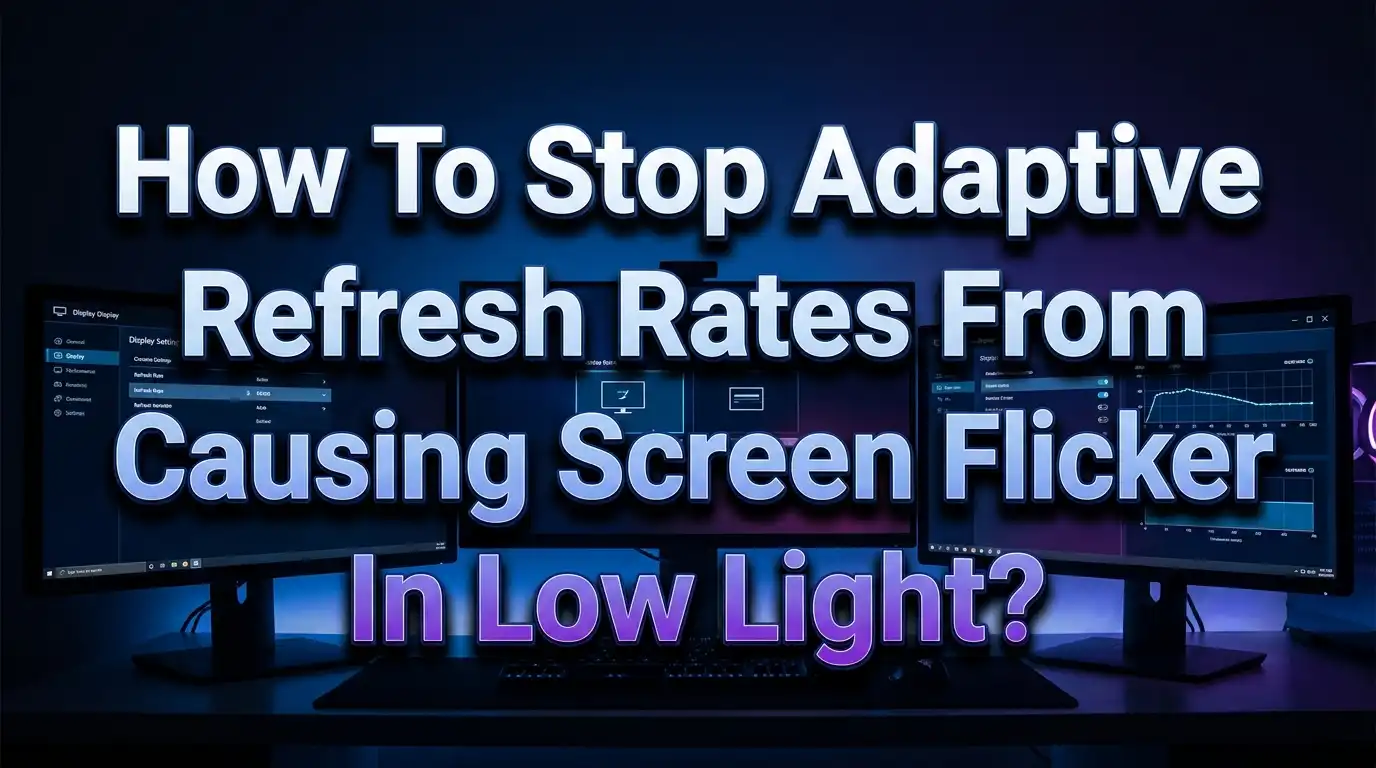
How To Stop Adaptive Refresh Rates From Causing Screen Flicker In Low Light?
Have you ever been gaming in a dark room, exploring a shadowy cave in your favorite RPG, or watching a moody thriller late at night, only to notice your screen flickering and pulsing in a way that breaks the entire experience? You are not alone. Adaptive refresh rate flicker in low light conditions is one of the most frustrating problems faced by monitor and smartphone users today.
This issue affects OLED monitors, VA panels, and even smartphone displays that use adaptive refresh rate technology. The flicker becomes most visible during dark scenes because your eyes are far more sensitive to brightness changes in low light. It can cause eye strain, ruin immersion, and make you question whether your expensive display is defective.
The good news? You can reduce or even eliminate this flicker with the right settings and techniques. This guide breaks down the exact causes and walks you through every practical solution.
Key Takeaways
- VRR brightness flicker happens because monitor gamma shifts when the refresh rate changes dynamically. OLED and VA panels show this more than IPS or TN panels because their contrast ratios make brightness shifts easier to spot in dark scenes.
- Low Framerate Compensation (LFC) is a major flicker trigger. When your FPS drops below the minimum VRR range, LFC multiplies frames and causes sudden refresh rate jumps. These jumps create visible brightness oscillation, especially near the LFC threshold.
- Capping your frame rate to a stable number is one of the most effective fixes. Use tools like RTSS or in game limiters to prevent large FPS swings that trigger the worst flicker.
- Custom Resolution Utility (CRU) lets you adjust your monitor’s VRR range to avoid problematic refresh rate zones. Narrowing the range can dramatically reduce flicker at the cost of some VRR coverage.
- Smartphone users can fix adaptive refresh rate flicker by disabling adaptive brightness, switching to a fixed refresh rate, or updating their device firmware. Samsung and other manufacturers have released patches that address this exact problem.
- Monitor manufacturers now offer built in anti flicker modes such as ASUS OLED Anti Flicker and Samsung VRR Control. These restrict the VRR range automatically and can help, but they may add micro stutter or input lag as a tradeoff.
What Is Adaptive Refresh Rate and Why Does It Flicker?
An adaptive refresh rate allows your display to change its refresh rate dynamically to match the frame rate your GPU produces. Technologies like NVIDIA G Sync, AMD FreeSync, and HDMI 2.1 VRR all do this. The goal is simple: eliminate screen tearing and stuttering without the input lag penalty of traditional V Sync.
The problem starts with how OLED and VA panels handle brightness. On these displays, the gamma response is optimized for the native fixed refresh rate, such as 144Hz or 240Hz. When VRR changes the refresh rate up or down, the gamma deviates from its optimal curve. This causes the OLED subpixels to overcharge or misfire slightly, which produces visible brightness shifts.
These brightness shifts look like flicker. Your screen gets slightly brighter or dimmer as the frame rate changes. In bright scenes, the shift is tiny and nearly invisible. In dark scenes, even a small change in luminance becomes obvious because human eyes are extremely sensitive to brightness changes in low light conditions.
The flicker can appear during gameplay, loading screens, or even static menu screens. It depends on how much your frame rate fluctuates and how your specific panel handles those fluctuations. Not every unit of the same monitor model will flicker the same way due to panel variance in manufacturing.
Why Low Light Makes VRR Flicker So Much Worse
Understanding why dark scenes amplify VRR flicker helps you target the right fixes. The key lies in how human vision works differently in low light versus bright light. Your eyes use rod cells in dim conditions, and these cells are far more sensitive to changes in brightness than the cone cells used in bright light.
On a technical level, the gamma shift caused by VRR produces a larger relative brightness change in dark content. For example, on a tested ASUS ROG Swift PG27AQDP, a full VRR swing at RGB 5 (very dark content) caused an RGB shift of 11 values. That same full swing at RGB 200 (bright content) caused a shift of only 2.3 values. The dark content flickered nearly five times more than the bright content.
This is why you might play a game for hours in bright outdoor environments and never notice a single flicker. Then the moment you enter a dark dungeon or a nighttime scene, the flickering becomes impossible to ignore. The display itself has not changed behavior. Your perception of the brightness shift simply increases dramatically in low light areas.
Room lighting also plays a role. Gaming in a dark room makes the flicker more visible because there is no ambient light to mask the brightness oscillation on screen. Adding some bias lighting behind your monitor can reduce the perceived impact.
How LFC Triggers Flicker at Low Frame Rates
Low Framerate Compensation, or LFC, is one of the biggest causes of VRR flicker. LFC activates when your FPS drops below the minimum refresh rate your monitor supports in its VRR range. For a monitor with a 48Hz to 144Hz VRR range, LFC kicks in when your FPS drops below 48.
LFC works by multiplying your frame rate to keep it within the VRR range. If you get 47 FPS, LFC triples it to 141Hz on a 144Hz monitor. The next moment, if your FPS jumps back to 48, the refresh rate drops to 48Hz. This sudden jump from 141Hz down to 48Hz causes a massive brightness shift that your eyes register as a bright flash or flicker.
The problem gets worse when your frame rate hovers right around the LFC threshold. If you constantly bounce between 47 and 49 FPS, the monitor rapidly switches LFC on and off. Each switch causes a brightness oscillation. The result is sustained, visible flicker that persists as long as your frame rate stays in that unstable zone.
NVIDIA cards handle LFC differently from AMD cards. With NVIDIA GPUs, LFC can trigger at higher frame rates than expected. On a 48Hz to 144Hz FreeSync monitor, NVIDIA’s LFC might engage around 60 FPS instead of 48 FPS. This means the problematic zone shifts, and you need different cap strategies depending on your GPU brand.
The fix is to keep your frame rate consistently above or well below the LFC boundary. Avoid letting it bounce back and forth across the threshold.
Cap Your Frame Rate to Reduce FPS Fluctuations
One of the simplest and most effective fixes is frame rate capping. Large and erratic FPS swings are a primary cause of VRR brightness flicker. By locking your frame rate to a stable value, you prevent the drastic refresh rate changes that trigger visible gamma shifts.
Start by monitoring your FPS in the games where you notice flicker. Use the in game FPS counter or a tool like RTSS (RivaTuner Statistics Server). Identify the average FPS your system produces in that game. Then set your cap a few frames below that average.
For example, if you average 110 FPS in a game but regularly dip to 85 FPS, set your cap at 80 FPS. This prevents the large swing between 110 and 85 and keeps the refresh rate steady. A stable 80 FPS with no flicker looks and feels better than 110 FPS with constant brightness pulsing.
You can cap frames in several ways. Many games have built in frame limiters. NVIDIA Control Panel has a Max Frame Rate setting. AMD Adrenalin software offers a similar feature. RTSS works as a universal option across all games and GPUs. RTSS is often recommended as the most accurate frame limiter because it operates at the driver level with minimal added latency.
Remember to set your cap at a value that stays well within your monitor’s VRR range and away from the LFC threshold. This keeps VRR active while removing the wild FPS swings that produce flicker.
Adjust Your VRR Range With Custom Resolution Utility
Custom Resolution Utility (CRU) is a free tool that lets you modify your monitor’s VRR range. This is one of the most powerful fixes for VRR flicker, though it requires some technical comfort. CRU lets you narrow or shift the VRR range to avoid the refresh rate zones where flicker is worst.
For NVIDIA users with FreeSync monitors, a proven approach is to raise the minimum VRR range. Instead of the default 48Hz to 144Hz range, you might set it to 90Hz to 144Hz using CRU. Between 90Hz and 144Hz, the brightness difference at different refresh rates is small enough that flicker becomes nearly invisible.
Below 90 FPS, you would then cap your frame rate to 72 FPS or lower. LFC would double 45 to 72 FPS into the 90Hz to 144Hz range, or triple 30 to 48 FPS into the same zone. Because the VRR range is now narrow, the brightness variation during LFC is much smaller.
For AMD users, you can try expanding the VRR range downward. If your monitor supports it, changing the range from 48Hz to 144Hz down to 30Hz to 144Hz can push the LFC threshold lower. This gives you more headroom before LFC activates. Panel variance means not every unit will accept the same custom range. Some monitors overclock well while others do not.
To use CRU, download it from the Monitor Tests forum. Open it, select your display, and edit the FreeSync range under the Extension Block. Save, restart your display driver, and test. Always note your original settings so you can revert if something goes wrong.
Use Built In Anti Flicker Modes on Your Monitor
Several monitor manufacturers now include anti flicker options directly in the OSD menu. These features restrict the active VRR range to reduce the maximum possible gamma shift during frame rate changes. They offer a convenient alternative to manual CRU adjustments.
ASUS OLED Anti Flicker is available on models like the ROG Swift PG27AQDP. It offers settings for Off, Middle, and High. The Middle setting restricts VRR to 480Hz to 165Hz, while High restricts it to 480Hz to 210Hz. Testing shows these modes reduce the maximum RGB flicker from a change of 11 values down to 8.5 (Middle) or 7 (High) in the darkest scenes.
Samsung’s VRR Control option on Odyssey monitors addresses the same issue. However, testing by RTINGS confirmed that Samsung’s VRR Control essentially disables VRR and replaces flicker with micro stutter. This is a tradeoff you need to decide if you are willing to accept.
LG OLED TVs also include VRR related settings. Adjusting the “OLED Pixel Refresher” timing and checking for firmware updates can sometimes improve VRR flicker behavior. Always update your monitor or TV firmware because manufacturers continue to release gamma correction improvements.
These built in modes are easy to use and require no additional software. But they do limit your VRR range, which means you lose adaptive sync at lower frame rates. You get less flicker at the cost of potential tearing or stutter below the new minimum threshold.
Lower Your Monitor’s Refresh Rate for Specific Games
If you play a game that consistently runs at around 60 FPS and you own a 144Hz or 240Hz monitor, switching your refresh rate to 60Hz or creating a custom 90Hz resolution can eliminate VRR flicker entirely for that game.
The logic is straightforward. VRR flicker comes from refresh rate variation. If your monitor runs at a fixed 60Hz and your game outputs a steady 60 FPS, the refresh rate never changes. No variation means no gamma shift and no flicker.
You can create custom refresh rate options in NVIDIA Control Panel under Display, Change Resolution, Customize. Add a custom resolution with your desired refresh rate like 90Hz or 100Hz. AMD users can do the same through Adrenalin software.
This approach works best for single player games that do not benefit from very high frame rates. You would not want to do this for competitive multiplayer games where every frame matters. But for a cinematic RPG locked at 60 FPS, dropping your monitor to match eliminates the flicker problem completely.
Remember to also adjust the response time overdrive setting on your monitor when you change refresh rates. Overdrive settings tuned for 144Hz may cause ghosting at 60Hz. Check your monitor’s OSD for the appropriate overdrive level at the new refresh rate.
Optimize GPU Settings to Stabilize Frame Times
Unstable frame times cause VRR flicker even when average FPS looks steady. A game reporting 100 FPS can still flicker badly if individual frame times spike erratically. Optimizing your GPU settings helps deliver consistent frame pacing, which directly reduces flicker.
Start by enabling V Sync in your GPU control panel and setting a frame rate cap three frames below your monitor’s maximum refresh rate. This combination prevents the frame rate from exceeding the VRR range while V Sync catches any frames below the minimum. Some users report this eliminates flicker entirely.
Disable unnecessary background processes that compete for GPU resources. Windows Game Mode, Discord overlays, and hardware monitoring tools can all cause micro stutters that translate into frame time spikes and VRR flicker.
In game, reduce settings that cause frame rate dips. Volumetric fog, ray tracing, and ultra shadow quality are common culprits. You do not need to drop everything to low. Target the settings that cause the largest FPS variance rather than the ones that impact average FPS.
NVIDIA Reflex is also worth enabling in supported games. It reduces render queue latency and can improve frame time consistency. AMD Anti Lag offers a similar benefit. Both help deliver smoother frame pacing that keeps VRR in a stable operating zone.
Fix Adaptive Refresh Rate Flicker on Samsung Galaxy Phones
Samsung Galaxy phones with OLED displays commonly experience screen flicker when adaptive refresh rate mode is active at low brightness levels. Users on Galaxy S21, S22, Note 20, and newer models have reported this issue, especially after Android 12 and later updates.
The flicker happens because the phone shifts between refresh rates like 120Hz, 96Hz, and 60Hz depending on content. Each transition causes a brief brightness shift that appears as a blink or flash, and it is most visible at low screen brightness due to the same gamma sensitivity issue found in monitors.
To fix this, open Settings, then Display, and disable Adaptive Brightness. This stops the phone from adjusting screen brightness based on ambient light, which can compound the refresh rate flicker. Next, consider switching from Adaptive refresh rate to Standard 60Hz mode under Motion Smoothness.
If you want to keep 120Hz, check for software updates under Settings, Software Update. Samsung has released firmware patches that specifically address adaptive refresh rate flickering. Make sure your phone runs the latest available update.
You can also try increasing screen brightness slightly. The flicker is tied to low brightness operation where PWM dimming interacts with refresh rate changes. Raising brightness even a small amount can push the display out of the problematic dimming zone. Some users report that setting brightness to 30% or higher eliminates the visible blink entirely.
Adjust Brightness and Bias Lighting in Your Room
Your viewing environment plays a significant role in how noticeable VRR flicker appears. Adding bias lighting behind your monitor or TV is one of the easiest ways to reduce perceived flicker without changing any technical settings.
Bias lighting is simply a soft light source placed behind the display. It raises the ambient light level around the screen. This reduces the contrast between the display and its surroundings. When flicker occurs in dark scenes, the bias light fills in the visual gap and makes the brightness shift far less distracting to your eyes.
A soft white LED strip at around 6500K color temperature works well. Place it along the top and sides of the back of your monitor. Keep the brightness moderate. You do not want it bright enough to wash out the picture. The goal is subtle ambient illumination, not a light show.
On the display itself, consider raising brightness slightly above your usual preference for dark room use. As with smartphones, monitor flicker can be worse at very low brightness levels because some panels use PWM (Pulse Width Modulation) dimming at lower brightness. PWM flicker and VRR flicker can combine and make the problem significantly worse.
Check your monitor’s specifications to see if it uses PWM or DC dimming. If it uses PWM, try increasing brightness until the PWM frequency rises above a level that affects you. Many monitors become flicker free from PWM above 40% to 50% brightness.
Update Firmware, Drivers, and Software Regularly
Manufacturers continuously release updates that improve gamma handling and VRR behavior on both monitors and GPUs. Keeping your firmware and drivers current is one of the easiest ways to benefit from these improvements.
For monitors, check the manufacturer’s support page for firmware updates. ASUS, LG, Samsung, Dell, and MSI have all released firmware patches that address VRR flicker on specific models. Samsung notably added VRR Control to Odyssey G7 monitors through a firmware update that was not available at launch.
GPU drivers are equally important. NVIDIA and AMD both refine their adaptive sync implementations with each driver release. A driver update might adjust LFC behavior, fix frame pacing issues, or improve compatibility with your specific monitor. Always install the latest stable driver from NVIDIA GeForce Experience or AMD Adrenalin.
On Windows, make sure your OS is updated as well. Windows updates can include display driver framework changes that affect VRR behavior. Check for updates under Settings, Windows Update.
For smart TVs used as monitors, check for updates through the TV’s built in menu. LG, Samsung, and Sony release VRR improvements through over the air updates. Some fixes for VRR flicker have arrived months after a TV’s launch, so an older TV you bought without these fixes may now have them available.
Check Your Cable and Connection Type
A poor or incompatible cable can cause display issues that mimic or worsen VRR flicker. This is an often overlooked step that takes only minutes to check.
DisplayPort cables are preferred for VRR on PC monitors. Use a VESA certified DisplayPort 1.4 cable for monitors up to 144Hz at 4K, and DisplayPort 2.1 for higher bandwidth needs. HDMI 2.1 certified cables are required for VRR on TVs and consoles. Using an older HDMI 2.0 cable with an HDMI 2.1 VRR display can cause signal issues including flicker, blanking, and sync loss.
Check your cable for physical damage. Bent pins, frayed ends, or excessively long cable runs can all degrade signal quality. Keep cable length under 2 meters for passive DisplayPort cables. For longer runs, use active cables or fiber optic options.
Try a different cable if you suspect a problem. Even brand new cables can be defective. Swapping the cable is free if you have a spare and takes less than a minute. Many users on hardware forums have reported that a simple cable swap resolved persistent flicker that no software fix could address.
Also confirm your connection is using the correct port on both the GPU and the monitor. Some monitors have specific ports that support the full VRR range while other ports on the same monitor do not. Check your monitor’s manual to verify which port offers full adaptive sync support.
When to Disable VRR Entirely and Use Alternatives
Sometimes the best fix is to turn off adaptive sync altogether. This is not ideal, but for certain use cases, it produces the best visual result. If VRR flicker ruins your experience and none of the above fixes help enough, disabling VRR is a valid choice.
Without VRR, you have two main options to deal with screen tearing. V Sync eliminates tearing completely but adds input lag. For single player games and media consumption, this extra lag is barely noticeable. For competitive multiplayer, it can be a real disadvantage.
A high fixed refresh rate is your best friend without VRR. If your monitor runs at 240Hz and you maintain frame rates above 200 FPS, tearing artifacts become so brief that most people cannot see them. The higher the refresh rate, the less visible any remaining tearing becomes.
NVIDIA’s Fast Sync and AMD’s Enhanced Sync offer middle ground options. They reduce tearing without the full input lag penalty of V Sync. These work best when your frame rate significantly exceeds your monitor’s refresh rate. At lower frame rates, they can cause stuttering.
Consider your priorities. If you play competitive shooters at high frame rates, fixed refresh rate with Fast Sync may serve you better than VRR with flicker. If you play cinematic games at variable frame rates, a capped frame rate within a narrowed VRR range usually provides the best balance.
Troubleshooting Checklist: Diagnose Your Specific Flicker Issue
If you are still experiencing flicker after trying the fixes above, use this systematic troubleshooting approach to identify the exact cause.
First, determine if the flicker is VRR related. Disable all adaptive sync (G Sync, FreeSync, VRR) and test again. If the flicker stops, you have confirmed a VRR issue. If it continues, the cause may be PWM dimming, a faulty cable, or a hardware defect.
Second, identify the FPS range where flicker occurs. Use an FPS overlay and note the exact frame rates when you see flicker. If flicker happens near a specific threshold like 48 FPS on a 48Hz to 144Hz monitor, LFC is the likely cause. If it happens across a wide FPS range, the panel itself may have significant gamma variance across refresh rates.
Third, test with different content. Open a dark grey test image and a bright white test image. Enable VRR and fluctuate the frame rate using tools like the G Sync Pendulum Demo. If only dark content flickers, you are dealing with the standard VRR gamma shift issue. If bright content also flickers, the problem may be more severe.
Fourth, test a different cable and port. Swap your DisplayPort or HDMI cable. Try a different port on your GPU or monitor. Rule out signal issues before spending time on software adjustments.
Fifth, check for panel defects. If flicker is extreme, occurs at a fixed refresh rate, or affects only part of the screen, contact the manufacturer. Some units have worse panel variance than others and may qualify for a warranty replacement.
What Manufacturers Are Doing to Fix VRR Flicker
VRR flicker is an industry wide challenge, and display manufacturers are actively working on solutions. Understanding these efforts helps you make informed purchase decisions and know what updates to expect.
ASUS has led with their OLED Anti Flicker technology, now in its second generation (Anti Flicker 2.0). This system restricts the VRR range and applies gamma compensation to reduce brightness shifts during frame rate changes. Testing shows meaningful improvements over having no anti flicker mode at all.
LG Display is working on improved WOLED panels with better gamma stability across varying refresh rates. Newer panels from 2025 and beyond show measurably less VRR flicker than earlier generations. The panel technology itself is improving, which means future monitors should handle VRR more gracefully.
Samsung has addressed the issue on its Odyssey monitors through firmware updates and the VRR Control feature. On the mobile side, Samsung has released multiple Android patches that smooth out adaptive refresh rate transitions on Galaxy phones.
NVIDIA and AMD are also making driver level improvements. Better LFC handling, smoother frame pacing algorithms, and improved compatibility testing with specific monitors all contribute to reduced VRR flicker. Checking driver release notes can reveal when specific VRR improvements ship.
The long term solution will likely come from panels that maintain stable gamma across all refresh rates. Until then, the combination of manufacturer anti flicker modes, GPU driver improvements, and the user fixes described in this guide offers the best path to a flicker free experience.
Frequently Asked Questions
Does VRR flicker affect all monitors or only OLED panels?
VRR flicker can affect all panel types, but it is most visible on OLED and VA monitors because of their high contrast ratios. On OLED panels, the gamma response changes with the refresh rate, and the deep blacks make any brightness shift easy to spot. IPS and TN panels can also experience VRR flicker, but the lower contrast means the brightness shifts are much harder to notice. If you use an IPS monitor and do not see any flicker, your panel may still be flickering at a level below your perception threshold.
Will disabling adaptive sync completely fix the flicker?
Yes, disabling G Sync, FreeSync, or VRR will completely eliminate VRR related flicker. However, you lose the benefits of adaptive sync, including tear free gameplay and smooth frame delivery at variable frame rates. The better approach for most users is to narrow the VRR range, cap frame rates, and use anti flicker modes before resorting to fully disabling the feature. Only disable VRR entirely if the flicker is unbearable and no other fix works.
Is VRR flicker a sign that my monitor is defective?
In most cases, no. VRR flicker is an inherent characteristic of how certain panel types respond to changing refresh rates. It is not a manufacturing defect. However, the severity can vary between units of the same monitor model due to panel variance. If your flicker is extreme and does not match what reviewers and other users report for your specific model, you may have a unit with worse than average panel characteristics. Contact the manufacturer to discuss your options.
Can a frame rate limiter make VRR flicker worse?
A frame rate limiter itself does not cause flicker. However, setting the cap at the wrong value can place your FPS right at the LFC boundary, which is the worst spot for flicker. If you cap at 48 FPS on a monitor with a 48Hz minimum VRR range, tiny fluctuations around that threshold will repeatedly trigger and disable LFC, causing constant brightness shifts. Always set your cap several frames above or well below the LFC activation point.
Does HDR mode affect VRR flicker?
HDR can change the severity of VRR flicker because it uses a different tone mapping curve (PQ EOTF) compared to standard SDR gamma. Some users report less visible flicker in HDR because the brighter highlights reduce perceived contrast in dark areas. Others report more flicker because HDR content often features high contrast scenes with deep shadows. The effect depends on your specific monitor, its HDR implementation, and the content you are watching or playing.
How do I know if my phone’s flicker is from adaptive refresh rate or PWM dimming?
Test by switching your phone to a fixed 60Hz refresh rate. If the flicker stops, the adaptive refresh rate transitions are the cause. If flicker continues at 60Hz, PWM dimming at low brightness is the likely culprit. You can further confirm by increasing brightness to maximum. If the flicker disappears at full brightness but returns at low brightness, PWM dimming is involved. Many OLED phones use PWM dimming below certain brightness thresholds, and this combines with refresh rate transitions to create more noticeable flicker at low brightness levels.

Hi, I’m Amy! I’m passionate about tech and love breaking down complex product specs into simple, actionable advice. I review gadgets, compare tools, and write buying guides to help you spend smarter. Got a question? Drop me a message — I’d love to hear from you!