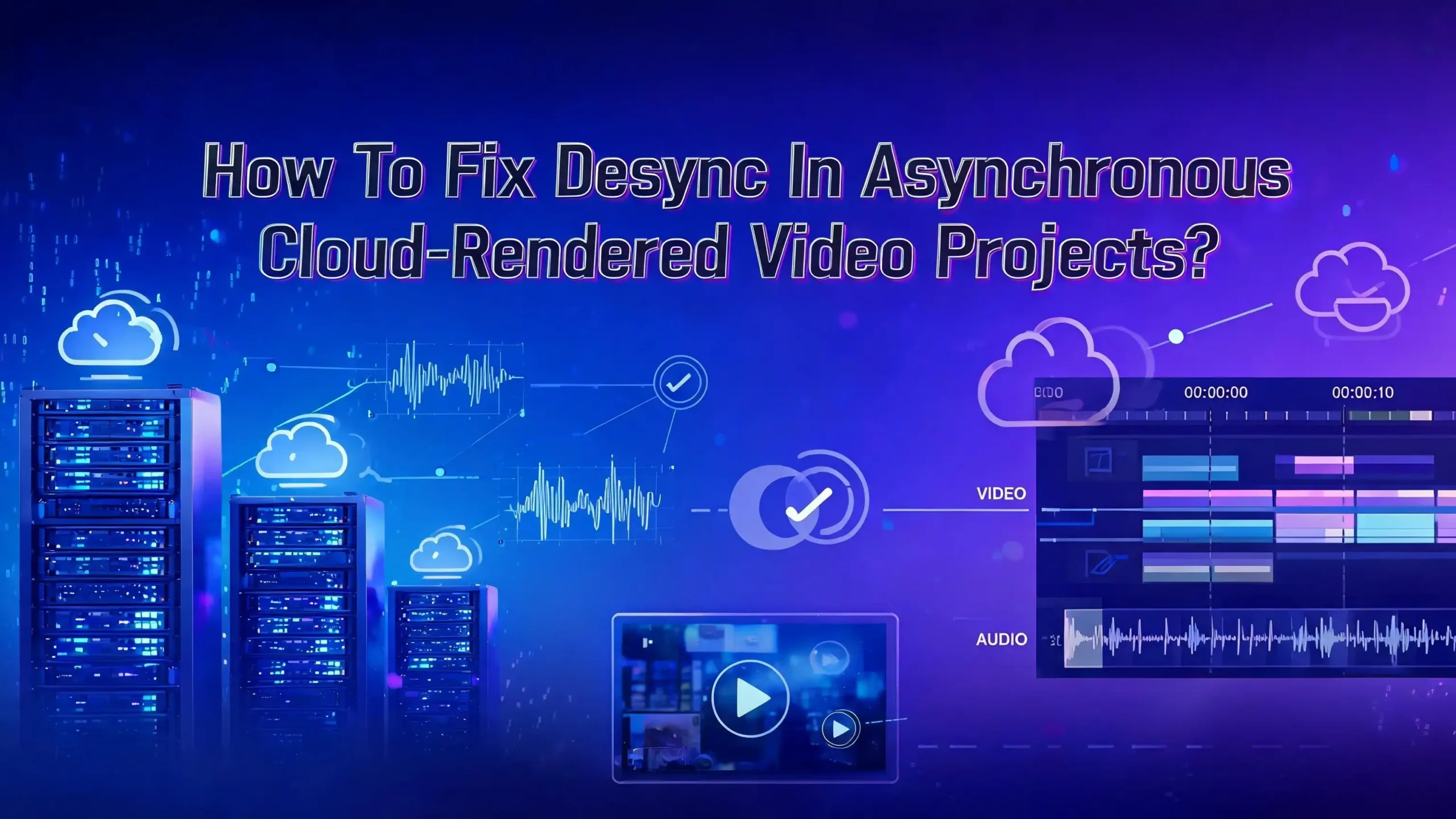
How To Fix Desync In Asynchronous Cloud Rendered Video Projects?
You spent hours editing your video project. You sent it off to a cloud render farm. The render finished. You downloaded the final file, hit play, and then the audio drifted away from the video. The lip sync was off. The sound effects landed a full second late. The background music no longer matched the beat cuts you carefully placed.
This is desync, and it is one of the most frustrating problems in asynchronous cloud rendered video production. It happens more often than most people expect.
The root causes range from mismatched frame rates to timestamp errors introduced during distributed rendering. The good news? Every type of desync has a fix. You just need to know where to look and what to adjust.
This guide walks you through the exact causes of desync in cloud rendered projects and gives you clear, actionable solutions for each one.
Key Takeaways
- Variable frame rate (VFR) source files are the single most common cause of desync in cloud rendered projects. Converting all source media to constant frame rate (CFR) before uploading to any cloud render pipeline prevents the majority of sync drift issues.
- Mismatched project settings and source media settings create silent errors. Your project timeline frame rate, audio sample rate, and resolution must match your source files exactly. Cloud render engines do not always auto correct these differences.
- Distributed rendering splits your project across multiple servers, and each server processes its segment independently. Without proper timecode references, the reassembled output can have tiny gaps or overlaps that accumulate into visible desync.
- Audio sample rate mismatches (such as mixing 44.1 kHz and 48 kHz files) cause gradual drift that gets worse over time. Standardize all audio to one sample rate before rendering.
- Always render a short test segment before committing to a full cloud render. A 60 second test at various points in your timeline can reveal sync problems before you waste time and money on a full render.
- Post render repair is possible using tools like FFmpeg and Handbrake, but prevention is always faster, cheaper, and more reliable than correction.
What Causes Desync In Cloud Rendered Video Projects
Desync happens when the audio and video streams in your final rendered file no longer align correctly. In a local rendering setup, your single machine handles both streams in lockstep. Cloud rendering introduces new variables that can break this alignment.
The most frequent cause is variable frame rate source footage. Screen recordings, smartphone videos, and webcam captures often use VFR. The frame rate shifts throughout the clip. Your editing software may display it correctly on the timeline, but the cloud render engine processes frames at a fixed rate. This mismatch creates drift.
Distributed rendering adds another layer of risk. Cloud render farms split your project into chunks and assign each chunk to a different server. Each server renders its portion independently. If the segmentation points do not fall on clean frame boundaries, or if one server processes audio slightly differently than another, the reassembled output will have sync errors.
Network latency and data transfer interruptions can also corrupt timing metadata during the upload and download process. A dropped packet during file transfer can alter container timestamps without producing a visible error message.
How Variable Frame Rate Files Create Sync Drift
Variable frame rate is the number one culprit behind desync in post production workflows. VFR means the number of frames per second changes throughout the video. A screen recording might run at 60 fps during fast motion and drop to 15 fps during a static screen.
Your editing software compensates for VFR by using the embedded timestamps in each frame. It places each frame at the correct point on the timeline. The audio stays in sync because the software reads those timestamps in real time.
Cloud render engines often do not perform this same timestamp compensation. They read the file at a nominal frame rate and process frames sequentially. If the source file says it is 30 fps but actually varies between 20 and 45 fps, the render engine will space frames evenly at 30 fps intervals. This pushes some frames forward and others backward in time. The audio track, which has a fixed sample rate, does not shift. The result is progressive drift.
The fix is simple. Convert all VFR files to CFR before importing them into your project. You can use FFmpeg with the command ffmpeg -i input.mp4 -r 30 -c:v libx264 -c:a aac output.mp4 to force a constant 30 fps output. This ensures every cloud render engine will process your footage with consistent frame timing.
How To Check If Your Source Files Are Variable Frame Rate
Before you upload anything to a cloud render service, check every source file for VFR. Many creators skip this step and only discover the problem after a full render completes.
MediaInfo is a free tool that displays detailed metadata about any video file. Open your file in MediaInfo and look for the “Frame rate mode” field. If it says “Variable,” you need to convert that file to constant frame rate before using it in your project. If it says “Constant,” you are safe to proceed.
You can also use FFprobe, which is included with FFmpeg. Run ffprobe -v error -select_streams v:0 -show_entries stream=r_frame_rate,avg_frame_rate -of csv=p=0 input.mp4 to see both the stated frame rate and the average frame rate. If these two numbers differ significantly, the file is likely VFR.
In editing software like Premiere Pro, you can check the Media Properties panel after importing a clip. Premiere Pro now flags VFR files with a warning message. DaVinci Resolve shows similar information in the clip attributes panel. Make this check a standard part of your workflow. It takes 30 seconds and can save you hours of troubleshooting later.
Matching Project Settings To Source Media
A surprising number of desync issues come from a mismatch between your project timeline settings and your source media properties. This problem becomes more severe in cloud rendering because the render engine uses your project settings as the authoritative reference.
If your source footage is 29.97 fps and your timeline is set to 30 fps, you already have a problem. The difference is small per frame, but over a 10 minute video, it adds up to several frames of drift. The audio track does not shift because it runs on a clock based on sample rate, not frame rate. Your video slowly falls behind or races ahead of the audio.
The same issue applies to audio sample rates. If you recorded audio at 48 kHz but your project is set to 44.1 kHz, the render engine will resample the audio. This resampling can introduce tiny timing errors. Over a long project, those errors become audible.
Set your timeline frame rate to exactly match your primary source footage. If you shot at 23.976 fps, set the timeline to 23.976 fps. Set your audio sample rate to match your source audio. Do this before you add any clips to the timeline. Changing settings after editing can create additional alignment problems.
How Distributed Cloud Rendering Introduces Timing Errors
Cloud render farms achieve fast render times by splitting your project across multiple servers. A 20 minute video might be divided into 10 segments, each rendered on a separate machine. This parallel processing is the whole point of cloud rendering, but it creates opportunities for desync.
Each server renders its assigned segment independently. The servers do not communicate with each other during the render. If segment boundaries fall in the middle of an audio phrase or a video transition, the output from each server must be stitched back together perfectly. Any error in this stitching process creates a visible or audible gap.
Clock drift between servers is another concern. Each cloud server has its own system clock. If server A runs slightly faster than server B, the frames rendered on each machine will have microsecond level timing differences. These differences are usually negligible for short segments but can accumulate in long projects.
To minimize this risk, use render farm settings that keep audio and video together in each segment rather than rendering them as separate streams. If your cloud service allows you to set segment boundaries manually, place them at scene cuts or natural pauses where a small timing error would be invisible. Some advanced render services use PTP (Precision Time Protocol) or NTP to synchronize clocks across their server fleet, which reduces this problem significantly.
Fixing Audio Drift After Cloud Rendering
If your rendered file already has audio drift, you do not need to re render the entire project in every case. Several post render corrections can fix the problem quickly.
FFmpeg is the most reliable tool for this fix. If the audio is consistently offset by a fixed amount (for example, the audio is 500 milliseconds ahead of the video throughout the file), you can add a delay with this command: ffmpeg -i input.mp4 -itsoffset 0.5 -i input.mp4 -map 0:v -map 1:a -c copy output.mp4. This shifts the audio stream by 0.5 seconds without re encoding either stream.
For progressive drift where the audio starts in sync but gradually falls out of alignment, the fix is more involved. Progressive drift usually means the audio and video have slightly different durations. You can use audio stretching in your editing software to match the audio duration to the video duration. DaVinci Resolve, Premiere Pro, and Audacity all offer time stretch functions.
Handbrake can also correct drift by re muxing the audio and video streams with corrected timestamps. Import the problematic file, set the frame rate to “Same as source” with “Constant Framerate” selected, and encode. This forces the output container to have clean, consistent timestamps.
Ensuring Proper Timecode References In Your Project
Timecode is the backbone of audio video synchronization. Every frame in a video file has a timecode value that tells the player exactly when to display it. Every sample in an audio file has a corresponding timestamp. When these two streams share the same timecode reference, they stay in sync.
Cloud rendering can disrupt timecode in several ways. If your source files do not have embedded timecode, the render engine assigns its own timecode starting from zero. If different source files have conflicting timecode origins, the engine must reconcile them. Errors in this reconciliation produce desync.
To prevent this, embed timecode in all source files before starting your edit. Professional cameras write timecode automatically. Screen recordings and consumer cameras often do not. You can add timecode to files using FFmpeg or your editing software’s media management tools.
Use a single timecode standard across your entire project. If you start at 01:00:00:00, make sure all assets reference that same starting point. When you upload to a cloud render service, verify that the service preserves your timecode metadata during the upload process. Some services strip metadata during ingest, which can cause problems downstream.
Standardizing Audio Sample Rates Across All Assets
Audio sample rate mismatches are a subtle but persistent source of desync. Most professional video workflows use 48 kHz as the standard audio sample rate. Music production typically uses 44.1 kHz. If you mix assets at different sample rates in the same project, the render engine must convert them to a single rate.
This conversion process is called resampling. High quality resampling is computationally expensive, and some cloud render engines use fast but imprecise resampling algorithms. The result can be audio that is a few milliseconds too long or too short per minute. Over a 30 minute video, that error becomes clearly audible.
Convert all audio files to the same sample rate before importing them into your project. Use a dedicated audio tool like Audacity or SoX for this conversion. Set all files to 48 kHz at 24 bit depth, which is the broadcast standard. Then set your project audio settings to match.
Also check the audio sample rate of your video files. Many consumer cameras record audio at 44.1 kHz even though the video industry standard is 48 kHz. Extract the audio, convert it, and re mux it into the video container before editing. This eliminates one entire category of desync risk.
Running Test Renders Before Full Cloud Rendering
A short test render is the cheapest insurance against desync. Before you commit to a full project render on a cloud service, render a few short segments and check them carefully.
Select three test points from your timeline. Choose one segment from the first minute, one from the middle, and one from near the end. Each segment should be about 60 seconds long. Render these three segments through your cloud service using the exact same settings you plan to use for the full render.
Download the rendered segments and play them back. Watch for lip sync accuracy first. If a person is speaking, the words should match their mouth movements exactly. Then listen for sound effects and music cues. Check whether cuts and transitions land at the correct moments.
If you detect drift in any test segment, you know the problem exists in your project settings or source media. Fix the issue at the source before running the full render. Adjusting one setting and running a 60 second test is far less costly than discovering desync in a 45 minute render that took hours to complete and cost real money in cloud compute time.
Using Intermediate Codecs For Cloud Upload
The codec you use for your source files and project media affects sync reliability during cloud rendering. Highly compressed codecs like H.264 and H.265 use interframe compression, which means most frames in the file are defined as differences from nearby keyframes. This is efficient for storage but creates challenges for distributed rendering.
When a cloud render farm splits your project into segments, each segment needs to start with a keyframe. If keyframes are spaced far apart (which is common in consumer camera footage), the render engine must search backward to find one. This search process can introduce timing errors.
Transcoding your source footage to an intermediate codec before uploading solves this problem. Codecs like ProRes, DNxHR, or even H.264 with a very short GOP (Group of Pictures) length provide more frequent keyframes. This gives the cloud render engine clean starting points for each segment.
The tradeoff is file size. Intermediate codecs produce much larger files than consumer codecs. Upload and download times will increase. But the improvement in sync reliability is worth the extra bandwidth cost, especially for long form projects or projects with complex audio layouts. Set your GOP length to 1 (every frame is a keyframe) for maximum compatibility with distributed render systems.
Handling Multiple Audio Tracks In Cloud Renders
Projects with multiple audio tracks face higher desync risk during cloud rendering. A typical video project might have a dialogue track, a music track, sound effects, and ambient audio. Each track has its own timing relationship to the video.
If the render engine processes audio tracks separately from video, each track can drift independently. One track might stay in sync while another drifts. This is especially common when different audio tracks have different sample rates or bit depths.
To prevent this, bounce (mix down) all audio tracks to a single stereo or surround file before cloud rendering. This gives the render engine one audio stream to keep in sync with the video rather than managing multiple independent streams. You can always use your original multitrack session for future revisions.
If you must preserve separate audio tracks in the final render, verify that your cloud service supports multitrack audio rendering correctly. Some services re encode each audio track independently, which can introduce different amounts of latency to each track. Test this with a short render before committing to the full project. Export a segment with all tracks and check each one individually against the video.
Choosing The Right Container Format For Sync Reliability
The container format of your final rendered file affects how well audio and video stay synchronized during playback. The container holds the audio and video streams together and stores the timing metadata that tells the player when to display each frame and play each audio sample.
MP4 (using the .mp4 extension) is the most widely supported container and handles sync well for most use cases. It stores precise timestamps for both audio and video streams. However, MP4 files can have sync issues if the moov atom (the metadata index) is placed at the end of the file rather than the beginning.
MKV (Matroska) is another excellent option. It supports virtually every codec and handles multiple audio tracks, subtitles, and chapter markers. MKV is less widely supported by consumer devices but offers superior flexibility for professional workflows.
MOV (QuickTime) is preferred in Apple based workflows and handles timecode metadata very well. If you edit in Final Cut Pro and render on a cloud service that supports ProRes in a MOV container, you will have the fewest sync problems.
Avoid using AVI for cloud rendered projects. AVI has limited timestamp precision and poor support for modern codecs. It is more likely to produce sync errors, especially with long duration content.
Verifying Sync After Download From Cloud Services
Your cloud render completed and you downloaded the final file. Before you deliver it to your client or publish it online, you need to verify sync accuracy.
Do not rely on a quick skim in your media player. Many media players have their own internal buffering and sync correction that can mask problems in the file. Instead, import the rendered file into your editing software and place it on a timeline. Scrub through the entire file manually, paying close attention to any point where a person speaks.
Use a clap test or sync reference. If you included a visible clap or sync tone at the start of your project, check that the sharp audio transient aligns exactly with the visual clap frame. A single frame of offset is usually acceptable. More than two frames of offset indicates a problem.
For automated verification, compare the duration of the audio and video streams using FFprobe. Run ffprobe -v error -show_entries stream=duration -of csv=p=0 input.mp4. If the audio duration and video duration differ by more than a few milliseconds, you likely have progressive drift. Tools like SyncChecker and timeline based waveform displays can also help you spot drift that is hard to catch by ear alone.
Preventing Desync In Collaborative Remote Editing Workflows
Many modern video projects involve multiple editors working remotely on the same project files stored in the cloud. This collaborative approach introduces unique sync challenges beyond what a single editor faces.
File versioning conflicts are a major risk. If two editors replace the same source file with different versions, the project can reference a file with different timing characteristics than the original. Always use a version control system or a clear file naming convention to prevent accidental overwrites.
Network based editing introduces latency in preview playback, which can cause editors to make timing decisions based on inaccurate playback. If your preview is delayed by 200 milliseconds, you might place a sound effect 200 milliseconds too early to compensate for what you perceive as lag. When the project renders without that latency, the sound effect will be noticeably early.
To avoid this, make all precise timing adjustments using frame level nudging on the timeline rather than placing clips by ear during real time playback. Use numerical timecode entry for critical sync points. Trust the numbers on the timeline rather than what you hear during preview, especially if your internet connection is not fast and stable.
Configuring Cloud Render Settings For Optimal Sync
Most cloud render services offer a range of settings that affect sync accuracy. Choosing the right settings can prevent desync before it starts.
Set the output frame rate to match your timeline frame rate exactly. Do not allow the render service to auto detect the frame rate. Auto detection can choose the wrong rate, especially if your project contains mixed frame rate footage. Enter the frame rate manually.
Disable any “smart” resampling or frame blending options unless you specifically need them. These features create new frames by blending adjacent frames, and they can shift the timing of the video stream relative to the audio. For standard video delivery, you want each original frame rendered at its correct timestamp without interpolation.
Choose “Render Audio and Video Together” if the option exists. Some services offer the choice to render audio and video as separate passes and then combine them. This two pass approach increases the risk of timing errors during the combination step. A single pass render keeps both streams locked together throughout the process.
Finally, set the audio codec to AAC or PCM at 48 kHz. Avoid lossy audio codecs with low bitrates, as these can introduce artifacts that make sync errors more perceptible. PCM (uncompressed audio) is the safest option for sync accuracy, though it increases file size.
When To Re Render Versus When To Fix In Post
After you discover desync in a cloud rendered file, you face a decision. Should you fix the problem in the rendered file, or should you correct the source issue and render again?
Fix in post if the drift is constant and uniform. A fixed offset, such as audio being exactly 250 milliseconds behind the video throughout the entire file, is easy to correct with FFmpeg or your editing software. This fix takes minutes and costs nothing.
Re render if the drift is progressive or inconsistent. Progressive drift means the audio and video start in sync but gradually separate. This indicates a fundamental frame rate or sample rate mismatch in the source material. No amount of post render shifting will fix progressive drift permanently. You must correct the source files, verify your project settings, and render again.
Re render if there are gaps or jumps at segment boundaries. These errors come from the distributed rendering process itself. The render engine split your project at a bad point, or the stitching algorithm introduced errors. Adjusting render settings (such as segment length or keyframe placement) and re rendering is the only reliable fix.
Consider the cost of re rendering versus the time spent on manual correction. For a short project, re rendering is quick and cheap. For a feature length project on an expensive cloud service, spending 30 minutes on a post render fix may be the smarter financial choice. Always weigh the options before committing to either path.
Frequently Asked Questions
Why does my audio go out of sync only after cloud rendering but not during local playback in my editor?
Your editing software reads the original timestamps from each frame and audio sample in real time. It compensates for variable frame rates and mismatched settings on the fly. A cloud render engine processes the data differently. It often writes frames at a fixed interval without reading per frame timestamps. This means problems that your editor hides during playback become visible in the rendered output. Converting all source media to constant frame rate before editing eliminates most of these hidden issues.
Can network issues during upload or download cause desync in my rendered file?
Network problems during file transfer typically cause data corruption rather than desync. If a file is corrupted during transfer, it usually will not play at all or will show visible artifacts. However, if the transfer interrupts and resumes, some cloud services may reassemble the file with incorrect container metadata. Always verify file integrity after download by checking the file size against the expected output and running a quick sync test.
What is the best frame rate to use for cloud rendered projects?
Use the frame rate that matches your source footage. If you shot at 24 fps, render at 24 fps. If your footage is 29.97 fps, render at 29.97 fps. Do not round 29.97 to 30 or 23.976 to 24. These small differences cause progressive drift over long videos. If you have mixed frame rate sources, choose the frame rate of your primary footage and convert all other sources to match before editing.
How do I fix desync if only one audio track is out of sync?
Import the rendered file into your editing software. Identify which audio track has drifted. Use the time stretch or nudge function to realign that specific track. If the drift is constant, simply slide the track earlier or later by the appropriate number of frames. If the drift is progressive, the track has a different effective duration than the video. Stretch or compress the audio to match the video duration, then export. To prevent this in future projects, ensure all audio tracks share the same sample rate and bit depth.
Should I always convert VFR footage to CFR before editing?
Yes. There is no practical reason to keep variable frame rate footage in a professional editing workflow. VFR is useful for recording (it saves storage and bandwidth) but causes problems during editing and rendering. Convert all VFR files to CFR immediately after recording and before importing into any editing software. This single step prevents the majority of desync issues in both local and cloud rendered projects.

Hi, I’m Amy! I’m passionate about tech and love breaking down complex product specs into simple, actionable advice. I review gadgets, compare tools, and write buying guides to help you spend smarter. Got a question? Drop me a message — I’d love to hear from you!