How To Fix Active Noise Cancellation Static Hiss?
You put on your headphones, turn on Active Noise Cancellation, and instead of blissful silence, you hear a persistent static hiss. It’s frustrating, and you’re not alone.
This hissing sound is one of the most common complaints from ANC headphone users. It can feel like a constant, low-level buzz that refuses to go away, no matter how you adjust the volume.
Here’s something important to know: ANC-generated static is not affected by volume. If the hiss stays the same whether your volume is up or down, that’s a key diagnostic clue.
In this guide, you will learn exactly what causes ANC static hiss and how to resolve it step by step.
In a Nutshell
• ANC static hiss is a persistent hissing or white noise sound that occurs when Active Noise Cancellation is turned on, regardless of your volume level.
• The issue can be caused by a software misconfiguration, a faulty firmware update, or in some cases, a hardware defect inside the headphones.
• Your first step is to disable noise cancellation and test whether the hiss disappears. This tells you immediately if ANC is the source.
• On Apple devices, turning off Adaptive Audio is a critical troubleshooting step that many users overlook during the process.
• Resetting your headphones through the charging case is one of the most effective fixes before assuming the device is permanently damaged.
• Constant hissing that stays the same across all volume levels is a strong diagnostic signal. It means the problem is coming from the ANC circuit, not your audio source.
What Causes ANC to Produce a Static Hiss
Static hissing in ANC headphones happens because of how noise cancellation technology works. Your headphones create sound waves that are opposite to incoming noise. This process requires constant microphone monitoring and signal processing.
When this system malfunctions, it generates unwanted hissing sounds. The issue stems from three main sources: software problems, firmware glitches, or hardware defects.
Software misconfiguration is the most common culprit. Your device’s settings may have Adaptive Audio or similar features enabled alongside noise cancellation. These features can conflict with each other and produce static. The conflict creates interference in the audio signal processing.
Firmware updates sometimes introduce bugs. After a recent update, your headphones might process audio differently. This change can trigger hissing that wasn’t present before the update.
Hardware defects are less common but possible. The microphones inside your headphones pick up ambient sound to create the cancellation effect. If these microphones malfunction, they send corrupted signals to the processor. The processor then generates static as it tries to process faulty data.
Here’s a key fact: ANC static remains constant regardless of your volume level. You can turn the volume up or down, but the hissing stays the same. This consistency tells you the problem is in the noise cancellation system itself, not your audio playback.
The static also doesn’t change based on your environment. Whether you’re in a quiet room or a busy office, the hissing persists at the same level. This consistency is actually helpful for diagnosis. It tells you exactly where the problem originates.
Understanding these causes helps you troubleshoot more effectively. You’ll know what to test first and what to expect during the process.
How to Diagnose Whether Your Static Is ANC-Related
To determine if your static hiss is truly caused by Active Noise Cancellation, you need to run specific tests. Start by turning off ANC completely and listening for the hissing sound. If the noise disappears, you have confirmed the issue is ANC related.
Next, check whether the hissing stays exactly the same across different volume levels. ANC generated static does not change when you adjust volume. This is your most reliable diagnostic clue. Turn the volume up and down while ANC is enabled. If the hissing remains constant, it points directly to your noise cancellation system.
On Apple devices, disable Adaptive Audio in your settings before testing. Many users miss this step because Adaptive Audio works alongside ANC and can mask the real problem. Once you turn it off, test your headphones again in a quiet room.
Test in multiple environments to rule out external factors. Go to a quiet space, then a moderately noisy space. If the hissing persists in both locations at the same level, the issue originates from your device, not your surroundings.
Pay attention to when the hissing appears. Does it only occur with certain audio apps or all of them? Does it happen immediately when you enable ANC or after a few minutes? These details matter for diagnosis.
Finally, check if the static has a specific tone or pattern. Some users describe it as white noise, while others report a buzzing quality. Document exactly what you hear because this information helps identify whether the problem is software or hardware related. Once you confirm ANC is the source, you can move forward with targeted fixes.
Step-by-Step: Disabling and Re-Enabling Noise Cancellation
Start by locating your noise cancellation settings. Most devices have this option in their audio or settings menu. Tap or click the noise cancellation button to turn it off completely.
Listen carefully for 30 seconds without noise cancellation active. If the static hissing disappears, you’ve confirmed the issue stems from your ANC system. This is your first major diagnostic clue.
Now turn noise cancellation back on. Pay close attention to when the hissing returns. Does it start immediately or after a few seconds? This timing matters for troubleshooting.
On Apple devices, go to your settings and find Adaptive Audio. This feature works alongside noise cancellation and can amplify static issues. Disable it while you test. Wait a full minute to hear if the hissing changes or stops.
Try this in different locations next. Test your headphones in a quiet room, then in a moderately noisy space like a coffee shop. The static should remain consistent if it’s ANC related. Environmental changes shouldn’t affect it.
Toggle noise cancellation on and off several times. Count how many seconds it takes for the hissing to appear each time. Consistent behavior suggests a software issue rather than hardware failure.
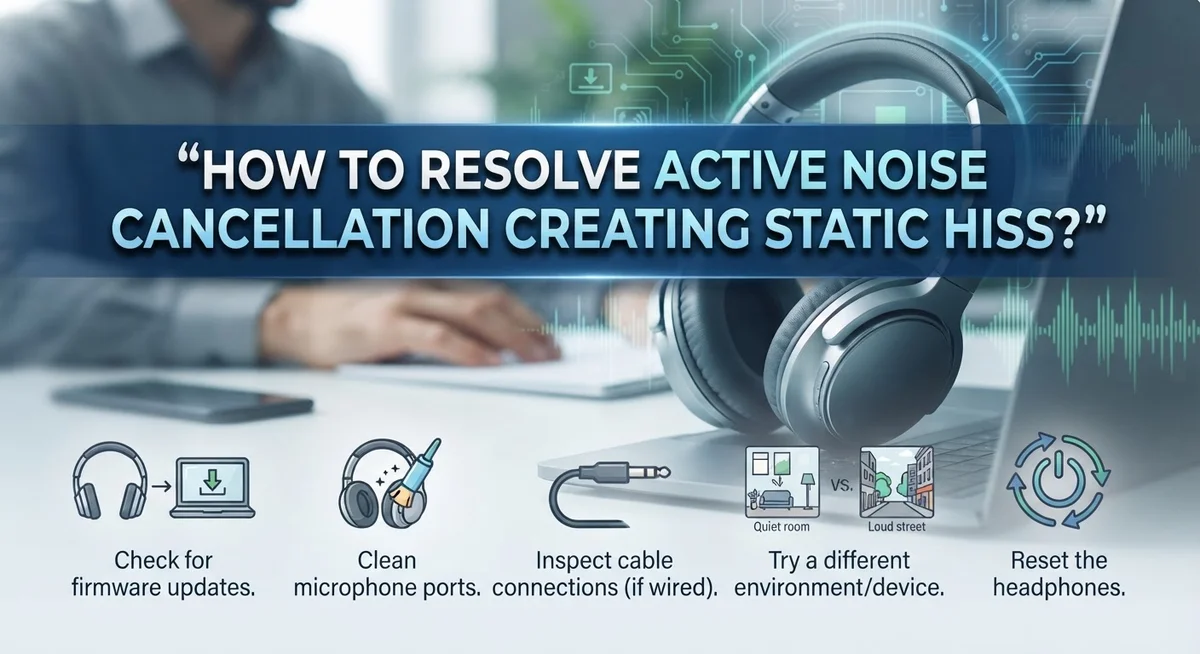
If the hissing persists through all these steps, proceed to a full device reset. Most headphones have a reset button on the charging case. Hold it for 10 to 15 seconds until you see a light indicator change.
After resetting, repeat your disable and re enable test. Sometimes this simple action clears software glitches that cause static. Document whether the hissing returns or disappears completely.
How to Reset Your Headphones to Clear ANC Misconfiguration
A full reset brings your headphones back to factory settings. This clears any software misconfigurations causing the static hiss.
Start by powering off your headphones completely. Most devices have a power button you hold for several seconds. Wait about 30 seconds before proceeding to the next step.
Locate the reset button on your charging case. This button is typically small and recessed. You may need a paperclip or similar tool to press it. Hold this button for 10 to 15 seconds until you see a light indicator flash. Different brands use different color patterns, so check your manual if unsure.
Place your headphones back in the charging case. Keep them there for at least one minute. This allows the reset process to complete fully. During this time, the headphones communicate with the case to restore default settings.
Remove your headphones from the case and power them on. You should see a pairing indicator light, which means the reset worked. Your headphones are now in factory condition.
Reconnect your headphones to your device. Go through the pairing process as if you were setting them up for the first time. This fresh connection often resolves software conflicts that triggered the static.
Test your noise cancellation immediately after pairing. Play audio at medium volume and listen for the hissing sound. Toggle noise cancellation on and off a few times to confirm the issue is gone.
If static persists after a full reset, the problem likely stems from a hardware defect rather than misconfiguration. Contact the manufacturer’s support team for warranty options or replacement. A factory reset is your best software solution before considering hardware failure.
Fixing ANC Static on Apple Devices Including Adaptive Audio Settings
When static hiss appears on Apple devices with Active Noise Cancellation, Adaptive Audio often plays a hidden role. This feature works alongside ANC to adjust sound based on your environment and activity. Disabling Adaptive Audio should be your first step when troubleshooting ANC static issues.
To disable Adaptive Audio, open your Settings app on your iPhone or iPad. Navigate to Bluetooth and select your headphones from the connected devices list. Tap the information icon next to your device name. Look for the Adaptive Audio toggle and turn it off completely.
After disabling Adaptive Audio, test your headphones in a quiet environment for at least one minute. Pay close attention to whether the static hissing continues or changes. Many users find that Adaptive Audio conflicts with ANC settings, creating unwanted noise.
If static persists after disabling Adaptive Audio, try toggling Noise Cancellation itself. Go to Control Center on your device and tap the noise control icon. Switch between Noise Cancellation, Transparency, and Off modes. Listen for changes in the static during each transition.
Keep Adaptive Audio disabled while you perform other troubleshooting steps. This prevents the feature from interfering with your diagnostics. Once you’ve completed all tests and confirmed the issue is resolved, you can re-enable Adaptive Audio if desired.
If the static continues even with both features disabled, your issue likely stems from hardware problems rather than software settings. Document when the hissing occurs and what settings you’ve tried. This information helps when seeking technical support from Apple or your device manufacturer.
Testing in Different Environments to Rule Out External Interference
Testing your headphones in different environments helps you figure out if the static hiss comes from your device or from something around you. External interference can create similar sounds, so ruling it out matters.
Start by testing in a completely quiet room with no electronics running nearby. Turn off your Wi Fi router, move away from your microwave, and keep your phone at least six feet away. Listen to your headphones for two full minutes with noise cancellation enabled. Write down whether the hissing stays the same, gets worse, or disappears.
Next, test in a room with normal activity. Turn your Wi Fi back on, use your phone nearby, and have a television playing in the background. The static should remain unchanged if it’s an actual device issue. If the hissing gets worse around electronics, electromagnetic interference may be your culprit.
Move to an outdoor space away from buildings and power lines. Open areas typically have less interference. Listen for another two minutes. A true ANC static problem persists everywhere because it comes from your headphones, not your surroundings.
Test in your car with the engine running. This environment produces different electromagnetic frequencies. If the hissing changes here but stayed constant indoors, external interference likely caused your original problem.
Document your findings in each location. Note whether the static volume stayed consistent and whether it matched the original issue you experienced. Consistent hissing across all environments points to a hardware or software problem with your headphones themselves. Hissing that changes depending on location suggests environmental factors are responsible. This information guides your next troubleshooting steps effectively.
When Static Hiss Points to a Hardware Defect
When static hiss continues after you’ve disabled noise cancellation and reset your headphones, a hardware defect likely exists. This section helps you identify whether your device needs repair or replacement.
Static that remains constant across all volume levels is your first red flag. Hardware problems produce noise independent of how loud you set your audio. If you raise the volume and the hiss stays at the same level, your headphones probably have an internal issue.
Test by playing actual audio content through your headphones. Turn up the volume gradually. If the static hiss doesn’t change while your music gets louder, hardware damage is probable. A functioning device would amplify both the audio and any defects together.
Check whether the static appears in one ear or both. A defect in a single driver or amplifier circuit typically affects just one side. Static in both ears suggests a more serious problem with the main processing unit or power supply.
Listen carefully to the hiss quality itself. Hardware defects often produce a rough, grainy, or crackling static rather than a smooth hissing sound. Software issues usually create cleaner, more uniform white noise patterns.
Try your headphones with a completely different device. Borrow a phone, tablet, or computer from someone else. If the static hiss follows your headphones to the new device, the problem lives inside your headphones, not your original device.
Document everything you discover during testing. Write down which ear has the problem, whether the hiss changes with volume, and what the noise sounds like. This information helps warranty teams or repair technicians understand your issue quickly and accurately.
Common Mistakes to Avoid When Troubleshooting ANC Static
Many people make the same mistakes when they try to fix ANC static hiss. Understanding these errors helps you troubleshoot faster and more effectively.
The biggest mistake is assuming volume changes will affect ANC generated static. When noise cancellation creates hissing, the sound stays the same whether you turn volume up or down. People waste time adjusting volume instead of addressing the real problem. You need to focus on the ANC system itself, not the speaker output.
Another common error is skipping the reset step too quickly. People often conclude their headphones have a hardware problem after just a few minutes of testing. A proper reset clears software glitches that cause static. Always reset your device before deciding it’s broken. Most resets take less than two minutes and solve many issues.
Many users also forget to disable all related features during testing. If you leave Adaptive Audio enabled while troubleshooting, you won’t get accurate results. These features interact with ANC and can create or mask the real problem. Disable everything related to noise cancellation before you test.
People frequently test in the wrong environment. Testing in a loud coffee shop or busy street won’t tell you if the static comes from your headphones or your surroundings. You need a quiet space to hear the actual problem clearly.
Finally, users often don’t test with actual audio content. Playing music or podcasts helps you determine if static appears during playback or only during silence. This distinction matters because it points to different causes.
Avoid these mistakes and your troubleshooting process becomes much more efficient and accurate.
Final Thoughts
ANC static hiss is a solvable problem in most cases. The key is working through each step systematically rather than jumping to conclusions about hardware failure.
Start with the simplest fixes first. Disable noise cancellation, turn off Adaptive Audio, and reset your headphones before anything else. These steps alone resolve the issue for many users.
Environment matters more than most people realize. Testing in different locations helps you separate external interference from a real device problem. Never assume the worst until you’ve ruled out your surroundings.
Remember that volume adjustment does nothing to ANC-generated static. This is one of the most important diagnostic facts to keep in mind. If the hiss stays the same at every volume level, your noise cancellation circuit is the source.
Document everything as you test. Write down what you notice in each environment and with each setting change. This gives you clear evidence if you eventually need to contact support or request a replacement.
If you’ve disabled all features, reset your device, tested in multiple environments, and the static remains, hardware damage is likely the cause. At that point, professional repair or a warranty claim becomes the logical next step.
Don’t rush the troubleshooting process. Each step builds on the last, and skipping ahead often leads to wrong conclusions.
The good news is that most ANC static issues are software or configuration related, not hardware defects. A few careful steps usually bring your headphones back to clean, quiet performance.
Patience and a structured approach are your best tools here. Work through the steps, stay consistent, and you’ll find the solution faster than you expect.
Frequently Asked Questions
Why does my ANC headphones produce static even when nothing is playing?
Active noise cancellation generates sound waves to cancel ambient noise. Sometimes this process creates a hissing or static sound as a side effect. This happens because the ANC system is actively working, not because music is playing. The static comes from the noise cancellation electronics themselves, not from your audio source.
You can test this by turning off noise cancellation. If the static disappears, your ANC system is the source. If it remains, you may have a different issue like a hardware defect or connection problem.
Does turning down the volume reduce ANC static hiss?
No, volume adjustments do not affect ANC generated static. This is an important diagnostic clue. The hissing sound stays the same whether your volume is at 0% or 100%. This happens because ANC static comes from the noise cancellation circuit, not from your audio playback system.
If your static does change with volume, the problem likely comes from a different source. It could be a connection issue or interference rather than ANC static.
Should I disable Adaptive Audio when troubleshooting?
Yes, you should disable Adaptive Audio on Apple devices during troubleshooting. Adaptive Audio works alongside noise cancellation and can mask or worsen static issues. Turning it off helps you identify whether ANC alone is the problem or if Adaptive Audio contributes to the noise.
After disabling Adaptive Audio, test your headphones for several minutes. This gives you a clear picture of what ANC is actually producing.
What does normal ANC static sound like compared to a hardware defect?
Normal ANC static sounds like a gentle, consistent hissing or white noise. It remains steady and uniform across both ears. Hardware defects typically produce rougher, crackling, or grainy sounds that may vary between ears or cut in and out unpredictably.
Test by listening carefully to the noise quality itself. Document what you hear so you can identify patterns.

Hi, I’m Amy! I’m passionate about tech and love breaking down complex product specs into simple, actionable advice. I review gadgets, compare tools, and write buying guides to help you spend smarter. Got a question? Drop me a message — I’d love to hear from you!