How to Recover Deleted Messages in iOS 19?
You deleted an important message and now you’re panicking. It happens to the best of us. Whether it was a precious conversation with a loved one, a critical work thread, or a confirmation code you needed, losing messages on your iPhone feels awful.
The good news is that iOS 19 gives you several powerful ways to get those messages back, and this guide walks you through every single one of them.
You do not need to be a tech expert to follow these steps. Every method here is broken down clearly so anyone can do it. From quick in-app fixes to full backup restores, you will find the right solution for your situation.
Key Takeaways
- The “Recently Deleted” folder in the Messages app is your first stop. iOS 19 saves deleted messages there for up to 30 days before they are permanently removed, giving you a generous recovery window.
- iCloud backup is one of the most reliable recovery methods. If you have iCloud backup enabled and a backup was created before the deletion happened, you can restore your messages with a few simple steps.
- Mac (Finder) and Windows (iTunes/Apple Devices app) backups are another strong option. A local backup stored on your computer can restore deleted messages without overwriting newer data when done correctly.
- iCloud Messages sync can work in your favor if you have the “Messages in iCloud” feature turned on. Your messages are stored in the cloud and may be recoverable by toggling the sync setting.
- Third-party iPhone data recovery tools exist as a last resort for messages that are no longer available in any backup. These tools scan your device’s storage directly for recoverable data.
- Prevention is better than cure. Setting your message history to “Forever,” enabling iCloud backup, and creating regular local backups will protect you from future data loss in iOS 19.
Understanding Why Messages Get Deleted in iOS 19
Before jumping into solutions, it helps to understand what actually happens when a message is deleted on iOS 19. When you swipe to delete a conversation or tap “Delete Message” on a single text, iOS does not erase the data instantly.
Instead, it moves the item to a temporary holding area called the “Recently Deleted” folder inside the Messages app. This folder acts like a safety net, keeping your deleted messages available for recovery for up to 30 days.
After 30 days, iOS permanently removes those messages and they become much harder to recover. This is why speed matters. The faster you act after an accidental deletion, the better your chances of getting the message back.
iOS 19 continues Apple’s commitment to giving users a grace period for accidental deletions, so if you deleted something recently, there is a very good chance it is still sitting in the Recently Deleted folder right now.
Messages can also disappear for reasons other than intentional deletion. Your iPhone may auto-delete old messages if your settings are configured to keep messages only for 30 days or 1 year. A software glitch, a failed iOS update, or switching to a new iPhone without a proper backup can also cause messages to vanish. Knowing the cause of the deletion helps you pick the right recovery method.
Method 1: Check the Recently Deleted Folder in the Messages App
This is the fastest and easiest method, and it should always be your first step. Apple added the “Recently Deleted” folder starting with iOS 16, and iOS 19 keeps this feature intact. This folder holds all conversations and messages you deleted within the past 30 days, organized and easy to browse.
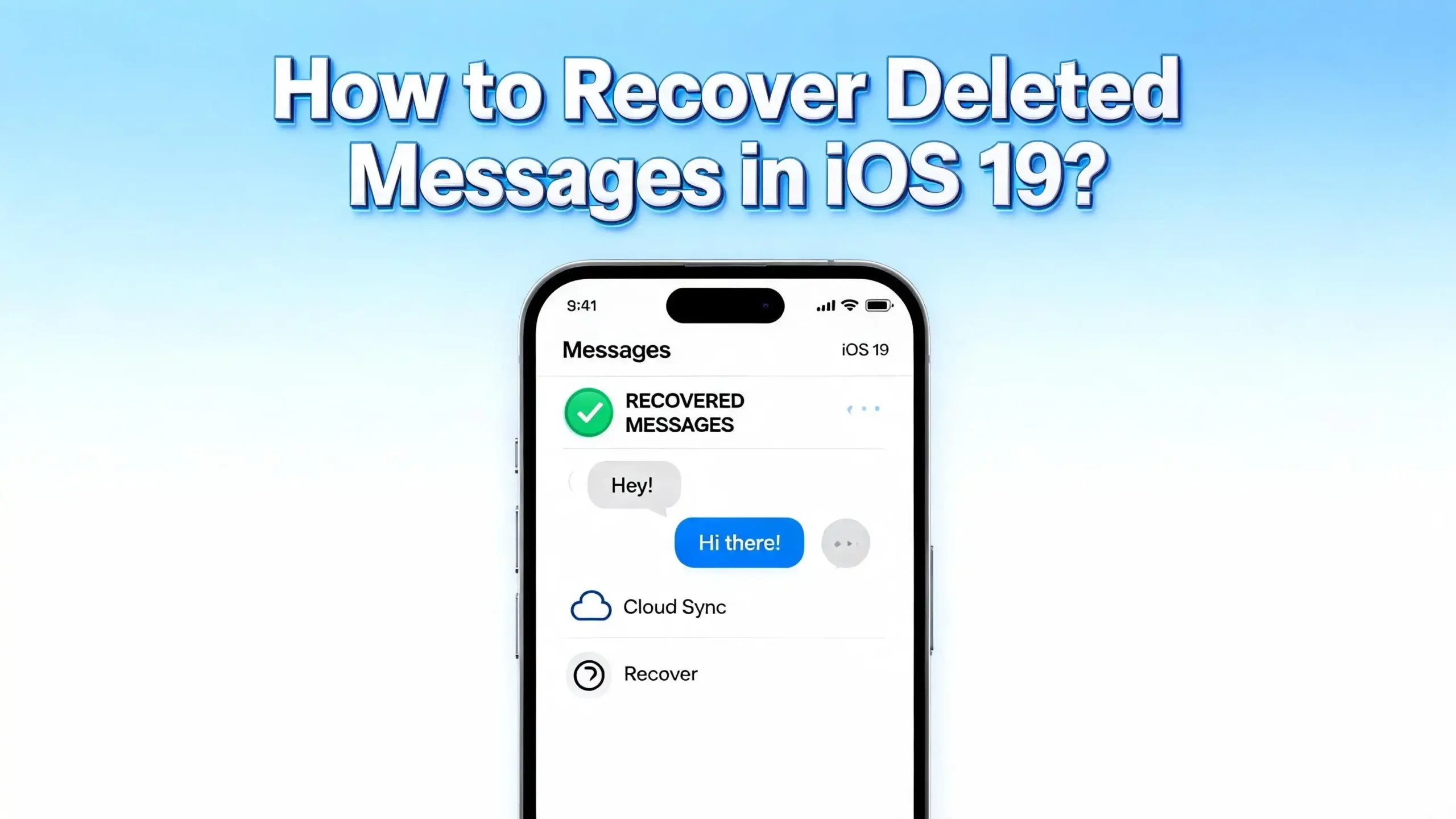
Here is exactly how to access it. Open the Messages app on your iPhone. Look at the top right corner of your main conversation list and tap the Filter button (it looks like three horizontal lines or a small icon depending on your iOS 19 interface). A dropdown or filter panel will appear. In that panel, look for and tap Recently Deleted. You will now see a list of all conversations deleted within the last 30 days.
To recover a conversation, tap on it to select it. A checkmark will appear. If you want to recover multiple conversations at once, tap each one to add a checkmark. Once you have selected everything you want to restore, look for the Recover button at the bottom of the screen and tap it. iOS 19 will ask you to confirm the action. Tap Recover Message or Recover [number] Messages to complete the process. The messages will move back to your main inbox immediately.
Important note: If you deleted messages from inside a conversation (not the whole conversation thread), those individual messages are also stored in the Recently Deleted folder. The process is exactly the same. This entire method works without any computer, without any backup, and without losing any other data on your phone.
Method 2: Restore Deleted Messages Using an iCloud Backup
If the 30-day window has passed or the Recently Deleted folder is empty, your next best option is restoring from an iCloud backup. iCloud automatically backs up your iPhone when it is connected to Wi-Fi and a power source, so there is a good chance a recent backup exists with your messages intact.
Before you proceed, understand one important trade-off. Restoring from an iCloud backup is a full device restore. This means your iPhone will revert to the state it was in when that backup was created. Any data added after the backup date, including new photos, contacts, and apps, will be lost unless you back those up separately first.
Follow these steps carefully. First, go to Settings on your iPhone. Tap General, then scroll down and tap Transfer or Reset iPhone. Tap Erase All Content and Settings. Your iPhone will restart and show the setup screen. Go through the setup process until you reach the screen that says Apps & Data. Tap Restore from iCloud Backup. Sign in with your Apple ID if prompted.
You will see a list of available backups with dates and sizes. Choose the backup that was created before you deleted the messages. The restore process will begin and may take several minutes to complete depending on your backup size and internet speed.
Once done, your deleted messages should be back. Make sure to check your Messages app before doing anything else to confirm the recovery was successful.
Method 3: Restore Messages from a Mac Backup Using Finder
If you regularly sync your iPhone with a Mac running macOS Catalina or later, you may have a local backup that contains your deleted messages. Local backups stored on your Mac can sometimes contain more data than iCloud backups because they are not limited by iCloud storage space.
To start, connect your iPhone to your Mac using a USB or USB-C cable. Open Finder on your Mac. In the left sidebar, your iPhone should appear under “Locations.” Click on your iPhone’s name. You will see several tabs at the top. Click General if it is not already selected. Scroll down until you see the Backups section. You will see an option that says Restore Backup with a dropdown to select which backup to restore from.
Click Restore Backup and select the backup that was created before your messages were deleted. Finder will ask you to confirm. Click Restore and wait for the process to finish. Your iPhone will restart automatically after the restore is complete. Once it restarts, open Messages and check whether your deleted conversations are back.
Note: Just like with iCloud restore, this method reverts your device to the state it was in at the time of the backup. Any data created after that backup date will be lost. Always back up your current data before doing a restore if there is anything recent you want to keep.
Method 4: Restore Messages from iTunes or Apple Devices App on Windows
If your Mac is not available but you use a Windows PC, you can restore your iPhone from a backup made through iTunes or the newer Apple Devices app. The process is very similar to the Finder method on Mac, but the software interface looks slightly different.
First, make sure you have the latest version of iTunes or the Apple Devices app installed on your Windows computer. Connect your iPhone to the PC with a USB cable. Open iTunes or the Apple Devices app. Your iPhone should appear in the interface. In iTunes, look for the small phone icon near the top left. In the Apple Devices app, your iPhone will appear in the sidebar.
Click on your iPhone. Navigate to the Summary or General section. Look for the Restore Backup button. Click it and select a backup that predates the message deletion. Click Restore and let the process complete without disconnecting your device. Your iPhone will restart and your messages should be restored.
If your backup files are encrypted and you have forgotten the backup password, you will need to reset your backup password through your Apple ID settings. Keeping track of your backup password is crucial for moments exactly like this one.
Method 5: Use iCloud Messages Sync to Recover Deleted Texts
iOS 19 supports a feature called “Messages in iCloud,” which continuously syncs your messages across all your Apple devices through iCloud. If this feature was turned on before you deleted the messages, there is a method that sometimes brings messages back by toggling the sync.
Go to Settings on your iPhone. Tap your Apple ID at the top. Tap iCloud. Scroll down and look for Messages. If it shows as enabled, try turning it off and then back on again. Wait a few minutes after turning it back on. Your iPhone will re-sync with iCloud, and in some cases, messages that were deleted locally but not yet purged from iCloud storage will reappear in your inbox.
This method works best when the messages are fairly recent and your iCloud storage still has a record of them. It is not a guaranteed fix, but it costs you nothing to try and takes only a few minutes.
If you have multiple Apple devices like an iPad or a Mac, also check whether the deleted messages still appear in the Messages app on those devices. Because Messages in iCloud syncs across devices, a thread deleted on your iPhone might still be visible on your Mac or iPad for a short time after deletion.
Method 6: Check Your Other Apple Devices for the Deleted Messages
This is a simple but often overlooked approach. If you own multiple Apple devices signed in to the same Apple ID, your messages may be synced across all of them. When you delete a message on your iPhone, it may still be present on your iPad, MacBook, or Apple Watch, depending on how quickly the sync has propagated.
Open the Messages app on your Mac and look for the conversation you deleted on your iPhone. If it is still there, you can take a screenshot or copy the text immediately. Act fast, because the sync will eventually delete the message from all connected devices. The same applies to your iPad. Open Messages on the iPad and check whether the thread is still visible.
If you find the message on another device before it syncs away, you have several options. You can screenshot it, copy and paste the content to Notes or an email, or forward the message to yourself.
While this does not “restore” the message in the traditional sense, it does preserve the content, which is often all you really need. This is why owning multiple Apple devices can be an unexpected lifesaver in data recovery situations.
Method 7: Use Third-Party Data Recovery Software
When all built-in methods fail, third-party recovery tools become the next option. These are specialized software programs that scan your iPhone’s internal storage for traces of deleted data, including messages, that have not yet been overwritten. They are particularly useful when you have no backup and the 30-day window has closed.
These tools typically work in three ways. The first is scanning the device directly over a USB connection. The second is scanning an existing iTunes or Finder backup file. The third is scanning iCloud data if you provide your credentials. Well-known tools in this category include Dr.Fone, iMobie PhoneRescue, Tenorshare UltData, and Stellar iPhone Data Recovery. Each of these offers a free scan so you can see what is recoverable before paying for the full restore.
To use any of these tools, download and install the software on your Mac or PC. Connect your iPhone via USB. Follow the on-screen instructions to run a scan. The scan may take 10 to 30 minutes depending on the size of your device storage. After the scan, you will see a list of recoverable items. Select your deleted messages and click Recover. Always download these tools directly from their official websites to avoid security risks.
Keep in mind that the success rate of these tools depends heavily on how recently the messages were deleted and whether the storage space has been written over by new data. The sooner you try, the better.
Method 8: Restore Messages Through iCloud.com
Many iPhone users do not know that Apple offers limited message recovery directly through iCloud.com on a browser. While you cannot browse individual messages on iCloud.com the same way you browse photos, you can initiate a data restore for your iCloud account that specifically targets messages.
Open a browser on your Mac or PC and go to icloud.com. Sign in with your Apple ID. Once you are on the iCloud dashboard, click on your profile icon or look for Account Settings. Scroll down to the bottom of the page where you will find a section called Advanced. Under Advanced, look for Restore Messages. Apple may list up to the last 30 days of message archives here.
Click on the archive you want to restore and follow the prompts. This process does not erase your current iPhone data, which makes it less risky than a full device restore. However, it replaces your current iCloud Messages data with the archived version, so any messages added after the archive date may be lost. Always read the warning prompts carefully before confirming any restore action.
Method 9: Change Your Message History Settings to Prevent Auto-Deletion
Many users discover their messages are disappearing because of a setting they never knowingly configured. iOS includes an auto-delete feature for messages that removes texts older than 30 days or 1 year. If this setting is active on your iPhone, it has likely been quietly deleting your older messages in the background.
To check and fix this setting, go to Settings on your iPhone. Scroll down and tap Messages. Scroll down until you find the section labeled Message History. Tap Keep Messages. You will see three options: 30 Days, 1 Year, and Forever. Select Forever to make sure your messages are never auto-deleted again.
Once you change this setting, iOS 19 will no longer automatically remove old messages. Your Messages app will gradually take up more storage space over time, but your conversations will stay intact unless you delete them manually. This one setting change can save you from a lot of frustration in the future. If you were wondering why messages older than a month kept disappearing without any action on your part, this is almost certainly the culprit.
Method 10: Enable iCloud Backup Right Now to Protect Future Messages
If you went through all the above methods and still could not recover your messages, the best thing you can do right now is make sure this never happens again. Enabling iCloud backup takes less than two minutes and provides an automatic safety net for all your future data, including messages.
Go to Settings. Tap your Apple ID at the top. Tap iCloud. Tap iCloud Backup. Toggle it on if it is not already enabled. Tap Back Up Now to create an immediate backup. Your iPhone will upload your data to iCloud while connected to Wi-Fi. Make sure you have enough free iCloud storage before initiating the backup. Apple provides 5GB of free iCloud storage, which may not be enough if you have a lot of photos and messages. Consider upgrading to iCloud+ for more space.
Once automatic backup is on, your iPhone will back itself up every night when it is charging and connected to Wi-Fi. You should also manually back up before any major iOS update or before restoring your phone to reduce the risk of losing data.
Method 11: Enable Messages in iCloud for Continuous Sync
Beyond standard iCloud backup, Apple offers a more targeted sync specifically for Messages called “Messages in iCloud.” This feature keeps your entire message history stored in iCloud and synchronized across all your devices in real time. It is different from a regular backup because it is always up to date, not just a snapshot of your data from a particular moment in time.
To enable this feature, go to Settings. Tap your Apple ID. Tap iCloud. Look for Messages in the list of apps and tap it. Toggle Sync this iPhone to the on position. Your iPhone will begin uploading your messages to iCloud. This may take some time if you have years of message history.
Once this feature is on, you benefit from two key protections. First, your messages are always backed up in the cloud. Second, you can access your full message history on any Apple device signed in to the same Apple ID. If you ever switch to a new iPhone, all your messages will download to the new device automatically. This is one of the best long-term solutions to protect your messages and it makes future recovery far easier.
Method 12: What to Do If Messages Disappeared After an iOS Update
Some users report that messages disappeared or became inaccessible immediately after updating to a new iOS version. This is a known issue that can happen for several reasons, including sync errors, database corruption during the update, or changes in how the new iOS version stores message data.
If your messages vanished after an iOS 19 update, start by force restarting your iPhone. For iPhone 8 and later, quickly press Volume Up, then Volume Down, then hold the Side button until the Apple logo appears. After the restart, open Messages and check if the conversations are back. In many cases, a simple restart resolves temporary sync issues that occur after an update.
If a restart does not help, toggle Messages in iCloud off and back on as described in Method 5. This forces a fresh sync between your device and iCloud storage, which often brings missing messages back. If neither approach works, check whether a backup from before the update exists in iCloud. Go to Settings > General > Transfer or Reset iPhone and initiate a restore from the pre-update backup. Document this issue through Apple Feedback to help Apple identify and fix the bug in a future iOS update.
Method 13: Understand What Cannot Be Recovered and Move Forward
It is important to be honest about the limits of message recovery. If a message was permanently deleted more than 30 days ago, the Recently Deleted folder will not have it. If no backup was made before the deletion and no other Apple device has a copy, and if the phone’s internal storage has been heavily used since the deletion, even third-party tools may come up empty.
Permanently deleted data that has been overwritten by new data is generally unrecoverable. This is a technical reality of how flash storage works on iPhones. The deleted data’s space is marked as available and written over when the device needs room for new files, photos, or app data. Once overwritten, that data is gone permanently.
In these situations, the most productive thing you can do is accept the loss and focus on prevention going forward. Enable all the backup and sync features described in this guide. Set your message history to Forever. Create a regular habit of manually backing up your iPhone before major events, trips, or software updates. Building these habits takes only a few minutes but saves hours of stress later. If the lost messages had legal or financial importance, consult a professional data recovery service, though success is never guaranteed and costs can be significant.
Frequently Asked Questions
Can I recover messages deleted more than 30 days ago on iOS 19?
Yes, but it becomes significantly harder after 30 days. The Recently Deleted folder only holds messages for 30 days before permanently removing them. After that, your best options are iCloud backup restore, a Mac or PC local backup restore, or third-party data recovery tools. The success of these methods depends on whether a backup exists from before the deletion and whether the device storage has been overwritten by new data.
Will restoring from iCloud backup delete my current photos and data?
Yes, restoring from an iCloud or iTunes backup is a full device restore. It reverts your phone to the state it was in at the time the backup was created. Any photos, messages, contacts, or other data added after that backup date will be lost. You should back up your current device state before proceeding with any restore if you want to preserve your recent data.
How do I know if I have iCloud backup enabled on my iPhone?
Go to Settings, tap your Apple ID at the top, then tap iCloud, then tap iCloud Backup. If the toggle is green, iCloud backup is active. You will also see the date and time of your last successful backup listed on that screen. If backup is off, turn it on and tap Back Up Now to create an immediate backup.
Is the Recently Deleted folder locked or password-protected?
Yes, in iOS 16 and later (including iOS 19), Apple added Face ID or Touch ID protection to the Recently Deleted folder in Messages. When you tap Recently Deleted, your iPhone will ask you to authenticate with Face ID, Touch ID, or your passcode before showing the folder contents. This protects your private deleted messages from being accessed by someone who picks up your unlocked phone.
What happens if I do not have any iCloud or iTunes backup?
Without a backup, your recovery options are limited to the Recently Deleted folder (if within 30 days) and third-party data recovery software. Third-party tools scan your device’s storage directly for unoverwritten data and can sometimes recover messages that are no longer in the Recently Deleted folder. Results vary depending on how long ago the messages were deleted and how much the device has been used since then.
Can deleted SMS text messages and iMessages both be recovered?
Yes, both SMS (regular green bubble texts) and iMessages (blue bubble) appear in the Messages app and are stored in the same database. Both types of messages go to the Recently Deleted folder when deleted and both can be recovered through backup restore methods. The recovery process is identical for both message types.
Does turning off iCloud Messages sync delete my messages?
When you turn off “Messages in iCloud” sync, iOS will ask whether you want to keep a local copy of your messages on the device or remove the iCloud messages. If you choose to keep a local copy, your messages stay on your device. If you choose to remove them and then turn iCloud sync back on, it will re-sync from the cloud. To be safe, always choose to keep a local copy when disabling this feature.
How do I stop iOS 19 from automatically deleting old messages?
Go to Settings > Messages > Keep Messages and set it to Forever. By default, some iPhones are set to auto-delete messages after 30 days or 1 year. Changing this setting to Forever ensures your messages are never automatically removed, though your Messages storage usage will grow over time.

Hi, I’m Amy! I’m passionate about tech and love breaking down complex product specs into simple, actionable advice. I review gadgets, compare tools, and write buying guides to help you spend smarter. Got a question? Drop me a message — I’d love to hear from you!