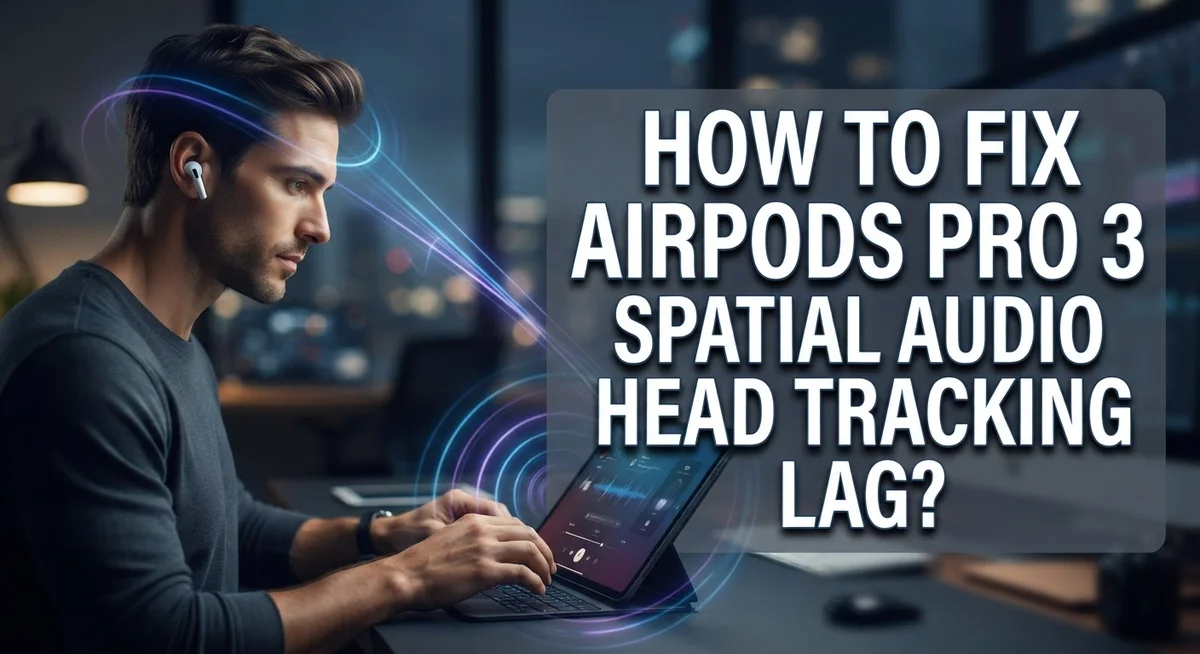
How To Fix AirPods Pro 3 Spatial Audio Head Tracking Lag?
You put on your AirPods Pro 3 and the sound just doesn’t follow your head movements smoothly. There’s a noticeable delay, and it pulls you out of the experience completely.
Head tracking lag is one of the most frustrating issues with Spatial Audio. For the effect to feel natural, latency needs to stay under 30ms. Anything beyond that, and your brain starts to notice the disconnect between your head movement and the audio response.
The good news? Most causes of this lag are fixable without any special tools or technical skills.
This article walks you through exactly how to fix AirPods Pro 3 Spatial Audio head tracking lag step by step. You will learn the difference between Spatial Audio and head tracking, because they are separate features with separate toggles and many people confuse them.
Let’s get your Spatial Audio working the way it should.
In a Nutshell
Head tracking lag happens when the sound doesn’t move smoothly with your head. It feels unnatural and breaks the immersive effect of Spatial Audio.
You can disable head tracking without turning off Spatial Audio. Go to Settings > Accessibility > AirPods > and toggle off “Follow iPhone.”
Control Center gives you a fast way to adjust Spatial Audio on the fly. Tap and hold the volume slider to access the Spatial Audio toggle.
Always check your AirPods connection first. Many lag issues come from a weak or unstable Bluetooth connection rather than a settings problem.
Personalized Spatial Audio can sometimes contribute to lag. You can stop using it under Settings > your AirPods name > Personalized Spatial Audio.
Spatial Audio and head tracking are two separate features. Turning off one does not automatically turn off the other. Knowing this difference helps you troubleshoot faster and smarter.
What Is Spatial Audio Head Tracking and Why Does Lag Happen?
Spatial Audio head tracking is a feature that moves sound around you based on where your head points. When you turn your head left, the audio shifts left too. When you look right, it follows. This creates an immersive listening experience that feels like sound is coming from specific points in space around you.
Head tracking lag happens when your device can’t keep up with your head movements. The sound delays before it catches up to where you’re actually looking. For this effect to feel natural, the delay must stay under 30 milliseconds. When lag reaches 204 milliseconds, it becomes seven times too slow and feels jarring.
Several things cause this lag. A weak Bluetooth connection is the most common culprit. Your AirPods Pro 3 and iPhone need a strong, stable signal to track your head accurately. If your device is too far away or there’s interference from other electronics, lag increases significantly.
Software glitches can also trigger head tracking problems. Sometimes Personalized Spatial Audio settings get corrupted or conflict with your device’s audio processing. Your AirPods might not be properly calibrated to your head position either.
The key thing to understand is that Spatial Audio and head tracking are separate toggles. You can turn off head tracking while keeping Spatial Audio on. This matters because many people disable Spatial Audio entirely when they only need to stop head tracking. Knowing this difference saves you time and lets you keep the audio features you actually want.
Connection problems cause most lag issues, so always check your Bluetooth connection first before trying other fixes.
How Head Tracking Latency Affects Your Listening Experience
When your AirPods Pro 3 experience head tracking lag, the audio feels disconnected from your actual head movements. This creates a disorienting effect where sound should move smoothly but instead stutters or delays.
The latency threshold matters here. For head tracking to feel natural, the delay between your head movement and the audio response must stay below 30 milliseconds. When lag stretches beyond this window, your brain notices the disconnect immediately. The effect becomes jarring rather than immersive.
Your listening experience suffers in several ways. Movies and videos feel out of sync because the audio lags behind your head turns. Spatial awareness breaks down. You lose the three dimensional effect that makes Spatial Audio special in the first place.
Gaming becomes nearly impossible when head tracking lags. Directional cues arrive too slowly. You can’t pinpoint where sounds come from in real time, which defeats the purpose of spatial positioning.
Music listening also takes a hit. While less critical than video or gaming, lag still disrupts the immersive experience. The sound field should feel like it exists around you, not lag behind your movements.
The frustration compounds because you expect this feature to work seamlessly. Your device has the technology. The AirPods Pro 3 have the sensors. Yet something in the chain creates this delay.
Understanding this impact helps you prioritize fixes. If you only notice lag during specific activities, you might tolerate it. If every use feels broken, you’ll want to address it immediately. Either way, knowing exactly how lag affects your experience guides your troubleshooting approach and helps you decide which solutions matter most.
Check Your AirPods Pro 3 Connection Before Troubleshooting
Before you start troubleshooting spatial audio head tracking lag, verify that your AirPods Pro 3 are actually connected to your device. A weak or unstable Bluetooth connection causes most lag issues, so this is your first checkpoint.
Open your device settings and navigate to Bluetooth. Look for your AirPods Pro 3 in the list of connected devices. If they show a connection icon next to their name, they are paired. If the connection appears unstable or shows a warning, toggle Bluetooth off for 10 seconds, then turn it back on. This simple reset often fixes connection problems.
Next, check the signal strength. Move closer to your device and away from obstacles like walls or metal objects. Bluetooth works best within 30 feet of your device, and physical barriers weaken the signal. If lag improves when you move closer, your connection was the culprit.
Verify your AirPods are properly seated in your ears. Head tracking relies on accurate motion detection, and loose earbuds can’t track your head movements correctly. Remove them and reinsert them firmly until they feel secure. The fit matters more than you might think.
Also confirm that your device’s Bluetooth is functioning properly. Try connecting a different Bluetooth device like a speaker or headphones. If that device connects smoothly, your AirPods connection is the issue. If other devices also have problems, your device’s Bluetooth module needs attention.
Once you confirm a solid connection, you can move forward with other fixes. A strong, stable Bluetooth link is the foundation for smooth spatial audio performance. Don’t skip this step, even if it seems obvious. Most users discover their lag problem disappears after establishing a reliable connection.
How To Disable Head Tracking Without Turning Off Spatial Audio
Spatial Audio and head tracking work as separate features on your AirPods Pro 3. You can disable head tracking while keeping Spatial Audio active. This approach solves lag problems without losing the immersive audio experience entirely.
Start in your Settings app. Tap Bluetooth, then select the information icon next to your AirPods Pro 3. Look for the Spatial Audio toggle here. Keep this turned on for now.
Next, navigate to Accessibility settings. Find your AirPods Pro 3 listed there. Look for an option called “Follow iPhone” or similar head tracking control. Disable this toggle to stop head tracking. Your device will no longer track your head movements, but Spatial Audio will continue working.
You can also use the Control Center for quick adjustments. Swipe down from the top right corner of your screen. Press and hold the volume slider. Tap the Spatial Audio icon to toggle it on or off instantly.
Consider disabling Personalized Spatial Audio if you want additional customization. Go to Settings, find your AirPods name, and select “Personalized Spatial Audio.” Choose “Stop Using” to turn this off.
This method works because head tracking is optional within Spatial Audio. The audio still moves around you based on your device’s orientation, but your head position no longer controls the effect. This eliminates the lag problem while maintaining the spatial dimension of your audio.
Test this setup during your normal listening activities. If lag disappears completely, you have found your solution. If you prefer full Spatial Audio with head tracking, try the other fixes mentioned in this guide instead.
How To Toggle Spatial Audio Quickly Using Control Center
The Control Center gives you the fastest way to toggle Spatial Audio without digging through menus. Your device keeps this feature just a swipe away.
Start by opening your Control Center. On most devices, swipe down from the top right corner of your screen. Look for the volume slider in the panel that appears.
Below the volume slider, you’ll see a Spatial Audio icon. It looks like concentric circles or sound waves. Tap this icon directly to toggle Spatial Audio on or off instantly.
This method works great when you’re in the middle of an activity. You don’t need to pause what you’re doing or navigate through Settings. The toggle takes effect immediately on your connected AirPods Pro 3.
Keep in mind that toggling Spatial Audio through Control Center only affects the audio processing itself. It doesn’t change your head tracking settings. If you want to disable head tracking specifically while keeping Spatial Audio active, you still need to visit Accessibility settings.
The Control Center toggle is perfect for quick testing. Try disabling Spatial Audio here if you suspect it’s causing lag. Listen for a few minutes to see if your audio feels more responsive. Then toggle it back on to compare.
You can also customize your Control Center to make Spatial Audio even more accessible. Some devices let you rearrange which controls appear first. Placing Spatial Audio near the top means fewer swipes to reach it.
This quick toggle method saves time during your troubleshooting process. You’ll know within seconds whether Spatial Audio itself is the source of your lag issues or if the problem lies with head tracking specifically.
How To Disable Personalized Spatial Audio on AirPods Pro 3
Personalized Spatial Audio learns your unique head shape and ear position over time. This customization can sometimes cause lag or tracking issues if the profile becomes corrupted or misaligned.
Disabling personalized audio resets your device to standard spatial processing. This removes the custom profile and often resolves lag problems immediately.
Here’s how to stop using personalized spatial audio on your AirPods Pro 3. Open your Settings app on your iPhone or iPad. Tap the AirPods name at the top of the Bluetooth settings. Look for “Personalized Spatial Audio” in the menu. Tap “Stop Using Personalized Spatial Audio.”
Your device will ask you to confirm this action. Select “Stop Using” when prompted. The process takes just a few seconds.
After disabling personalized audio, test your head tracking lag right away. Put on your AirPods and move your head side to side. Notice if the spatial effects feel smoother or if lag disappears.
Keep in mind that disabling personalized audio means you lose the custom tuning your device created for you. Standard spatial audio still works perfectly for most people. If you notice better performance without personalization, you’ve found your fix.
You can always re enable personalized spatial audio later if you want. Your device will start learning your profile again from scratch. This fresh start sometimes fixes lag better than any other method.
Some users find that disabling personalization alone solves their lag issues completely. Others need to combine this step with other adjustments. Either way, this is one of the simplest fixes to try first.
Common Mistakes People Make When Fixing Head Tracking Lag
People often make simple mistakes when trying to fix head tracking lag. Understanding these errors helps you solve the problem faster.
The biggest mistake is confusing head tracking with Spatial Audio itself. These are two separate features on your AirPods Pro 3. Many users think turning off Spatial Audio will fix lag, but that’s not always necessary. You can disable head tracking while keeping Spatial Audio on. This distinction matters because you might want spatial sound without the head movement feature.
Another common error is skipping the connection check. Your AirPods need a strong, stable connection to work properly. If your device doesn’t recognize your AirPods clearly, head tracking will lag or fail completely. Always verify your AirPods are connected before troubleshooting anything else.
People also forget to disable “Follow iPhone” in the right place. This setting lives in Accessibility, not in the main Bluetooth menu. Users look in the wrong settings area and give up thinking the option doesn’t exist. The Accessibility section is where Apple hides this specific control.
Some users disable Personalized Spatial Audio without understanding what it does. This feature learns your ear shape and head position over time. Turning it off resets your device to basic spatial processing. This can actually help with lag, but you lose custom tuning in the process.
Finally, people rush through testing. After making changes, you need time to actually use your AirPods and notice the difference. Head tracking lag isn’t always obvious in quiet moments. Test during normal listening activities where you can really feel the effect. Give each fix at least 15 to 20 minutes of real use before trying something else.
Additional Troubleshooting Steps If Lag Persists
If lag still bothers you after trying the basic fixes, try these additional steps.
Check your device’s Bluetooth connection first. Go to Settings and look at your Bluetooth list. If your AirPods show as connected but seem unstable, forget the device and reconnect. This clears out old connection data that might cause delays.
Next, restart your entire device. Power it off completely, wait 10 seconds, then turn it back on. This resets the audio processing system and often fixes timing issues that software glitches create.
Try disabling “Follow iPhone” through Accessibility settings. Go to Settings, then Accessibility, then find your AirPods name. Turn off the “Follow iPhone” toggle. This disables head tracking without removing Spatial Audio. If the lag disappears, your issue was specifically with head tracking, not the spatial audio itself.
Update your device software. Check Settings for any pending updates. Head tracking improvements come through system updates regularly. Installing the latest version might include fixes for the exact lag you’re experiencing.
Test with a different app or video. Some apps handle Spatial Audio better than others. Try watching a movie, playing a game, or listening to music from a different service. If lag only happens in one app, the problem lies there, not with your AirPods.
Restore your AirPods to factory settings as a last resort. Put them in their case, press and hold the setup button on the back until the light flashes white. This completely resets them. Then reconnect and set up Spatial Audio fresh.
If none of these steps work, your AirPods might have a hardware issue that needs professional service.
Final Thoughts
Head tracking lag on AirPods Pro 3 is a fixable problem for most users. The key is understanding that Spatial Audio and head tracking are two separate features. You can adjust one without affecting the other.
Start with the basics before trying advanced fixes. Make sure your AirPods are properly connected and worn correctly. A loose fit or weak Bluetooth signal causes more problems than most people realize.
The most important setting to know is Settings > Accessibility > AirPods > Follow iPhone. This toggle controls head tracking without touching your Spatial Audio experience at all.
For quick adjustments, use Control Center to manage Spatial Audio on the fly. This saves time and lets you test changes instantly without digging through menus.
Remember that head tracking latency should be under 30ms to feel smooth. Anything noticeably delayed means something in your setup needs attention. Most software fixes bring you back into that comfortable range.
Personalized Spatial Audio is a powerful feature, but it can sometimes cause processing delays. Disabling it removes your custom profile but often reduces lag noticeably.
If you have worked through every step in this guide and lag still persists, that points toward a possible hardware issue. Professional service may be your next best option in that situation.
The most common mistake people make is rushing through fixes without testing after each step. Take your time, test after every change, and you will quickly identify exactly what is causing the problem.
With patience and the right settings knowledge, most AirPods Pro 3 head tracking lag issues resolve completely through software adjustments alone.
Frequently Asked Questions
Why does my head tracking feel delayed?
Head tracking lag happens when your device cannot keep up with your head movements. The delay should be under 30 milliseconds to feel smooth. Anything longer feels noticeably off. This usually occurs due to connection issues, software glitches, or conflicting settings.
Check your Bluetooth connection first. Go to Settings and verify your AirPods show a strong signal. A weak connection causes the biggest delays.
Can I disable head tracking without turning off Spatial Audio?
Yes, you absolutely can. These are two separate features, so disabling one doesn’t affect the other.
Go to Settings > Accessibility > AirPods > Follow iPhone and toggle it off. This stops head tracking instantly while keeping Spatial Audio active. This is the single most important setting to know.
What’s the difference between Spatial Audio and head tracking?
Spatial Audio creates a surround sound effect around you. Head tracking makes that effect follow your head movements. You can have Spatial Audio without head tracking, but not the reverse.
Many users confuse these two features. Understanding the difference saves you troubleshooting time.
Should I disable Personalized Spatial Audio?
Personalized Spatial Audio uses your device’s camera to map your ear shape for better sound. Sometimes this feature causes processing delays.
Try disabling it by going to Settings > [Your AirPods name] > Personalized Spatial Audio > Stop Using. Test your audio for 10 minutes. If lag disappears, this was your culprit.
How do I quickly test Spatial Audio changes?
Use Control Center for instant adjustments. Swipe down from the top right corner, find the volume slider, and tap the Spatial Audio icon. This lets you toggle settings on and off without diving into Settings each time.

Hi, I’m Amy! I’m passionate about tech and love breaking down complex product specs into simple, actionable advice. I review gadgets, compare tools, and write buying guides to help you spend smarter. Got a question? Drop me a message — I’d love to hear from you!