What to Do When GitHub Copilot Disconnects in VS Code?
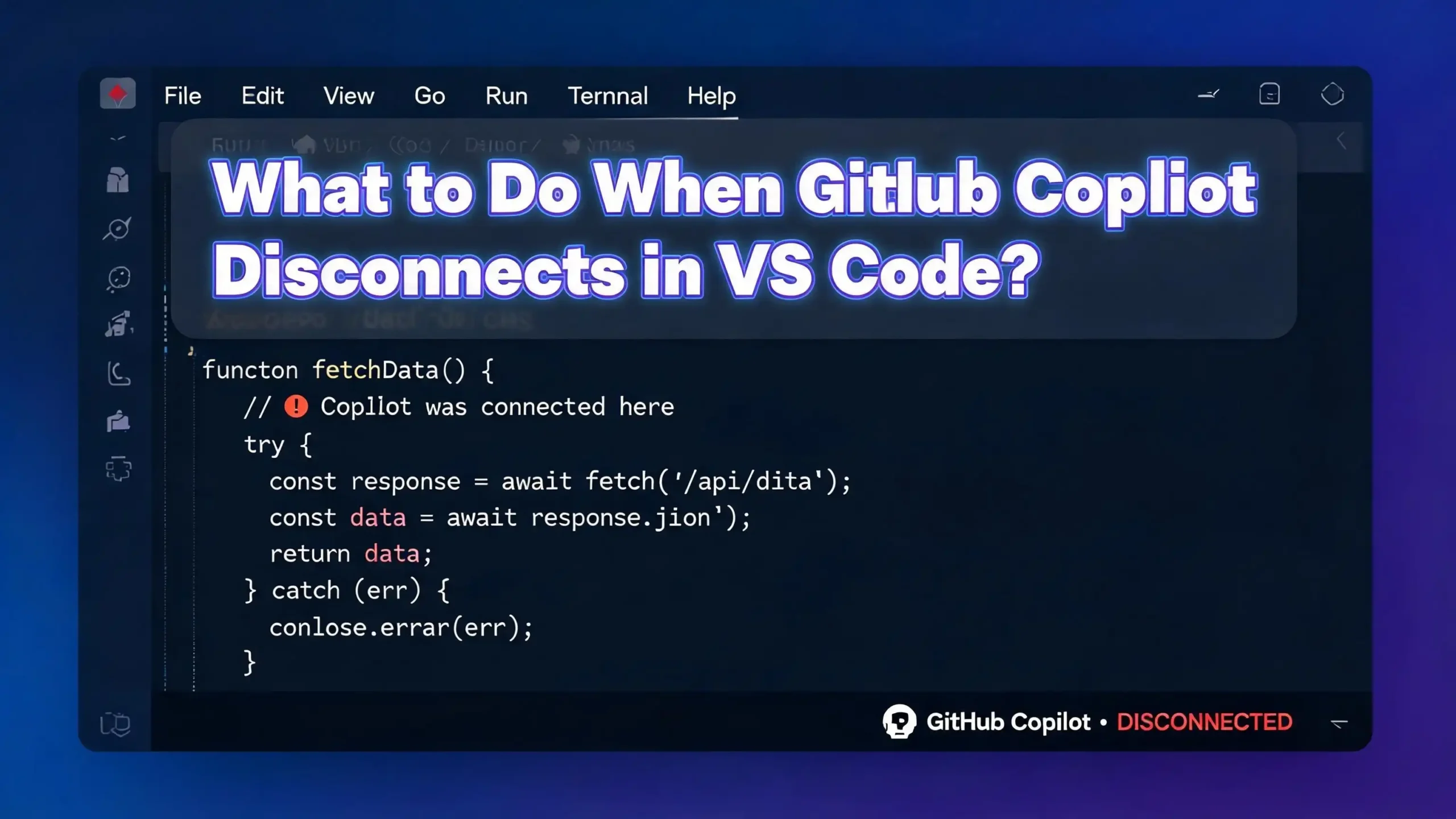
You are in the middle of a coding session. Your fingers are flying across the keyboard. GitHub Copilot is feeding you brilliant suggestions. Then suddenly, it stops. The Copilot icon goes grey. The suggestions vanish. GitHub Copilot has disconnected in VS Code, and you are left staring at a silent editor.
This is one of the most common and frustrating problems developers face today. GitHub Copilot disconnection in VS Code can happen for many reasons. It could be a network hiccup, a stale authentication token, a proxy conflict, or even a bug in the extension itself. The good news is that most of these issues have clear, straightforward fixes.
In this post, you will find practical, step by step solutions to get GitHub Copilot reconnected and working smoothly again. Let’s get your AI coding assistant back online.
In a Nutshell
- GitHub Copilot does not automatically reconnect after a network interruption in VS Code. You often need to reload the window or restart the extension host manually to restore the connection.
- Outdated extensions and editors are among the top causes of Copilot disconnections. Keeping both VS Code and the Copilot extension updated to their latest versions prevents many common failures.
- Authentication token expiry can silently break your Copilot session. Signing out and signing back into your GitHub account inside VS Code refreshes the token and usually resolves the issue.
- Firewall and proxy configurations frequently block Copilot on corporate networks. You may need to allowlist specific GitHub endpoints like
copilot-proxy.githubusercontent.comandapi.githubcopilot.comto restore connectivity. - Clearing cached data from the Copilot extension storage folder can fix persistent disconnection problems that survive restarts and reinstalls.
- Checking the GitHub Status page at
githubstatus.comshould always be your first step. If Copilot’s servers are experiencing an outage, no local fix will help until the service is restored.
Why Does GitHub Copilot Disconnect in VS Code
Understanding why Copilot disconnects helps you fix the problem faster. GitHub Copilot relies on a live connection to GitHub’s servers to generate code suggestions. Any disruption in that connection chain causes the extension to stop working.
The most frequent cause is a temporary network interruption. Even a brief Wi-Fi dropout can break the connection. The frustrating part is that Copilot does not automatically reconnect once the network comes back. The extension’s initialization function runs only once at startup. If the connection fails after that initial check, Copilot stays offline until you take manual action.
Other common causes include expired authentication tokens, outdated VS Code or extension versions, and conflicting proxy or firewall settings. Corporate networks with SSL inspection are especially prone to causing disconnections because they intercept secure connections that Copilot depends on.
Sometimes the problem is on GitHub’s end. Server outages or rate limiting can also cause Copilot to disconnect or stop providing suggestions. Knowing which category your problem falls into saves you from wasting time on the wrong fix.
Check the GitHub Status Page First
Before you start troubleshooting your local setup, visit githubstatus.com. This page shows the real time status of all GitHub services, including Copilot. If there is an active incident affecting Copilot, you will see it listed there.
Server side outages happen more often than most developers realize. When Copilot’s backend goes down, every user is affected. No amount of restarting VS Code or clearing caches will fix a server outage. You simply need to wait for GitHub’s team to resolve it.
Bookmark the status page so you can check it quickly. You can also subscribe to status updates via email or RSS. This way, you get notified the moment an issue is reported and again when it is resolved. This single step can save you hours of unnecessary troubleshooting.
If the status page shows all systems operational, the problem is likely on your end. That is when you move on to the local fixes described in the following sections.
Reload the VS Code Window
The quickest fix for a Copilot disconnection is reloading the VS Code window. This restarts all extensions without closing your files or losing your workspace state. It is faster than restarting VS Code entirely and works in most cases.
To reload, press Ctrl+Shift+P (or Cmd+Shift+P on macOS) to open the Command Palette. Type Developer: Reload Window and press Enter. VS Code will refresh, and all extensions will reinitialize. Copilot will attempt to reconnect during this process.
If reloading the window does not work, try a more targeted approach. Open the Command Palette again and type Restart Extension Host. This command restarts only the extension host process, which is where Copilot runs. It is even lighter than a full window reload and specifically resets the extension’s connection logic.
Many developers report that this simple step fixes 90% of Copilot disconnection issues caused by temporary network interruptions. Make it your go to first response whenever Copilot stops responding.
Sign Out and Sign Back Into GitHub
Authentication problems are a leading cause of Copilot disconnections. Your GitHub authentication token inside VS Code can expire, become corrupted, or fall out of sync. When this happens, Copilot loses its ability to communicate with GitHub’s servers.
To fix this, click the Accounts icon in the bottom left corner of VS Code. Hover over your GitHub username and click Sign Out. After signing out, reload the window using the Command Palette (Developer: Reload Window). VS Code will prompt you to sign back into GitHub.
Follow the authentication flow in your browser. Once you complete it, VS Code receives a fresh authentication token. Copilot should reconnect immediately after this process.
If the sign out option does not appear, you can also use the Command Palette. Search for GitHub Copilot: Sign Out and execute the command. This forces a complete sign out from the Copilot service specifically. When you reopen a file, Copilot will ask you to authenticate again. This fresh authentication resolves most token related disconnection problems.
Update VS Code and the Copilot Extension
Running an outdated version of VS Code or the Copilot extension is a common source of disconnection issues. GitHub frequently updates the Copilot extension to fix bugs, patch connection issues, and add new features. Older extension versions may not communicate properly with GitHub’s current servers.
To update VS Code, go to Help > Check for Updates (on Windows/Linux) or Code > Check for Updates (on macOS). Install any available updates and restart the editor.
To update the Copilot extension, open the Extensions sidebar by pressing Ctrl+Shift+X. Search for GitHub Copilot. If an update is available, you will see an Update button. Click it and reload VS Code after the update completes.
Pay special attention to Copilot Chat compatibility. Each new version of Copilot Chat is designed to work only with the latest release of VS Code. If you are running an older VS Code version, Copilot Chat may fail to connect even though inline suggestions still work. Keeping both components updated together prevents this mismatch.
Verify Your Copilot Subscription Status
A disconnection that seems technical might actually be a billing issue. If your GitHub Copilot subscription has expired or your free trial has ended, the extension will stop working. It may not always display a clear error message about the subscription status.
To check your subscription, go to github.com/settings/copilot in your browser. This page shows your current Copilot plan and its status. If the subscription has lapsed, you will need to renew it before Copilot will work again.
If you are using Copilot through an organization or enterprise plan, contact your organization administrator. They can verify that your seat assignment is still active. Sometimes organizational changes or license reallocation can remove your Copilot access without direct notification.
Students and educators should also verify their GitHub Education benefits. If your student developer pack has expired, your free Copilot access expires with it. Renewing your education verification on GitHub will restore your Copilot subscription.
Fix Network and Wi-Fi Connection Issues
GitHub Copilot needs a stable internet connection to function. If your Wi-Fi is unreliable or your network keeps dropping, Copilot will disconnect repeatedly. The extension does not handle intermittent connectivity well.
Start by testing your basic internet connection. Open a browser and visit any website. If regular browsing works, your general connectivity is fine. Next, test Copilot’s specific endpoints. Open a terminal and run this command:
curl --verbose https://copilot-proxy.githubusercontent.com/_ping
A successful response returns an HTTP 200 status code. If this request fails, something is blocking your connection to GitHub’s Copilot servers specifically. This could be a DNS issue, a firewall rule, or a network filter.
If you are on Wi-Fi, try switching to a wired connection. Wired connections are more stable and less prone to the brief dropouts that cause Copilot to disconnect. If switching to wired fixes the problem, your Wi-Fi network is the root cause. Consider upgrading your router, moving closer to it, or using a Wi-Fi extender.
Configure Proxy Settings Correctly
Many developers work behind corporate proxy servers. These proxies can interfere with Copilot’s ability to reach GitHub’s servers. If your proxy is not configured properly in VS Code, Copilot will fail to connect.
To configure your proxy in VS Code, go to File > Preferences > Settings. Click Application in the left panel and select Proxy. Enter your proxy server address in the text box. The format should be something like http://yourproxy.company.com:8080.
If your proxy requires authentication, include your credentials in the URL. The format is http://USERNAME:PASSWORD@proxy-address:port. You can store this in your VS Code settings or set it as an environment variable.
One important detail: GitHub Copilot does not currently support proxies with https:// URLs. Only http:// proxy URLs work. If your proxy uses HTTPS, you may need to work with your IT department to find an alternative configuration. Also, if your proxy uses custom SSL certificates, VS Code may reject the connection. You can temporarily disable strict SSL checking under Proxy Strict SSL in settings, but be aware that this reduces your connection security.
Adjust Firewall and Allowlist Settings
Corporate firewalls often block the specific endpoints that GitHub Copilot needs. Even if general internet access works fine, Copilot may be blocked at the firewall level. This is especially common in enterprise environments with strict security policies.
GitHub Copilot requires access to several endpoints. The most critical ones are github.com, api.github.com, copilot-proxy.githubusercontent.com, and api.githubcopilot.com. If any of these are blocked, Copilot will disconnect or fail to activate.
Contact your IT department and ask them to add these domains to the firewall allowlist. Provide them with the full list from GitHub’s official documentation on Copilot allowlist references. This list includes all the domains and IP ranges that Copilot needs for full functionality.
If you are using personal security software or a VPN, check its settings as well. Some VPN configurations route traffic in ways that break Copilot’s connection. Try temporarily disabling your VPN to see if Copilot reconnects. If it does, you know the VPN is causing the issue and can adjust its split tunneling settings accordingly.
Clear the Copilot Extension Cache
Sometimes the Copilot extension’s cached data becomes corrupted. This can cause persistent disconnection issues that survive restarts and even reinstalls. Clearing the cache forces the extension to start fresh.
To clear the cache on Windows, close VS Code completely. Then delete the folder at %APPDATA%\Code\User\globalStorage\github.copilot-chat. On macOS, the path is ~/Library/Application Support/Code/User/globalStorage/github.copilot-chat. On Linux, look in ~/.config/Code/User/globalStorage/github.copilot-chat.
After deleting this folder, reopen VS Code. The extension will recreate the cache with fresh data. Sign back into GitHub if prompted. This process resolves issues caused by stale or corrupted session data that the extension was trying to reuse.
If clearing the chat cache does not help, you can also try removing the main Copilot extension data. Look for the github.copilot folder in the same globalStorage directory and delete it as well. Restart VS Code and let the extension rebuild everything from scratch.
Reinstall the GitHub Copilot Extension
When other fixes fail, a clean reinstall of the Copilot extension often does the trick. This removes all extension files and replaces them with a fresh copy. It eliminates any corrupted files that might be causing the disconnection.
Open the Extensions sidebar in VS Code with Ctrl+Shift+X. Find GitHub Copilot in your installed extensions list. Click the gear icon next to it and select Uninstall. Do the same for GitHub Copilot Chat if it is installed separately.
After uninstalling both extensions, close VS Code completely. Wait a few seconds, then reopen it. Go back to the Extensions sidebar and search for GitHub Copilot. Install it fresh from the marketplace. Sign into your GitHub account when prompted.
This process gives you the latest version of the extension with clean configuration files. It is the most thorough local fix you can perform. If Copilot still disconnects after a clean reinstall, the problem likely lies with your network configuration or your GitHub account rather than the extension itself.
Check for Extension Conflicts
Other VS Code extensions can sometimes conflict with GitHub Copilot. Extensions that modify the editor’s network behavior, provide competing code suggestions, or consume excessive resources can interfere with Copilot’s connection.
To test for conflicts, open VS Code in Extension Bisect mode. Open the Command Palette and type Help: Start Extension Bisect. This tool disables half your extensions at a time and asks you if the problem persists. Through a process of elimination, it identifies the exact extension causing the conflict.
Alternatively, you can start VS Code with all extensions disabled. Use the command line flag code --disable-extensions. If Copilot works with all other extensions disabled, you know a conflict exists. Enable your extensions one by one until you find the culprit.
Common conflict sources include other AI code completion tools, custom proxy extensions, and network monitoring extensions. Once you identify the conflicting extension, you can either remove it, disable it while using Copilot, or check if an updated version resolves the compatibility issue.
Use the VS Code Output Logs for Diagnosis
When you cannot figure out why Copilot keeps disconnecting, the output logs provide detailed diagnostic information. These logs record every connection attempt, error message, and status change from the Copilot extension.
To view the logs, go to View > Output in VS Code. In the dropdown menu at the top of the Output panel, select GitHub Copilot. You will see a running log of Copilot’s activity. Look for error messages, failed connection attempts, or authentication failures.
Common log entries that indicate specific problems include “ETIMEDOUT” (proxy or network timeout), “ECONNRESET” (connection was forcibly closed), and “certificate signature failure” (SSL certificate problems). Each of these points to a different root cause.
If you need to share these logs with GitHub Support or your IT department, you can copy the entire output and paste it into a support ticket. The logs contain the technical details that support teams need to diagnose your specific issue without guesswork.
What to Do When Nothing Else Works
If you have tried every fix in this guide and Copilot still disconnects, a few last resort options remain. First, try completely uninstalling VS Code and deleting all its configuration data. On Windows, remove the folders at %APPDATA%\Code and %USERPROFILE%\.vscode. On macOS, delete ~/Library/Application Support/Code and ~/.vscode. Reinstall VS Code from scratch.
Second, try using Copilot in a different environment. Test it in a JetBrains IDE or Visual Studio to see if the problem follows you. If Copilot works in another editor but not in VS Code, the issue is specific to your VS Code configuration.
Third, open a discussion on GitHub’s Community forum at github.com/orgs/community/discussions. Include your VS Code version, Copilot extension version, operating system, and relevant output logs. The community and GitHub staff can often identify issues that are hard to troubleshoot alone.
Finally, contact GitHub Support through support.github.com. For paid Copilot subscribers, support tickets receive priority attention. Provide as much detail as possible, including the diagnostic steps you have already taken. This helps the support team skip the basics and focus on your specific issue.
Prevent Future Copilot Disconnections
Prevention is better than repeated troubleshooting. A few habits will significantly reduce how often Copilot disconnects on you. Enable automatic updates for both VS Code and its extensions. This ensures you always run the latest, most compatible versions.
Use a stable internet connection whenever possible. If you work remotely, invest in a reliable Wi-Fi setup or use a wired Ethernet connection. Set up your proxy and firewall settings correctly the first time, and document the configuration so you can restore it if settings change.
Periodically clear your Copilot extension cache as part of regular maintenance. Once a month is usually enough. This prevents stale data from accumulating and causing problems down the line.
If you are on a corporate network, maintain a good relationship with your IT department. Make sure they understand which endpoints Copilot needs and why. Having these domains pre approved on the firewall eliminates one of the most common sources of disconnection for enterprise users.
Frequently Asked Questions
Why does GitHub Copilot keep disconnecting in VS Code?
GitHub Copilot disconnects most often because of temporary network interruptions. The Copilot extension initializes its connection once at startup and does not automatically reconnect after a network drop. Other causes include expired authentication tokens, outdated extensions, firewall restrictions, and proxy misconfigurations. Checking the GitHub Status page first helps you determine if the problem is on GitHub’s servers.
How do I reconnect GitHub Copilot without restarting VS Code?
You can reconnect Copilot without a full restart by using the Command Palette. Press Ctrl+Shift+P and type Developer: Reload Window. This reloads VS Code and reinitializes all extensions. For an even lighter approach, search for Restart Extension Host in the Command Palette. This restarts only the extension process without reloading the entire window.
Does GitHub Copilot work behind a corporate proxy?
Yes, GitHub Copilot supports HTTP proxy connections. You need to configure the proxy address in VS Code’s settings under Application > Proxy. Note that Copilot does not support HTTPS proxy URLs. If your corporate proxy uses custom SSL certificates, you may need to install them in your operating system’s trust store or adjust the Proxy Strict SSL setting in VS Code.
How do I check if my Copilot subscription is active?
Visit github.com/settings/copilot in your browser while logged into your GitHub account. This page displays your current Copilot plan, subscription status, and billing information. If you access Copilot through an organization, ask your admin to confirm that your seat is still assigned and active.
What endpoints does GitHub Copilot need access to?
GitHub Copilot requires access to several endpoints including github.com, api.github.com, copilot-proxy.githubusercontent.com, and api.githubcopilot.com. If your network firewall blocks any of these domains, Copilot will fail to connect. You can test connectivity by running a curl command against copilot-proxy.githubusercontent.com/_ping from your terminal.
Can other VS Code extensions cause Copilot to disconnect?
Yes, other extensions can conflict with Copilot. Extensions that modify network behavior, provide competing AI completions, or consume heavy resources may interfere. Use the Help: Start Extension Bisect command in VS Code to identify which extension causes the conflict. You can also launch VS Code with the --disable-extensions flag to test Copilot in isolation.

Hi, I’m Amy! I’m passionate about tech and love breaking down complex product specs into simple, actionable advice. I review gadgets, compare tools, and write buying guides to help you spend smarter. Got a question? Drop me a message — I’d love to hear from you!