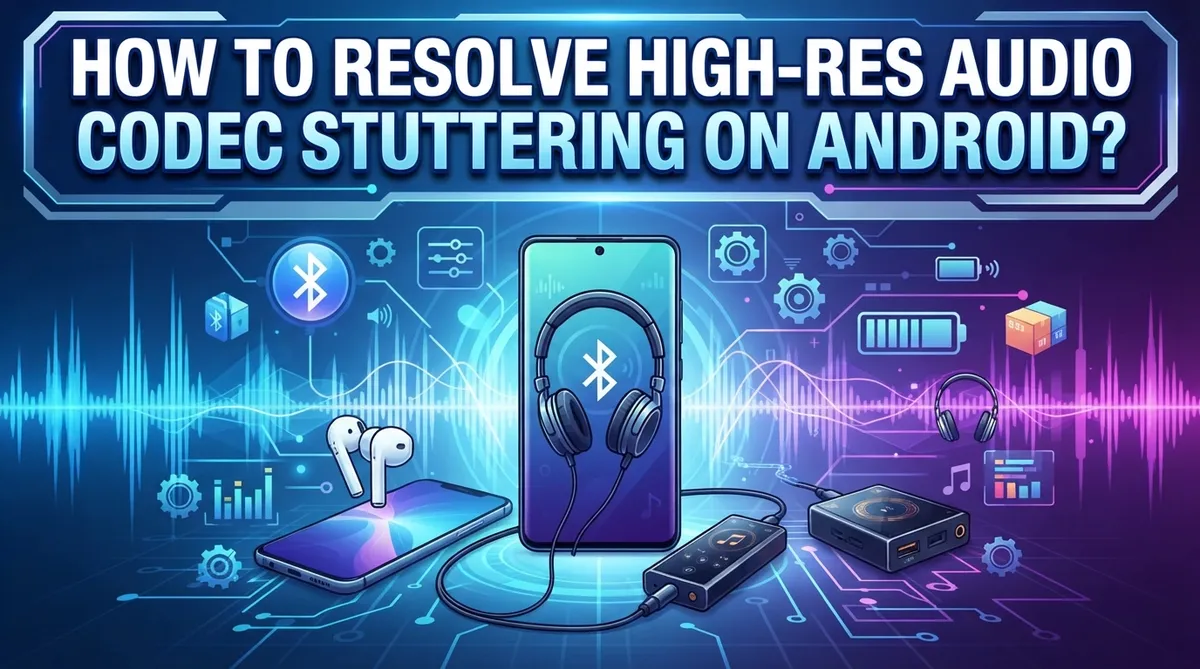
How To Resolve High-Res Audio Codec Stuttering On Android?
You are listening to your favorite album in high resolution audio, and then it happens. The audio cuts out, skips, or stutters in a way that completely ruins the experience.
This is a frustratingly common problem on Android, and it usually comes down to codec settings, bitrate mismatches, or hardware offload conflicts.
The good news? Most of these issues are fixable without buying anything new.
Android gives you more control over audio codecs than most people realize. Hidden inside Developer Options, you can adjust settings that directly affect how your device handles high-res audio streams.
This guide will walk you through exactly why stuttering happens and how to fix it step by step.
By the end, your high-res audio should play smoothly and consistently on your Android device.
In a Nutshell
- Stuttering in high-res audio on Android is most often caused by a codec mismatch, a bitrate set too low, or hardware offload interfering with playback.
- LDAC is the best codec for high-resolution audio, but it needs to be configured correctly inside Developer Options to work well.
- Disabling Bluetooth A2DP hardware offload is one of the first fixes to try, especially if stuttering starts right after playback begins.
- Bitrate matters more than most people think. Keeping your Bluetooth LE bitrate at 990 kbit/s or higher helps prevent dropouts and choppy sound.
- Re-pairing your Bluetooth device resets the codec negotiation process, which can clear up stuttering caused by a bad initial connection.
- For wired connections, the quality of your USB cable directly affects audio stability and should not be overlooked.
What Causes High-Res Audio Codec Stuttering on Android
High-res audio stuttering on Android happens for specific, fixable reasons. Understanding these causes helps you solve the problem faster.
Codec mismatch is the most common culprit. Your Android device and your headphones must support the same codec. If they don’t agree on which codec to use, audio drops or stutters. LDAC works best for high-res playback, but not all headphones support it. Your device might fall back to a lower codec, causing interruptions.
Bitrate problems create stuttering too. Bluetooth LE bitrate controls how much data flows between your phone and headphones. Set it too low, and the connection can’t handle high-res audio. Bitrate below 990 kbit/s often triggers stuttering during playback.
Hardware offload is another major factor. This feature lets your phone’s processor handle audio instead of your Bluetooth chip. With certain codecs, hardware offload causes stuttering instead of preventing it. Disabling it sometimes fixes the problem immediately.
Connection issues matter as well. A weak Bluetooth signal, interference from other devices, or a bad pairing can trigger stuttering. Your phone struggles to maintain the connection, and audio breaks up.
USB cable quality affects wired connections. A damaged or low-quality cable introduces noise and dropouts that sound like stuttering.
Processor overload happens when your phone is running too many apps. Your device can’t dedicate enough resources to stable audio playback. Background processes drain CPU power, leaving less for audio processing.
These causes often work together. A low bitrate combined with hardware offload and a weak signal creates the worst stuttering. Fixing one issue usually improves playback, but addressing multiple causes gives you the best results.
How to Access Developer Options on Android
Developer Options is a hidden menu in Android that gives you access to advanced settings. Most users never see it because Google hides it by default. You need to unlock it to fix high-res audio codec stuttering.
Here’s how to access Developer Options on your Android device.
First, open the Settings app on your phone. Scroll down and find “About phone” near the bottom of the menu. Tap it to open the phone information screen.
Look for “Build number” in the About phone menu. This number identifies your Android version and device model. You’ll tap this build number multiple times to unlock Developer Options.
Tap the Build number seven times in quick succession. Your phone will count down after each tap. You’ll see a message that says “You are now X steps away from being a developer.” Keep tapping until the countdown reaches zero.
After the seventh tap, a notification will appear saying “You are now a developer.” Congratulations. Developer Options is now unlocked.
Go back to the main Settings menu. Scroll down and you’ll see a new option called “Developer options” or “Developer settings.” Tap it to enter the menu.
Inside Developer Options, you’ll find dozens of advanced settings. The menu includes options for USB debugging, animation speed, and most importantly for audio, Bluetooth codec settings.
Look for options related to Bluetooth and audio codecs. You may see settings like “Disable Bluetooth A2DP hardware offload” or “Bluetooth LE Bitrate.” These are the controls you need to adjust to fix stuttering.
Keep Developer Options open. The next steps will guide you through the specific audio settings that stop codec stuttering on your device.
How to Configure Bluetooth Codec Settings for High-Res Audio
Configuring Bluetooth codec settings for high-res audio requires you to access your phone’s Developer Options and make specific adjustments. The process is straightforward once you know where to look.
Start by opening Developer Options on your Android device. Scroll down until you find the audio and Bluetooth section. Look for an option that says “Bluetooth Audio Codec” or similar wording. Tap this menu to see which codecs your phone supports.
LDAC codec is your best choice for high-resolution audio. Select LDAC from the available options if your headphones support it. This codec handles higher bitrates and delivers better sound quality than standard options like SBC or AAC.
Next, find the “Bluetooth LE Bitrate” setting in the same menu. Set this to 990 kbit/s or higher to prevent stuttering during playback. Lower bitrates cause audio dropouts and interruptions. Your phone needs enough bandwidth to stream high-res content smoothly.
After selecting your codec and bitrate, look for “Disable Bluetooth A2DP hardware offload.” Toggle this setting ON. Hardware offload can interfere with LDAC processing on some devices, causing stuttering problems.
Test your audio after making these changes. Play a high-res audio file through your Bluetooth headphones. Listen for any stuttering or dropouts. If problems continue, try toggling hardware offload OFF to see if that helps your specific device.
Remember that codec compatibility varies between phones and headphones. Your headphones must support LDAC for these settings to work properly. Check your headphone documentation to confirm codec support before adjusting these settings.
How to Disable Bluetooth A2DP Hardware Offload
Disabling Bluetooth A2DP hardware offload is one of the most effective ways to stop stuttering with high-res audio. This setting tells your Android phone to process audio codecs using software instead of dedicated hardware chips.
Why this matters: Hardware offload can cause problems when your phone’s codec doesn’t match your headphones perfectly. The hardware processor may struggle with certain codecs like LDAC, especially at higher bitrates. Software processing gives your phone more flexibility to handle codec mismatches.
To disable this setting, open Developer Options on your Android phone. You should already know how to access this menu from the Settings app. Tap “Build number” seven times to unlock Developer Options if you haven’t done this yet.
Once inside Developer Options, scroll down to find the Bluetooth section. Look for an option called “Disable Bluetooth A2DP hardware offload.” This setting is usually near other Bluetooth codec options.
Toggle this setting ON. A checkmark or switch will appear next to it when enabled. This change takes effect immediately, but you should unpair and repair your Bluetooth headphones to reset the connection completely.
After enabling this setting, test your audio right away. Play a high-res audio file through your headphones and listen for stuttering. The audio should sound smoother and more stable than before.
Keep in mind that disabling hardware offload uses slightly more battery power since your phone’s processor handles all codec work. However, this trade-off is worth it when you get clear, stutter-free high-res audio playback.
If stuttering continues after this change, check your Bluetooth LE bitrate settings. Make sure your bitrate stays at 990 kbit/s or higher for stable playback.
How to Adjust Bluetooth LE Audio Bitrate for Stable Playback
Bluetooth LE Audio bitrate controls how much data your headphones receive per second. A higher bitrate means better sound quality, but it also requires a stable connection. Bitrate stability is crucial for preventing stuttering during playback.
Most Android devices let you adjust bitrate settings in Developer Options. Look for the “Bluetooth LE Bitrate” option in the Bluetooth section. You’ll typically see options ranging from low to high values. Avoid setting bitrate below 990 kbit/s, as this commonly causes stuttering and audio dropouts.
When you select a higher bitrate, your phone sends more audio data to your headphones. This demands better Bluetooth signal strength and more processing power. If your connection is weak or your headphones can’t handle the bitrate, stuttering happens.
Test different bitrate settings to find your device’s sweet spot. Start with a mid-range bitrate and play a high-resolution audio file. If stuttering occurs, try a slightly lower setting. If playback is smooth, you can experiment with higher values.
Your headphones matter too. Some models support only certain bitrate ranges. Check your headphone specifications to see what they accept. Mismatched bitrate settings between your phone and headphones cause compatibility issues.
After adjusting bitrate, disable Bluetooth A2DP hardware offload in Developer Options. This forces your phone’s processor to handle codec processing instead of the dedicated chip. Many users find this combination stops stuttering completely.
Monitor your audio during the first few minutes of playback. Stuttering often appears within the first 30 seconds if a problem exists. If everything sounds smooth, your bitrate setting is working correctly for your specific setup.
How to Fix Stuttering on Wired High-Res Audio Connections
Wired high-res audio connections bypass Bluetooth entirely, which eliminates codec negotiation issues. However, stuttering can still occur if your USB cable or connection port has problems.
Check your USB cable quality first. Low-quality cables introduce interference and data loss. Replace any frayed, bent, or damaged cables with certified alternatives. Ensure the cable fits snugly into both your Android device and headphones without wiggling.
Clean your charging and audio ports. Dust and debris block proper electrical contact. Use a soft, dry brush or compressed air to gently remove particles. Never insert metal objects into ports, as this causes permanent damage.
Verify USB audio driver compatibility. Some Android devices require specific drivers for wired high-res audio. Check your device manufacturer’s website for audio driver updates. Install any available updates through your device settings.
Test with a different USB cable. This helps you identify whether the cable itself causes the problem. Borrow a friend’s cable or purchase a replacement to rule out cable failure.
Disable Bluetooth connections nearby. Even though you’re using wired audio, active Bluetooth can interfere with USB signals. Turn off Bluetooth entirely during high-res playback. This prevents background connections from consuming system resources.
Restart your Android device. A simple reboot clears temporary glitches affecting USB audio processing. Power off completely, wait 30 seconds, then power back on.
Check your audio app settings. Some music applications have buffer or sample rate settings. Adjust these values to match your headphones’ specifications. Lower sample rates may help if stuttering persists despite hardware fixes.
Wired connections offer superior stability compared to wireless options when properly maintained.
Common Mistakes That Cause High-Res Audio Stuttering on Android
Many people make simple mistakes that cause high-res audio to stutter on Android. Understanding these errors helps you fix the problem quickly.
Using an incompatible codec ranks as the top mistake. Your headphones and phone must support the same codec. If your headphones use SBC codec but your phone tries to send LDAC data, stuttering happens immediately. Always check your headphone specifications before pairing them.
Setting bitrate too low causes constant interruptions. Bitrate controls how much audio data travels per second. When you set it below 990 kbit/s, your phone cannot send enough information for smooth playback. Higher bitrate means better stability and fewer dropouts.
Leaving hardware offload enabled creates problems with certain codec combinations. Hardware offload lets your phone’s processor skip audio handling, but this backfires when codecs don’t match perfectly. Disabling this feature forces your phone to process audio manually, which prevents stuttering.
Ignoring codec switching when upgrading headphones leads to frustration. New headphones often support different codecs than your old pair. Your Android phone might still try using the previous codec settings. You need to unpair your old headphones completely and repair the new ones to reset codec negotiation.
Overlooking Bluetooth interference matters more than people realize. Nearby Wi-Fi routers, microwaves, and other devices operate on the same 2.4GHz frequency as Bluetooth. This interference causes audio dropouts and stuttering. Moving away from these devices often solves the problem instantly.
Neglecting software updates keeps bugs alive. Codec drivers receive fixes through Android updates. Running outdated software means you miss important improvements that prevent stuttering.
How to Verify Codec Compatibility Between Your Device and Headphones
Checking codec compatibility between your device and headphones is the first step to fixing stuttering. Your Android phone and headphones must support the same audio codec to work together properly.
Start by finding your headphone’s specifications. Check the product manual or manufacturer’s website to see which codecs your headphones support. Common options include SBC, AAC, aptX, aptX HD, LDAC, and others. Write down every codec your headphones can handle.
Next, access your Android device’s Developer Options. Go to Settings, then About Phone, and tap Build Number seven times. Return to Settings and look for Developer Options near the bottom. Scroll down to find the Bluetooth audio codec section. This shows which codecs your phone supports.
Compare the two lists carefully. If your headphones support LDAC and your phone supports LDAC, you have a match. If your headphones only support aptX but your phone defaults to SBC, that’s a mismatch causing problems.
Once you identify compatible codecs, select one manually in Developer Options. Choose LDAC if both devices support it, as it offers the highest quality. If only SBC appears in both lists, your devices have limited compatibility and may need replacement.
After selecting a codec, unpair your headphones completely. Power off both devices, wait 30 seconds, then power them back on. Pair them again fresh. This forces your devices to renegotiate the connection using your selected codec.
Test audio playback for several minutes. Listen for stuttering or dropouts. If problems persist after verifying codec compatibility, the issue likely involves bitrate settings or hardware offload configurations rather than codec mismatch itself.
Final Thoughts
High-res audio stuttering on Android is a solvable problem. The key is understanding what causes it and working through each fix systematically.
Start with your codec settings inside Developer Options. Switching to LDAC and setting the bitrate above 990 kbit/s resolves most stuttering issues. Toggling the Bluetooth A2DP hardware offload setting also makes a significant difference for many users.
Codec compatibility is everything. If your headphones do not support LDAC, forcing it will only cause more problems. Always match the codec to what your hardware actually supports.
For wired connections, cable quality matters more than most people expect. A low-quality USB cable introduces data loss that sounds exactly like codec stuttering. Always rule out the cable before adjusting software settings.
Re-pairing your Bluetooth device resets codec negotiation. This simple step fixes stuttering that persists even after you adjust settings. Never skip it after making codec changes.
Avoid setting your bitrate too low. This single mistake causes more stuttering than almost any other factor. Keep it at 990 kbit/s or higher whenever your connection allows.
Stay consistent with software updates. Manufacturers regularly patch audio processing bugs that directly cause stuttering. Keeping your Android version current removes problems you did not even know existed.
The fixes in this guide work together. Applying just one change may not solve the issue completely. Work through each step patiently and test after every adjustment.
High-res audio on Android can be genuinely stable and clear. With the right codec, the right bitrate, and a clean connection, stuttering becomes a rare event rather than a constant frustration.
Frequently Asked Questions
Why does my high-res audio stutter even after I’ve re-paired my headphones?
Stuttering often persists because bitrate settings remain too low. After re-pairing, check your Bluetooth LE Bitrate in Developer Options. Keep it at 990 kbit/s or higher for stable playback. Also verify that hardware offload is disabled if you’re using LDAC codec. Sometimes the issue is codec mismatch, not the pairing itself.
Can a poor USB cable really cause audio stuttering on Android?
Yes, absolutely. USB cable quality directly affects wired audio transmission. A low-quality cable introduces data loss and interrupts the signal. Use a certified cable with proper shielding. Test with a different cable to confirm whether stuttering improves. This simple check saves hours of troubleshooting.
Should I disable Bluetooth hardware offload for all codecs?
Not necessarily. Disable hardware offload specifically when using LDAC or if you experience stuttering with your current codec. Some codecs work fine with hardware offload enabled. Toggle it off first to test, then re-enable it to see if audio remains stable. This helps you find the right setting for your specific device and headphones.
What bitrate should I use to prevent stuttering?
Never go below 990 kbit/s for high-res audio playback. Lower bitrates cause constant interruptions and audio dropouts. Your Android device and headphones must both support your chosen bitrate. Check your headphone specifications to confirm maximum bitrate support before adjusting settings.
Does codec compatibility really matter that much?
Yes, it’s everything. If your headphones don’t support LDAC, forcing it creates problems. Match your codec to what both devices actually support. This single step resolves most stuttering issues faster than any other fix.

Hi, I’m Amy! I’m passionate about tech and love breaking down complex product specs into simple, actionable advice. I review gadgets, compare tools, and write buying guides to help you spend smarter. Got a question? Drop me a message — I’d love to hear from you!