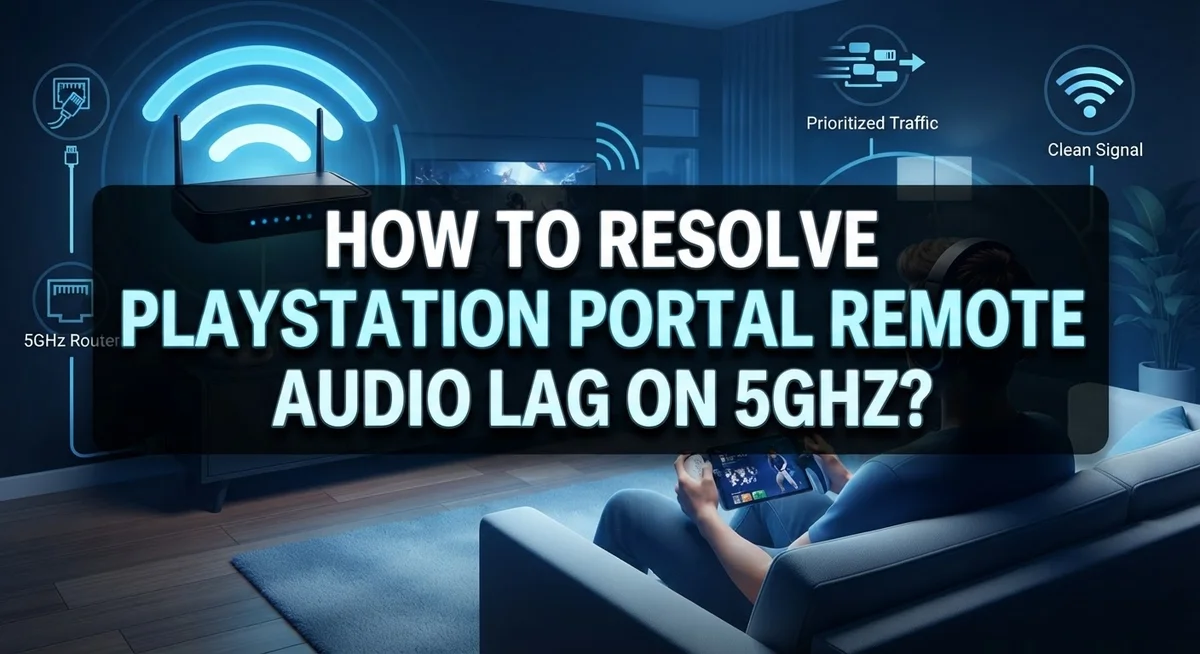
How To Resolve PlayStation Portal Remote Play Audio Lag On 5GHz?
Playing your favorite PS5 games on the PlayStation Portal feels amazing. But then audio lag shows up and ruins the fun.
You hear sound a split second after you see the action. This delay makes fast games hard to enjoy. It can even make simple menus feel clunky.
The good news is you can fix this problem. You do not need fancy equipment or technical skills. You just need to know which settings to check and change.
This guide walks you through every step. We will show you how to check for channel congestion. You will learn how to pick a clean 5GHz channel. We will also cover device placement and network settings.
In a Nutshell
- Check your 5GHz channel first. Congested channels cause most lag issues. Pick a clean channel between 36 and 48 for the best results.
- Separate your devices by band. Keep phones, laptops, and TVs on 2.4GHz. Reserve 5GHz exclusively for your PS5 and Portal.
- Stay close to your router. 5GHz signals weaken over distance. If you’re far away, switch to 2.4GHz instead for steadier performance.
- Stop your PS5 from auto switching. Check your network settings so your console doesn’t jump back to Wi-Fi unexpectedly.
- Adjust your Portal’s video settings. Try 1080p High Quality mode if lag continues. This can smooth out sync problems.
- Unplug HDMI cables if needed. Sometimes disconnecting HDMI from your PS5 solves lingering audio issues.
Why 5GHz Wi-Fi Causes Audio Lag On PlayStation Portal
The 5GHz Wi-Fi band operates at a higher frequency than 2.4GHz, which gives it speed advantages but creates unique challenges for your PlayStation Portal setup. Understanding why audio lag occurs on this band helps you fix the problem faster.
5GHz signals travel shorter distances than 2.4GHz signals. When your Portal sits far from your router, the connection weakens. Weak signals cause your device to drop packets, and audio packets are particularly sensitive to loss. Your video keeps playing smoothly, but sound stutters or delays because audio data arrives late.
Channel congestion is another major culprit. The 5GHz band has many channels available, but your router might be using a crowded default channel. When multiple devices nearby broadcast on the same channel, interference builds up. Your Portal competes for airtime with your neighbor’s devices, your TV, or your laptop. This competition creates bottlenecks that delay audio transmission.
Device saturation makes things worse. When you connect too many devices to your 5GHz band simultaneously, bandwidth gets stretched thin. Your Portal and PS5 fight for resources with phones, computers, and smart home gadgets. This overcrowding forces your system to prioritize some data over audio.
Your PS5 might also auto switch between Wi-Fi bands unexpectedly. If your console jumps from 5GHz to 2.4GHz mid session, your Portal loses its stable connection. This switching creates timing mismatches between audio and video streams.
The core issue is simple: 5GHz works great for Portal, but only when you eliminate interference, reduce device competition, and keep your Portal close to the router. Fixing these three factors solves most audio lag problems you’ll encounter.
Checking Your 5GHz Channel For Congestion
Your 5GHz channel choice directly impacts audio sync quality. Congested channels force your Portal and PS5 to compete with other devices for bandwidth. This competition creates the lag you’re experiencing.
Start by accessing your router’s admin panel. Most routers have a web interface you can reach through your browser. Log in with your router credentials. Look for the wireless or Wi-Fi settings section.
Find the 5GHz band settings. You’ll see a list of available channels. The channels range from 36 to 165, but channels 36 through 48 work best for most home setups. These lower numbered channels typically have less interference from neighboring networks.
Check which channel your router currently uses. Write down this number. Next, use a Wi-Fi analyzer app on your phone to scan nearby networks. This shows you which channels your neighbors are using. You want to pick a channel that has the fewest networks broadcasting on it.
Select a clean channel with minimal activity. Channels 36, 40, 44, or 48 usually offer good spacing and less overlap. Avoid channels in the middle ranges like 100 to 144, as they attract more interference.
Change your router’s 5GHz channel to your chosen option. Save the settings and restart your router. Your Portal and PS5 will automatically reconnect to the new channel within a few minutes.
Wait 5 to 10 minutes after the restart. Then test your Portal’s audio during gameplay. You should notice improved sync almost immediately. If lag persists, try a different channel from the 36 to 48 range and repeat this process.
Step-by-Step: Manually Selecting A Clean 5GHz Channel
Start by opening your router’s admin panel through a web browser. You’ll need your router’s IP address, which is usually printed on the device itself or in your manual. Log in with your admin credentials.
Once inside, locate the wireless or Wi-Fi settings section. Find the 5GHz band options. Your router should display a list of available channels. Write down the channel your router currently uses.
Next, scan for nearby Wi-Fi networks to see which channels other devices occupy. Many routers have a built-in Wi-Fi analyzer tool. If yours doesn’t, you can use your phone or computer to check surrounding networks. Look for gaps where fewer networks operate.
The recommended 5GHz channels range from 36 to 48 for most regions. These channels typically experience less interference than higher numbers. Choose a channel that shows minimal activity from neighboring networks.
Return to your router settings and manually select your chosen channel. Save the changes and restart your router. This process usually takes 2 to 5 minutes.
After the restart, wait another 5 to 10 minutes before testing. This gives your PS5 and Portal time to reconnect and stabilize on the new channel.
Connect your Portal to the PS5 again. Start a game and listen carefully for audio sync issues. The lag should improve noticeably if you selected a truly clean channel.
If problems persist, try a different channel from the 36 to 48 range. Each environment is different. Sometimes the best channel isn’t obvious until you test it in real gameplay conditions. Patience here pays off with smooth, lag-free audio.
Segregating Devices: Keeping PS5 And Portal On A Dedicated Band
When multiple devices share your 5GHz band, they compete for bandwidth and create interference. This competition directly causes audio lag on your PlayStation Portal. The solution is straightforward: keep only your PS5 and Portal on 5GHz, and move everything else to 2.4GHz.
Start by identifying which devices currently use 5GHz. Check your router’s admin panel and list all connected devices. Look for smartphones, laptops, smart TVs, and other gaming devices. These all consume 5GHz bandwidth and reduce Portal performance.
Move non gaming devices to 2.4GHz. Most phones, tablets, and streaming devices work fine on 2.4GHz. They don’t need the extra speed. Reassign them through your router settings. Your 2.4GHz band has more range anyway, so these devices often perform better there.
Keep your PS5 and Portal exclusively on 5GHz. This creates a dedicated lane for your gaming setup. Both devices communicate with minimal interference from other hardware. Your router handles Portal traffic without competing demands.
Verify your PS5 won’t auto switch bands. Open your PS5 network settings and disable any automatic band switching features. This prevents your console from jumping back to 2.4GHz unexpectedly. Manual control keeps your setup stable.
Test the results after 10 minutes. Give your router time to apply changes. Then launch a game and check if audio sync improves during Remote Play sessions.
This segregation strategy works because it eliminates the root cause: device saturation. Your Portal gets a clean, dedicated connection to your PS5. Audio lag typically disappears within the first gaming session after you implement this change.
Optimizing Router Placement And Portal Positioning
Your router’s physical location matters far more than most people realize. 5GHz signals travel shorter distances than 2.4GHz, so proximity directly affects audio stability during Remote Play sessions.
Place your router in a central, elevated position within your home. Avoid corners, closets, or enclosed cabinets where signal strength drops quickly. If your router sits in a back room far from where you use the Portal, 5GHz performance suffers immediately. Move it to an open area where the signal can reach your gaming space without obstruction.
The Portal itself needs careful positioning too. Keep it within 15 to 20 feet of your router for reliable 5GHz connection. This distance maintains strong signal strength without interference from walls or metal objects. If you’re sitting further away, consider moving closer during gameplay sessions to test whether distance causes your audio lag.
Avoid placing either device near physical obstacles. Thick walls, metal appliances, and dense furniture block 5GHz signals. Microwaves and cordless phones also interfere with this frequency band. Position your Portal and router away from these sources.
Test your setup by moving the Portal to different locations in your room. Notice if audio sync improves when you’re closer to the router. This simple experiment reveals whether distance or interference is your real problem.
Line of sight between your Portal and router matters too. Direct, unobstructed paths maintain stronger signals than bouncing signals around corners. If possible, keep both devices in the same room during critical gaming moments.
Once you’ve optimized placement, your 5GHz audio lag should decrease noticeably. Combined with your clean channel selection and device segregation, better positioning completes the solution for smooth Remote Play performance.
Adjusting PS5 And Portal Streaming Settings For Stable Audio
Your PS5 and Portal have specific streaming settings that directly affect audio quality on 5GHz. Adjusting these settings creates a stable connection and reduces lag.
Start by accessing your PS5 settings menu. Navigate to Network, then select Wi-Fi. Look for your 5GHz network name and connect if you haven’t already. Disable automatic Wi-Fi band switching in the same menu. This prevents your PS5 from dropping to 2.4GHz when signal strength fluctuates, which causes audio desynchronization.
Next, check your PS5’s Remote Play settings. Go to System Settings, then Remote Play Connection Settings. Set your connection quality to High Quality mode. This setting prioritizes stable audio transmission over video resolution. Your Portal will then sync audio more reliably with the PS5.
On your Portal device itself, access the settings menu. Select Network Settings and confirm you’re connected to the 5GHz band. The Portal should display your 5GHz network name (usually marked with “5G” or similar identifier). If it shows 2.4GHz, manually reconnect to the correct band.
Verify your streaming resolution matches your network capacity. If audio still lags, reduce the video resolution slightly. Lower resolution requires less bandwidth, leaving more capacity for stable audio transmission.
Restart both devices after making these changes. Power off your PS5 completely and unplug it for 30 seconds. Do the same with your Portal. This reset clears temporary network caches and allows fresh connections.
Test your setup by launching a game and listening for audio sync. Audio should arrive simultaneously with on screen actions. If lag persists, these settings changes create the foundation for the next troubleshooting steps.
Common Mistakes That Trigger Audio Lag On 5GHz
Most people make simple mistakes that cause audio lag on 5GHz without realizing it. Understanding these errors helps you fix the problem quickly.
Mixing too many devices on 5GHz is the biggest culprit. Your Portal and PS5 need a clean band. When you connect phones, tablets, laptops, and smart TVs to the same 5GHz channel, they fight for bandwidth. This creates interference that delays audio. Each device competes for signal strength, which breaks the audio sync between your Portal and PS5.
Using default or crowded channels makes things worse. Most routers come set to channels 149 to 165 on 5GHz. Many neighbors use these same channels. Your signal bounces around their signals, causing delays. Channels 36 to 48 are typically less crowded and work better for gaming.
Placing your Portal too far from the router weakens the 5GHz connection. This band has shorter range than 2.4GHz. Distance creates signal drops that trigger audio lag. The Portal needs to stay within reasonable proximity to your router for stable performance.
Allowing your PS5 to auto switch bands causes unexpected problems. If your PS5 jumps from 5GHz to 2.4GHz during gameplay, audio sync breaks instantly. Auto switching happens when signal strength drops slightly, even if you don’t notice it.
Ignoring streaming quality settings also matters. Running your Portal at maximum resolution on a congested 5GHz band strains your connection. This pushes audio processing to the background, creating lag.
These mistakes are easy to fix once you identify them. Start by segregating devices, choosing clean channels, and positioning equipment properly.
Troubleshooting Persistent Audio Lag Issues
Audio lag on 5GHz happens when your Wi-Fi channel gets congested or when interference blocks your signal. The good news is that persistent audio lag has straightforward fixes you can apply right now.
Start by checking which 5GHz channels your router currently uses. Most routers default to channels that experience heavy interference from neighboring networks. Log into your router settings and scan for available channels. Channels 36 through 48 typically offer cleaner performance than higher numbered channels.
Manually select a less crowded channel from that range. This single step removes interference that causes audio to lag behind video. After changing channels, restart both your PS5 and Portal to establish fresh connections.
Next, isolate your gaming devices from other network traffic. Every smartphone, laptop, or smart TV sharing your 5GHz band consumes bandwidth and creates lag. Move non-gaming devices to your 2.4GHz band instead. Your Portal and PS5 should be the only devices using 5GHz.
Check your Portal’s streaming quality settings. The device offers different resolution options that affect how much bandwidth you need. Lower your streaming quality temporarily to test whether this reduces audio lag. If audio syncs perfectly at lower quality, your network needs bandwidth relief.
Verify your PS5 connection status by opening network settings. Confirm it’s truly connected to 5GHz and not switching bands automatically. Some PS5 models switch bands without warning when signal strength fluctuates.
Finally, restart your router completely. Power it off for 30 seconds, then turn it back on. This clears temporary interference and resets your connection. Test your setup immediately after the restart to see if audio lag disappears.
Final Thoughts
Fixing audio lag on your PlayStation Portal takes patience and testing. But the steps we covered work for most setups.
Start with the basics. Check your 5GHz channel congestion first. This simple step solves many lag problems instantly.
Keep your devices separated properly. Put your Portal and PS5 on their own 5GHz band. Send everything else to 2.4GHz instead.
Router placement matters more than people think. Position your Portal close to the access point. Distance weakens 5GHz signals quickly.
Don’t let your PS5 auto switch connections. This causes random lag spikes during gameplay. Lock your settings and check them regularly.
Your streaming quality settings play a big role too. Match your resolution to what your network handles well. Lower settings sometimes fix lag faster than upgrades.
Remember the common mistakes we discussed. Avoid mixing multiple devices on 5GHz. Skip crowded default channels whenever possible.
Testing takes time, but it’s worth it. Try different channels between 36 and 48. Move your Portal around your space to find the best spot.
If problems continue, restart everything. Power cycle your router, PS5, and Portal together. This clears temporary glitches that build up over time.
Most audio lag issues come from network congestion or device placement. Once you fix these two things, your streaming experience improves dramatically.
Your PS5 and Portal work best when given a clean, dedicated connection. Give them space from other devices and interference.
With these adjustments, you’ll enjoy smoother gameplay and better audio sync. Take time to test each change separately. This helps you identify exactly what fixes your specific setup.
Frequently Asked Questions
Why does my Portal keep losing 5GHz connection and switching to 2.4GHz?
Your PS5 or Portal likely has auto Wi-Fi switching enabled in its settings. This feature automatically downgrades to 2.4GHz when the 5GHz signal weakens. Check your network settings and disable auto switching if you want a stable 5GHz connection. You can also manually force your Portal to stay on 5GHz by adjusting its connection preferences.
Keep your Portal closer to your router. 5GHz signals have shorter range than 2.4GHz, so distance matters more. If your device keeps switching, it means the signal strength is dropping below the auto switch threshold.
Should I use 5GHz or 2.4GHz for my PlayStation Portal?
Use 5GHz if your Portal sits within 20-30 feet of your router. 5GHz offers faster speeds and less interference, which reduces audio lag. However, 5GHz signals don’t travel through walls as well as 2.4GHz.
If your Portal is far from the router or you have many walls between them, 2.4GHz might work better. The key is signal strength, not the band itself. A strong 2.4GHz connection beats a weak 5GHz one.
How do I know which 5GHz channels are least crowded?
Most routers let you check channel usage through their admin panel. Log into your router settings and look for a Wi-Fi analyzer or channel scan feature. The channels 36 through 48 are generally good starting points for 5GHz.
Select a channel with fewer nearby networks. Crowded channels cause interference and audio sync problems. After changing channels, test your Portal’s performance for 10-15 minutes before deciding if it helps.
Why is my audio still lagging even after switching to 5GHz?
Other devices on your network might be hogging bandwidth. Segregate your traffic by moving phones, tablets, and streaming devices to 2.4GHz. Keep only your PS5 and Portal on 5GHz.
Also verify your streaming quality settings. Lower quality modes put less strain on your connection and can reduce lag. Check that your PS5 isn’t set to auto switch bands in its network settings.

Hi, I’m Amy! I’m passionate about tech and love breaking down complex product specs into simple, actionable advice. I review gadgets, compare tools, and write buying guides to help you spend smarter. Got a question? Drop me a message — I’d love to hear from you!