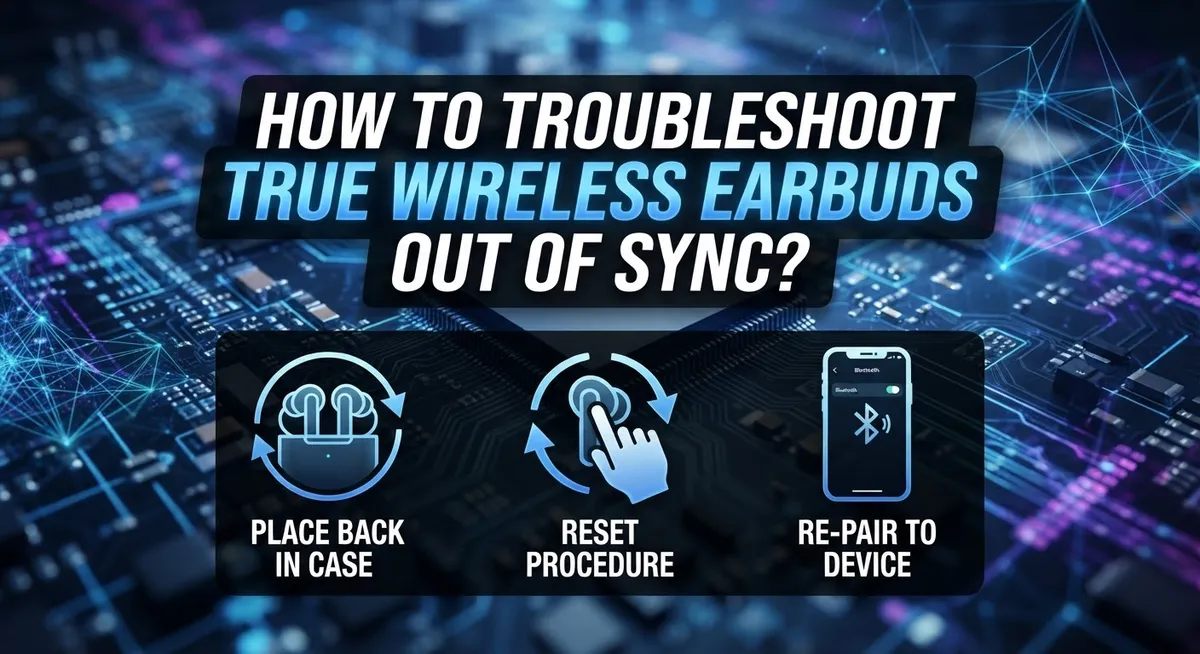
How To Troubleshoot True Wireless Earbuds Out Of Sync?
True wireless earbuds out of sync? You are not alone. This is one of the most common frustrations for earbud users everywhere.
When your earbuds lose sync, they may appear as two separate Bluetooth devices. One earbud might play audio while the other stays silent. Sometimes, neither earbud connects at all.
The good news is that most sync problems are easy to fix at home. You do not need any special tools or technical skills.
This guide walks you through every step of the troubleshooting process. You will learn why sync issues happen in the first place. Understanding the root cause makes fixing the problem much faster.
By the end, you will know exactly what to do the next time your earbuds fall out of sync. Let’s get your audio back in perfect balance.
In a Nutshell
- True wireless earbuds go out of sync when they fail to recognize each other or show up as two separate Bluetooth devices on your phone or computer.
- Low battery is one of the most common causes. Always charge both earbuds fully before trying to fix any sync issue.
- A factory reset is often the fastest fix. Press and hold the button on each earbud until the red light flashes, then re-pair them from scratch.
- The order in which you remove earbuds from the case matters. Always take out the right earbud first, then the left.
- Bluetooth interference from nearby devices can break the connection between your earbuds, so disconnect any competing devices before re-pairing.
- Forgetting the earbuds in your device settings and re-pairing them as a single unit solves most cases where they appear as two separate devices.
What Does It Mean When TWS Earbuds Are Out Of Sync?
True wireless earbuds go out of sync when they lose their connection to each other. Instead of working as a pair, each earbud becomes a separate Bluetooth device on your phone or computer.
Think of sync as an invisible link between your two earbuds. When this link breaks, they stop communicating. Your left earbud might play sound while your right one stays silent. Or both earbuds might disconnect from your device entirely.
Several things cause sync problems. Low battery is the most common culprit. When either earbud runs low on power, it struggles to stay connected to its partner. Bluetooth interference from nearby devices also disrupts the connection. Walls, microwaves, and other wireless gadgets can weaken the signal between your earbuds.
Sometimes your earbuds simply need a fresh start. A factory reset clears old pairing data and forces the earbuds to recognize each other again. This is different from just turning them off and back on.
Compatibility issues can also cause sync failures. If your earbuds don’t work well with your specific phone or computer, they may refuse to pair properly. Outdated firmware is another sneaky cause. Firmware is the software inside your earbuds that controls how they work.
The good news is that out of sync problems are almost always fixable at home. You don’t need special tools or technical skills. Most fixes take just a few minutes. Understanding what “out of sync” actually means helps you troubleshoot faster. You’ll know exactly what’s happening and why your earbuds aren’t working as a team.
Common Causes Behind True Wireless Earbud Sync Issues
True wireless earbuds lose sync when they fail to recognize each other as a pair. Several specific reasons cause this problem to happen.
Low battery is the top reason earbuds go out of sync. When one or both earbuds run low on power, they cannot maintain their connection. The weaker earbud may drop the signal entirely. This is why charging both earbuds fully is your first step.
Bluetooth interference disrupts the connection between your earbuds. Other wireless devices nearby can jam the signal. Phones, tablets, laptops, and even WiFi routers create interference. Moving away from these devices often fixes the problem quickly.
Disabled Bluetooth on your source device prevents earbuds from syncing. If you accidentally turned off Bluetooth, your earbuds cannot pair with each other or your phone. Simply enable Bluetooth to restore the connection.
Compatibility issues sometimes cause sync failures. Older earbuds may not work well with newer phones or tablets. Check that your device supports the earbud model you own.
Competing Bluetooth connections create confusion between devices. When your earbuds try to pair with multiple phones or tablets at once, they lose sync. Disconnect all other devices first.
Firmware problems occasionally break the sync function. Outdated software on your earbuds can cause pairing issues. Updating to the latest firmware version usually solves this.
Physical damage to the charging case or earbuds themselves stops syncing. Cracks, water damage, or loose components prevent proper communication between the pair.
Understanding these causes helps you fix the problem faster. Most sync issues stem from battery, interference, or Bluetooth settings. Start by addressing these three areas first before attempting more complex solutions.
Before You Begin: Essential Checks To Do First
Before you start any troubleshooting steps, take a few minutes to check the basics. These simple checks often solve sync problems without needing advanced fixes.
First, check the battery level on both earbuds. Low power is the number one reason earbuds lose sync with each other. Place both earbuds in their charging case and let them charge for at least 30 minutes. Also charge your phone, tablet, or computer fully. A low battery on your source device can prevent proper pairing and syncing.
Next, verify that Bluetooth is actually turned on. Many people forget this simple step. Go to your device settings and confirm Bluetooth is enabled. If it’s already on, try turning it off and back on again. This quick reset often restores the connection between your earbuds.
Check if your earbuds are still in pairing mode. Some earbuds automatically enter pairing mode when you remove them from the case. Look for LED lights that flash or change color. Different colors mean different things, so check your earbud manual to understand what the lights indicate.
Make sure no other Bluetooth devices are competing for connection. If your earbuds are trying to sync with multiple devices at once, they may get confused. Disconnect or move away from other Bluetooth speakers, smartwatches, or headphones nearby.
Finally, inspect your earbuds and charging case for any visible damage. Check the charging contacts for dirt or debris. Clean them gently with a dry cloth if needed. Physical obstructions can prevent proper charging and syncing.
These essential checks take just a few minutes. They solve most sync issues before you need to do a factory reset or other complex troubleshooting steps.
Step-By-Step Guide To Re-Sync Your True Wireless Earbuds
Start by charging both earbuds completely. Place them in their charging case and let them sit for at least two hours. A dead or low battery is the most common reason earbuds refuse to sync with each other.
Next, charge your phone, tablet, or computer fully as well. Your source device needs enough power to establish a stable Bluetooth connection. This simple step fixes many sync problems that people overlook.
Enable Bluetooth on your source device. Go to your settings and turn Bluetooth on if it’s currently disabled. Wait a few seconds for your device to scan for available connections.
Now perform a factory reset on your earbuds. Press and hold the button on each earbud for about 10 seconds. You should see red lights flash five times, indicating the reset worked. Some models use different button combinations, so check your manual if this doesn’t work.
Place both earbuds back in their charging case. Leave them there for approximately one minute. This allows them to reset their internal connection to each other.
Remove the right earbud first, then the left earbud. Wait a few seconds between removals. Your earbuds should now be searching for each other automatically.
Go to your device’s Bluetooth settings and forget or unpair your earbuds completely. This removes any old connection data that might be causing problems.
Now pair your earbuds again as if they were brand new. They should appear as a single device, not two separate ones. Select them and complete the pairing process.
Finally, disconnect any other Bluetooth devices nearby that might be competing for connection. Headphones, speakers, smartwatches, and other gadgets can interfere with the sync process. Keep only your phone or main device connected during initial pairing.
How To Factory Reset Your Earbuds To Fix Pairing Problems
A factory reset clears all settings and reconnects your earbuds from scratch. This fixes most sync problems because it removes corrupted pairing data that blocks communication between the two earbuds.
Start by charging both earbuds completely. Low battery prevents the reset from working properly. Place them in their charging case and close the lid.
Next, locate the button on your earbuds or case. Most models have a small reset button on the back or side. Press and hold this button for about 10 seconds until you see red lights flashing. The lights should flash approximately 5 times to confirm the reset is complete.
Wait about one minute after the reset. This gives the earbuds time to clear their memory and prepare for new pairing instructions.
Remove the right earbud from the case first. Wait a few seconds, then remove the left earbud. This order helps them sync properly with each other.
Now go to your device’s Bluetooth settings. Find your earbuds in the list of paired devices and select “forget” or “unpair.” This removes the old connection information from your phone, tablet, or computer.
Bring your earbuds close to your source device. Open the Bluetooth settings again and search for available devices. Your earbuds should appear as a new device. Select them to pair fresh.
The earbuds should now sync with each other and your device simultaneously. If they still show as separate devices, repeat the reset process. Sometimes earbuds need two attempts to fully reset their internal connection.
This method works for most sync problems because it eliminates corrupted settings that prevent proper communication.
How To Forget And Re-Pair Your Earbuds On Your Device
Forgetting and re-pairing your earbuds is one of the most effective ways to fix sync problems. This process clears any corrupted connection data and lets your device start fresh with your earbuds.
Start by accessing your device’s Bluetooth settings. Look for your earbuds in the list of paired devices. Tap on them and select the option to forget, unpair, or remove the device. Your phone, tablet, or computer will now treat your earbuds as unknown devices.
Next, make sure both earbuds are fully charged. Low battery can prevent successful pairing. Place them back in their charging case for about one minute. This helps reset their internal connection memory.
Remove the right earbud from the case first, then remove the left earbud. Keep them close to your source device, ideally within 3 feet.
Go back to your Bluetooth settings and search for available devices. You should see your earbuds appear in the list. They may show up with their brand name or model number. Tap on them to begin the pairing process.
Wait for the connection to complete fully. This usually takes 10 to 30 seconds. You’ll typically hear a confirmation sound or see a light indicator on your earbuds.
Once paired, test the connection by playing audio from your device. Both earbuds should produce sound simultaneously. If only one earbud works, repeat the process.
Disconnect any other Bluetooth devices like smartwatches or speakers during this process. Multiple competing devices can interfere with successful pairing. After your earbuds sync properly, you can re-pair those other devices one at a time.
Mistakes To Avoid When Troubleshooting Earbud Sync Issues
Many people make common errors when fixing earbud sync problems. These mistakes often make the situation worse instead of better.
Don’t attempt to pair earbuds with a low or dead battery. Your earbuds need sufficient power to communicate with each other and your device. If the battery is too low, the pairing process will fail every time. Always charge both earbuds fully before you start troubleshooting.
Avoid leaving Bluetooth disabled on your source device. Some people forget to turn on Bluetooth before trying to pair. Your phone, tablet, or computer must have Bluetooth enabled for any connection to work. Check your device settings to confirm Bluetooth is active.
Don’t skip the factory reset step or do it incompletely. A partial reset won’t clear all the problems. Hold the reset button for the full duration until you see the correct light signals. Rushing this step causes sync issues to persist.
Never pair with multiple devices at the same time. Your earbuds can only sync properly with one device at a time. Having several devices searching for your earbuds creates confusion and connection failures. Disconnect competing Bluetooth devices before you pair.
Avoid re pairing immediately after a reset. Give your earbuds at least one minute in their case after resetting. This waiting period allows the earbuds to clear their memory completely. Pairing too quickly prevents the reset from working properly.
Don’t ignore compatibility issues. Some earbuds work better with certain devices. If sync problems continue after all steps, try pairing with a different device to test compatibility.
Tips To Prevent Your True Wireless Earbuds From Going Out Of Sync Again
Preventing sync issues requires simple habits that keep your earbuds working properly. Store your earbuds in their case when you’re not using them. The case protects them from damage and helps maintain their connection memory.
Charge both earbuds fully before each use. Low battery is a leading cause of sync problems. Make it a routine to charge them overnight or whenever you notice the battery dropping below 50%.
Keep your source device’s Bluetooth turned on and updated. Outdated software can create compatibility issues with your earbuds. Check for system updates regularly on your phone or tablet.
Avoid pairing with multiple devices at the same time. Your earbuds work best when connected to one device. If you switch between devices, forget the connection on the old device first before pairing with a new one.
Clean the charging contacts on your earbuds monthly. Dirt buildup prevents proper charging and communication between the earbuds. Use a soft, dry cloth to gently wipe the metal contacts.
Keep your earbuds away from extreme heat, cold, and moisture. Temperature changes and humidity affect battery performance and electronic components. Store them in a cool, dry place.
Reset your earbuds occasionally even when they work fine. A monthly reset clears minor software glitches before they become real problems. This takes just a few minutes and prevents future sync issues.
Stay aware of Bluetooth interference from other devices. Microwaves, routers, and crowded WiFi areas can disrupt your connection. Move away from these sources if you experience frequent disconnections.
These preventive steps reduce the need for troubleshooting and keep your earbuds synced reliably.
Final Thoughts
Fixing true wireless earbuds that are out of sync is simpler than most people expect. The key is following the right steps in the correct order.
Start with the basics. Check battery levels, enable Bluetooth, and remove competing devices from your connection list. These small steps solve most sync problems quickly.
If basic fixes don’t work, a factory reset is your strongest tool. Hold the button for 10 seconds until the red lights flash five times. Then place both earbuds back in the case for at least one minute before removing them.
Always remove the right earbud first, then the left. This sequence helps the earbuds recognize each other as a single unit instead of two separate devices.
Forget the earbuds from your device settings completely before re-pairing. A fresh connection removes old pairing data that may be causing the sync failure.
If the problem persists after a full reset, test with a different source device. This tells you whether the issue is with your earbuds or your original device’s Bluetooth settings.
Compatibility matters more than people realize. Some earbuds don’t connect smoothly with older Bluetooth versions on certain devices.
Keeping firmware updated is another step that prevents future sync issues before they start. Manufacturers release updates that fix known connection bugs.
The troubleshooting process works best when you stay patient and methodical. Rushing through steps or skipping the reset often leads to repeated problems.
With consistent charging habits, proper storage in the case, and occasional resets, your earbuds should stay synced reliably. Most sync issues are fixable at home without any special tools or technical knowledge.
Frequently Asked Questions
Why do my earbuds show as two separate devices instead of one?
This happens when your earbuds lose their internal sync. Each earbud appears as an individual Bluetooth device rather than a paired unit. The fix is straightforward: perform a factory reset and re-pair them as a single device. Press and hold the button on each earbud for 10 seconds until you see red lights flash five times. Place both earbuds back in their case and wait one minute before removing them.
Can I fix out of sync earbuds without resetting them?
Sometimes, yes. Try these steps first: disconnect all other Bluetooth devices from your phone or computer. Then forget the earbuds from your device settings completely and re-pair them fresh. This simple re-pairing often solves minor sync problems without needing a full reset.
If that doesn’t work, a factory reset becomes necessary.
What should I do if my earbuds still won’t sync after a reset?
Check device compatibility first. Your earbuds might not work with that particular phone or computer. Test with a different source device to see if the problem follows the earbuds or stays with your original device.
Also verify that your earbuds have the latest firmware installed. Visit the manufacturer’s support page to check for updates.
How long should I wait after resetting before using my earbuds?
Wait at least one minute with both earbuds inside their case. This waiting period lets them complete the reset process and prepare to sync with each other. Removing them too quickly can interrupt this process and leave them out of sync.
Why do my earbuds keep going out of sync regularly?
Repeated sync issues often point to dirty charging contacts or low battery habits. Clean the metal charging pins on your earbuds monthly with a dry cloth. Always charge them fully before each use. Also avoid pairing with multiple devices on the same day, as this confuses the connection.

Hi, I’m Amy! I’m passionate about tech and love breaking down complex product specs into simple, actionable advice. I review gadgets, compare tools, and write buying guides to help you spend smarter. Got a question? Drop me a message — I’d love to hear from you!