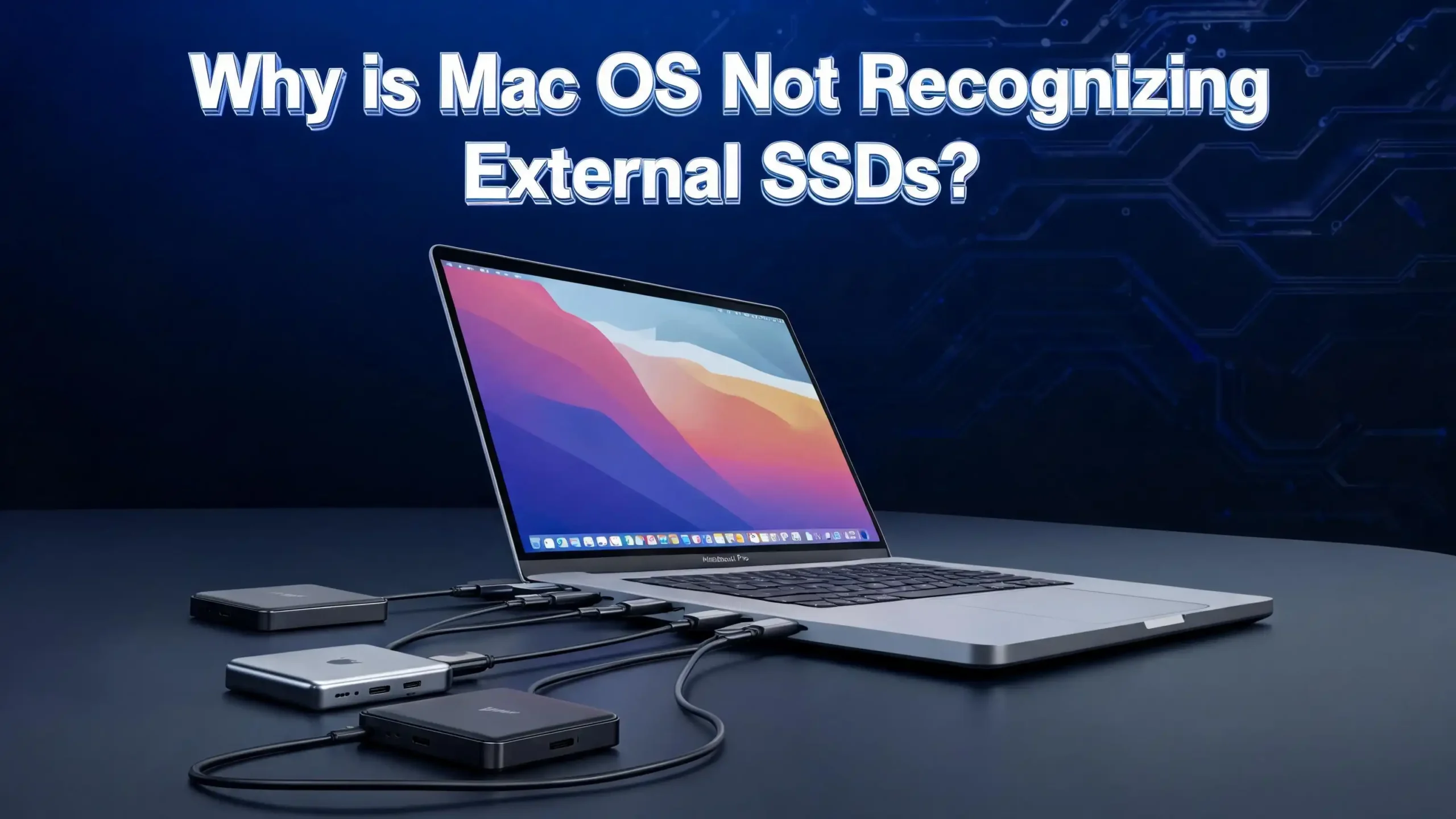
Why Is Mac Not Recognizing Your External SSD?
You plug in your external SSD. Nothing happens. No sound. No icon on the desktop. No sign of life. If you are reading this, you already know how frustrating this moment feels, especially when that drive holds important files, backups, or work projects.
The good news is that this problem is more common than you think, and it almost always has a fix. Most of them can be solved without spending a single dollar or visiting a repair shop.
This guide walks you through every possible reason your Mac is ignoring that external SSD and gives you clear, step-by-step fixes for each one. Read through the sections below and start from the top. Most users find their fix within the first few steps.
Key Takeaways
- Check the basics first — A loose cable, a faulty USB port, or a low-power USB hub is responsible for the majority of external SSD detection failures on Mac. These are the easiest problems to fix and should always be your first stop.
- Finder hides external drives by default in some macOS versions — Your SSD might actually be connected and recognized, but macOS is simply not displaying it on your desktop or in the sidebar. Fixing this takes less than 30 seconds inside Finder Settings.
- Disk Utility is your most powerful built-in diagnostic tool — If the drive appears in Disk Utility but will not mount, you can force it to mount or use First Aid to repair file system errors without losing data.
- File format mismatches cause silent failures — An SSD formatted as NTFS will be read-only on Mac, while some unusual formats may not show up at all. Reformatting to APFS or exFAT usually resolves this completely.
- Resetting NVRAM and SMC clears firmware-level glitches — These resets take under two minutes and often restore USB and drive recognition functions that macOS firmware corrupted silently during updates.
- If all software fixes fail, the drive or cable may have a hardware problem — Testing the SSD on another computer helps confirm whether the issue is Mac-specific or the drive itself has failed. Data recovery tools exist even for partially failed SSDs.
Check the Physical Connection First
Before you open any app or run any command, start with the physical side of things. This step alone solves the problem for a large number of users. A cable that looks fine from the outside can have a broken wire inside that intermittently interrupts the data connection.
Unplug the cable from both the Mac and the SSD. Wait about 10 seconds. Then plug it back in firmly. Make sure you hear or feel a secure click on both ends. If your cable has a USB-C connector, check that it is fully seated because USB-C ports can feel like they are in when they are actually not making full contact.
Try a different cable immediately. This is one of the fastest tests you can do. If you have another USB-C, USB-A, or Thunderbolt cable available, use it. A large number of reported detection failures are traced directly back to a defective cable that passes power but fails on data transfer.
Also check the physical condition of the port on your Mac. Shine a light inside it and look for debris, dust, or bent pins. If you see any debris, use a dry toothpick or a can of compressed air to gently clear it. A dirty port creates an unreliable connection that causes the drive to appear and disappear or not show up at all.
Finally, try a different USB or Thunderbolt port on your Mac if you have more than one available. Sometimes a single port on a Mac fails while the others work perfectly. If you are using a MacBook with only two ports and one does not work, switching to the other is always worth doing before trying anything else.
Adjust Finder Settings to Show External Drives
Many Mac users are surprised to discover that their SSD is actually being recognized but is simply not showing up because of a Finder setting. macOS does not always display external drives on the desktop or in the Finder sidebar by default, particularly after a macOS update that resets some preferences.
Here is how to fix this on macOS Ventura, Sonoma, and Sequoia:
Open Finder from your Dock. Click on Finder in the top menu bar. Select Settings from the dropdown menu. A small window will open.
In the General tab, look for the option labeled External disks. Make sure this checkbox is checked. This controls whether external drives appear on your desktop.
Next, click on the Sidebar tab in the same Settings window. Under the Locations section, find External disks and check that box too. This controls whether external drives show in the Finder sidebar.
Close Settings and look at your desktop and Finder sidebar again. If your SSD was recognized by macOS but just hidden by a setting, it will now appear. This fix takes under a minute and resolves the issue for a surprisingly high number of users who just upgraded their Mac software.
Pro tip: After making these changes, unplug your SSD and plug it back in. The desktop should immediately show the drive icon. If it does not appear after this, move on to the next section.
Open Disk Utility and Look for the Drive
Disk Utility is Apple’s built-in storage management tool, and it shows drives that do not appear in Finder. Opening Disk Utility is the single most important diagnostic step after checking your physical connection and Finder settings.
To open Disk Utility, press Command + Space to open Spotlight, type “Disk Utility,” and press Enter. You can also find it at Applications > Utilities > Disk Utility.
Once Disk Utility is open, click on the View menu in the top-left corner of the Disk Utility window. Select Show All Devices. This setting is critical because without it, Disk Utility only shows mounted volumes, and your unrecognized SSD may not be listed.
Now look through the left sidebar of Disk Utility. If your SSD appears there, even if it is greyed out, it means macOS can detect the hardware but cannot mount the volume. This is actually good news because it means the problem is software, not hardware.
If the drive appears but shows as unmounted, click on it and then click the Mount button at the top of the Disk Utility window. The drive should mount immediately and appear in Finder.
If the drive appears in Disk Utility but the Mount button does nothing or gives an error, the file system on the drive may have errors. In that case, click First Aid and then Run. First Aid will scan the drive and attempt to repair any file system issues automatically. This process can take anywhere from a few seconds to several minutes depending on the drive size and the number of errors found.
Force Mount the Drive Using Terminal
If Disk Utility cannot mount your external SSD, the Terminal gives you more direct control. Using Terminal to force mount a drive is one of the most effective techniques available and works in cases where the Disk Utility interface fails.
Open Terminal by pressing Command + Space, typing “Terminal,” and pressing Enter. You can also find it at Applications > Utilities > Terminal.
First, type the following command and press Enter:
diskutil list
This command shows every disk and partition that macOS can detect. Look through the output for your external SSD. It will typically appear as something like /dev/disk2 or /dev/disk3 depending on how many drives are connected to your Mac.
Once you identify the correct disk identifier, type the following command, replacing disk2 with your actual disk number:
diskutil mount /dev/disk2
Press Enter. If the drive mounts successfully, you will see a message confirming it, and the drive will appear in Finder. If you need to mount a specific partition rather than the entire disk, use a command like:
diskutil mount /dev/disk2s1
The s1 refers to the first partition on the disk. If Terminal reports that the volume failed to mount, it usually means the file system has corruption that needs repair first. In that case, try running:
diskutil repairVolume /dev/disk2
Be careful to use the correct disk identifier. Entering the wrong one could affect your Mac’s internal drive. Double-check the size and name shown in the diskutil list output before proceeding.
Restart Your Mac Completely
A full restart clears a wide range of temporary software issues that build up in macOS during regular use. This is one of those fixes that sounds too simple but genuinely resolves external drive detection problems that more technical steps cannot.
When macOS has been running for a long time without a restart, processes like diskarbitrationd (the system service responsible for detecting and mounting drives) can get stuck or behave incorrectly. A restart forces all of these services to reload fresh.
To restart, click the Apple menu in the top-left corner of your screen and select Restart. Wait for your Mac to fully shut down and come back up. Do not plug the external SSD in until the Mac has fully loaded the desktop.
Once the desktop appears and the dock is visible, plug in the SSD. Give it about 10 to 15 seconds. Watch the desktop and the Finder sidebar for any sign of the drive appearing.
If a full restart does not help, try a complete shutdown instead. Click Apple menu > Shut Down. Wait a full 30 seconds after the screen goes dark. Then press the power button to turn the Mac back on. This longer power cycle fully resets some hardware-level states that a restart does not always clear.
For MacBook users, also make sure the charger is connected while doing this. Some MacBooks reduce power to USB ports when running on battery, and this can prevent power-hungry SSDs from being detected reliably.
Reset NVRAM or PRAM on Your Mac
NVRAM (Non-Volatile Random-Access Memory) stores certain system settings that persist even after restarts. When NVRAM becomes corrupted or holds incorrect settings from a failed macOS update, it can interfere with USB and Thunderbolt port recognition.
Resetting NVRAM is safe and takes less than two minutes. Your personal files and applications are not affected.
For Intel Macs, the process is as follows: Shut down your Mac completely. Press the power button and immediately hold down Option + Command + P + R all at once. Keep holding these keys. The Mac will restart and you will hear the startup chime a second time (on older Macs) or the Apple logo will appear and disappear twice. Release the keys after that. Your Mac will complete the startup process normally.
For Apple Silicon Macs (M1, M2, M3, M4 chips), NVRAM resets automatically during the startup process. You do not need to do a manual reset. If you believe there is a firmware issue, shutting the Mac down fully and restarting is sufficient.
After the reset, reconnect your external SSD and check whether it appears. Many users report that this single step restores USB drive recognition after a macOS update caused problems.
Reset the SMC on Intel Macs
The SMC (System Management Controller) controls many hardware-level functions on Intel Macs, including USB power delivery and port behavior. If your Intel Mac’s USB ports are not reliably powering or detecting connected devices, an SMC reset is often the correct fix.
For MacBooks with Apple Silicon (M1 and later), there is no separate SMC to reset. A full shutdown handles this automatically, so skip to the next section.
For MacBook Pro and MacBook Air models with a non-removable battery (2017 and later): Shut down the Mac. Hold Shift + Control + Option on the left side of the keyboard and the power button at the same time. Hold these for 10 seconds. Release all keys. Press the power button normally to start up the Mac.
For MacBook Pro models with a removable battery: Shut down the Mac. Remove the battery. Hold the power button for 5 seconds. Reconnect the battery and start the Mac normally.
For Mac desktops (iMac, Mac mini, Mac Pro): Shut down the computer. Unplug the power cord from the back of the computer. Wait 15 seconds. Reconnect the power cord and wait 5 more seconds. Then press the power button to turn the Mac on.
After the SMC reset, reconnect your external SSD and check whether your Mac detects it. This fix is particularly effective when USB ports have been delivering inconsistent power or behaving erratically.
Check the Drive Format and File System Compatibility
One of the most overlooked reasons an external SSD fails to work properly on a Mac is file system incompatibility. macOS has specific behavior for each file system type, and some formats cause the drive to appear read-only, greyed out, or completely undetected.
Here is what you need to know about each format:
APFS is Apple’s own file system, introduced in macOS High Sierra. It is the best format for SSDs used exclusively on Mac. It offers fast performance, efficient space management, and full read-write support.
Mac OS Extended (HFS+) is the older Apple format. It works on all Macs and supports full read-write access, but it is slower on SSDs compared to APFS.
exFAT is the best choice when you need to use the SSD on both Mac and Windows computers. macOS supports full read-write access to exFAT drives without any extra software.
NTFS is the default Windows format. macOS can read NTFS drives but cannot write to them natively. More importantly, some NTFS drives formatted with certain Windows settings may not show up in Finder at all, though they usually appear in Disk Utility.
FAT32 is fully supported by macOS for both reading and writing, but has a 4GB maximum individual file size limit.
If your SSD came from a Windows machine and is formatted as NTFS, this could explain why it is not appearing or behaving unexpectedly. You can reformat the drive to exFAT using Disk Utility to make it fully compatible with both Mac and Windows. Back up all data on the drive before formatting, as formatting erases everything.
Avoid Using Unpowered USB Hubs
A very common but easily missed reason for an external SSD not being detected is insufficient power from a USB hub. Many USB hubs, especially cheap or older ones, do not provide enough power to run a bus-powered external SSD reliably.
Most portable external SSDs are “bus-powered,” meaning they draw all their power directly from the USB connection. These drives typically need between 500mA and 900mA of current to operate. An unpowered USB hub splits the power from your Mac’s single USB port across all connected devices, which often means each device gets far less power than it needs.
The solution is simple. Plug the external SSD directly into a USB or Thunderbolt port on your Mac rather than through a hub. If you must use a hub, make sure it is a powered hub with its own external power adapter.
This issue is especially common on MacBook Air models, which have lower power output on their USB-C ports compared to MacBook Pro models. If your SSD works when plugged into a different computer but not your MacBook, power delivery is likely the cause.
Also check the cable length. Longer USB cables can cause voltage drops that reduce the power reaching the SSD. A shorter, high-quality cable always performs better for bus-powered drives. If you have been using a cable longer than one meter (about three feet), try a shorter one and see if the detection issue resolves.
Update macOS to the Latest Version
Running an outdated version of macOS can cause compatibility problems with newer external SSDs, particularly those using NVMe controllers or newer USB 3.2 and Thunderbolt 4 interfaces.
Apple regularly releases macOS updates that include USB driver fixes, storage stack improvements, and compatibility patches for newer hardware. If your Mac is running an older version of macOS, the system may simply lack the driver support needed to properly detect your SSD.
To update macOS, click the Apple menu and select System Settings (or System Preferences on older macOS versions). Go to General > Software Update. If an update is available, click Update Now or Upgrade Now. Make sure your Mac is plugged in and connected to Wi-Fi before starting the update.
Also check whether your Mac supports the macOS version that introduced support for your SSD type. For example, some NVMe SSDs require macOS High Sierra or later to work properly. If you are running an older macOS version, upgrading may instantly solve the problem.
After updating, restart your Mac and reconnect the SSD. In many cases, a macOS update includes bug fixes specifically related to drive detection and mounting, and the SSD will appear immediately after the update completes.
Run First Aid in Disk Utility to Repair the Drive
If your SSD appears in Disk Utility but will not mount, First Aid is the most direct built-in tool for repairing file system errors. File system corruption is one of the leading causes of drives that are detected but cannot be mounted.
To run First Aid, open Disk Utility and click View > Show All Devices to make sure all drives are visible. Select your external SSD from the left sidebar. Click the First Aid button at the top of the Disk Utility window. Click Run to start the repair process.
Disk Utility will analyze the drive’s file system and attempt to fix any directory errors, partition table issues, or volume structure problems it finds. The process may take a few seconds to several minutes. When it finishes, you will see a report showing whether the repair was successful.
If First Aid reports that the disk could not be repaired, this usually means the file system damage is too severe for the built-in tool to handle. In this case, consider using a third-party disk repair tool like Disk Warrior or DiskScan. These tools go deeper into the file structure and can often recover drives that First Aid gives up on.
One important note: if the drive contains data you cannot afford to lose, attempt data recovery before running repair tools. Repair tools generally do not delete data, but in cases of severe corruption, there is always a small risk. Tools like PhotoRec or TestDisk (both free) can recover files even from a drive that will not mount.
Check System Information for USB Device Recognition
System Information gives you a raw hardware-level view of what your Mac detects, even when Finder and Disk Utility show nothing. This tool is useful for confirming whether the problem is at the hardware recognition level or at the software mounting level.
To open System Information, hold the Option key and click the Apple menu at the top-left of your screen. Select System Information from the dropdown menu.
In the System Information window, look at the left sidebar. Under the Hardware section, click on USB. A tree-view of all connected USB devices will appear on the right. Look through the list for your external SSD. It may appear by its brand name, model number, or as a generic “Mass Storage Device.”
If your SSD appears in this USB tree, it means macOS has recognized the hardware. The problem is therefore at the software level, which means solutions like Disk Utility, Terminal mounting, or file system repair should work.
If your SSD does not appear anywhere in System Information, macOS has not detected it at the hardware level at all. This points to a physical problem: a faulty cable, a defective USB port, insufficient power, or a hardware failure in the SSD itself.
In this case, try the drive on a different Mac or a Windows PC to confirm whether the SSD itself is functional. If it works on another computer, the issue is with your Mac’s port or cable. If it does not work on any computer, the SSD has likely failed.
Test the SSD on Another Computer
Testing your external SSD on a different computer is one of the most important diagnostic steps because it instantly separates Mac-specific problems from drive-level problems.
Plug the SSD into a Windows PC, a Linux machine, or even another Mac. If the drive appears and is accessible on that other computer, the problem is specific to your Mac. You can then focus your troubleshooting on the Mac’s ports, settings, cable, or software configuration.
If the SSD does not appear on any other computer either, the drive itself has a problem. Common drive-level failures include a failed USB-to-SATA or USB-to-NVMe bridge controller, corrupted partition tables, or physical damage to the NAND storage chips. At this point, professional data recovery services are the best option if the data on the drive is important.
For drives that work on Windows but not Mac, the file system is almost always the cause. An NTFS-formatted drive works fully on Windows but appears read-only or not at all on Mac. The fix is to back up the drive’s data on Windows, then reformat it as exFAT so it works on both platforms.
If the drive appears on another Mac but not yours, compare the macOS versions. A bug in a specific macOS release may affect only certain versions. Updating or even downgrading your macOS may resolve this.
Consider the SSD Enclosure or Cable Adapter
If you are using a bare SSD placed inside a third-party enclosure, the enclosure itself could be the source of the problem. Not all SSD enclosures are well-built, and many use budget bridge chips that are incompatible with macOS.
This issue has become more common with the rise of NVMe SSDs and USB-C enclosures. Some enclosures work fine on Windows but fail to enumerate correctly on macOS due to firmware bugs in the bridge controller.
To test this, if possible, try placing the same SSD into a different enclosure. There are well-regarded enclosures from brands like OWC, Sabrent, and UGREEN that have strong macOS compatibility records. If the SSD works in a different enclosure, you know the problem was with the original enclosure, not the drive.
Also check whether the enclosure manufacturer has released a firmware update for the bridge controller. Some enclosure makers release firmware updates that fix macOS compatibility bugs. The update process typically involves connecting the enclosure to a Windows PC and running an updater utility, but instructions vary by brand.
For users with USB-C to USB-A adapters, make sure the adapter supports USB 3.0 data transfer. Some USB-C to USB-A adapters are charging-only and carry no data. A charging-only cable will power the SSD’s indicator light but will never transmit data to the Mac.
Recover Data from an Unrecognized External SSD
If your external SSD is not recognized and none of the above solutions work, data recovery is still possible in many cases. Do not assume that data is permanently lost just because the drive does not mount.
There are several data recovery tools designed specifically for macOS that can scan drives even when they fail to mount normally. Disk Drill is one of the most popular options for Mac users. It can scan a drive directly even without mounting it and recover deleted, corrupted, or inaccessible files.
PhotoRec and TestDisk are free, open-source tools that run in the Terminal. TestDisk can rebuild corrupted partition tables, which is a common cause of drives appearing in System Information but not mounting. PhotoRec specializes in recovering photo, video, and document files from raw disk sectors regardless of the file system condition.
To use these tools safely, never write anything to the failing drive before recovering data. Every write operation risks overwriting data you want to recover. If you plan to use TestDisk or any repair tool, make a byte-for-byte disk image of the SSD first using the Terminal command dd and work on the image rather than the original drive.
Professional data recovery services like DriveSavers or Ontrack can recover data from SSDs that have suffered severe hardware failures, including dead bridge controllers and failed NAND chips. These services are expensive but are the last resort when all software tools fail and the data is genuinely irreplaceable.
When to Seek Professional Help
Knowing when to stop troubleshooting yourself and seek professional help can save you time and prevent accidental data loss. There are clear signs that a problem has moved beyond what software fixes can address.
Seek professional help if the SSD makes unusual clicking or grinding sounds (though SSDs are less prone to this than HDDs), if it becomes very hot to the touch within seconds of connection, if it has been physically dropped or exposed to water, or if data recovery tools cannot detect it at all.
Apple Authorized Service Providers can diagnose Mac-side hardware problems, including failed USB controllers on the logic board. This is rare but does happen, especially on older Mac models.
For the SSD itself, contact the manufacturer’s support line. Most SSDs from reputable brands come with a three to five year warranty. If your drive is within the warranty period and has failed without physical abuse, the manufacturer may replace it at no cost. Note that warranty replacements typically do not include data recovery, so always back up important files before sending a drive in for replacement.
Finally, adopt the 3-2-1 backup rule going forward: keep three copies of your data, on two different types of storage, with one stored off-site or in the cloud. This practice ensures that even if an external SSD fails completely and unexpectedly, your data remains safe and accessible.
Frequently Asked Questions
Why does my external SSD show up in Disk Utility but not in Finder?
This usually means the drive is recognized by macOS at the hardware level but has not been mounted as a usable volume. In Disk Utility, click on the drive and press the Mount button. If that does not work, run First Aid to repair any file system errors. Also check your Finder Settings to make sure the External disks checkbox is enabled under both the General and Sidebar tabs.
Why did my external SSD stop working after a macOS update?
macOS updates sometimes reset Finder settings, change USB driver behavior, or introduce bugs that affect storage device recognition. The most effective fixes are updating to the latest macOS patch version, resetting NVRAM, and re-enabling external disks in Finder Settings. Apple typically releases follow-up updates that address storage issues introduced by major macOS releases.
Can I use a Windows-formatted NTFS SSD on my Mac?
Yes, but with limitations. macOS can read files from an NTFS drive but cannot write to it. The drive will appear as read-only. Some NTFS drives may not mount at all in Finder without third-party NTFS drivers. The best solution for cross-platform use is to reformat the drive as exFAT, which gives full read-write access on both Mac and Windows.
Is it safe to run First Aid on an external SSD that has important data on it?
First Aid is generally safe and is designed to repair without deleting data. However, in cases of severe file system corruption, there is a small risk that a repair attempt could make data recovery harder. If the data on the drive is critical, use a data recovery tool to back up what you can before running First Aid or any repair operation.
Why does my Mac not recognize the SSD when it is connected through a hub?
USB hubs, especially unpowered ones, often cannot provide enough electrical current to run a bus-powered external SSD. Plug the SSD directly into a USB or Thunderbolt port on your Mac instead. If you need to use a hub, choose one with its own power adapter, which is called a powered hub, to ensure each port delivers the full power the drive needs.
How do I check if my Mac’s USB port is the problem?
Open System Information by holding the Option key and clicking the Apple menu. Go to the USB section and check whether your SSD appears in the device tree. If the SSD appears here but not in Finder, the port is working and the issue is at the software level. If the SSD does not appear at all, try a different port. If the SSD appears in no port on your Mac but works on another computer, your Mac may need a logic board inspection.
What is the best file format for an external SSD used only on Mac?
APFS (Apple File System) is the best format for an SSD used only on Mac. It is optimized for flash storage, supports efficient space sharing between volumes, and offers fast read and write performance. For drives shared between Mac and Windows, use exFAT instead.
Can I recover data from an external SSD that my Mac does not recognize?
Yes, in many cases. Tools like Disk Drill, TestDisk, and PhotoRec can scan drives that do not mount and recover files directly from raw disk sectors. For the best results, do not write anything to the drive before attempting recovery, and consider making a disk image of the drive first to work from a safe copy.

Hi, I’m Amy! I’m passionate about tech and love breaking down complex product specs into simple, actionable advice. I review gadgets, compare tools, and write buying guides to help you spend smarter. Got a question? Drop me a message — I’d love to hear from you!