How to Troubleshoot Galaxy Ring Not Syncing Health Data?
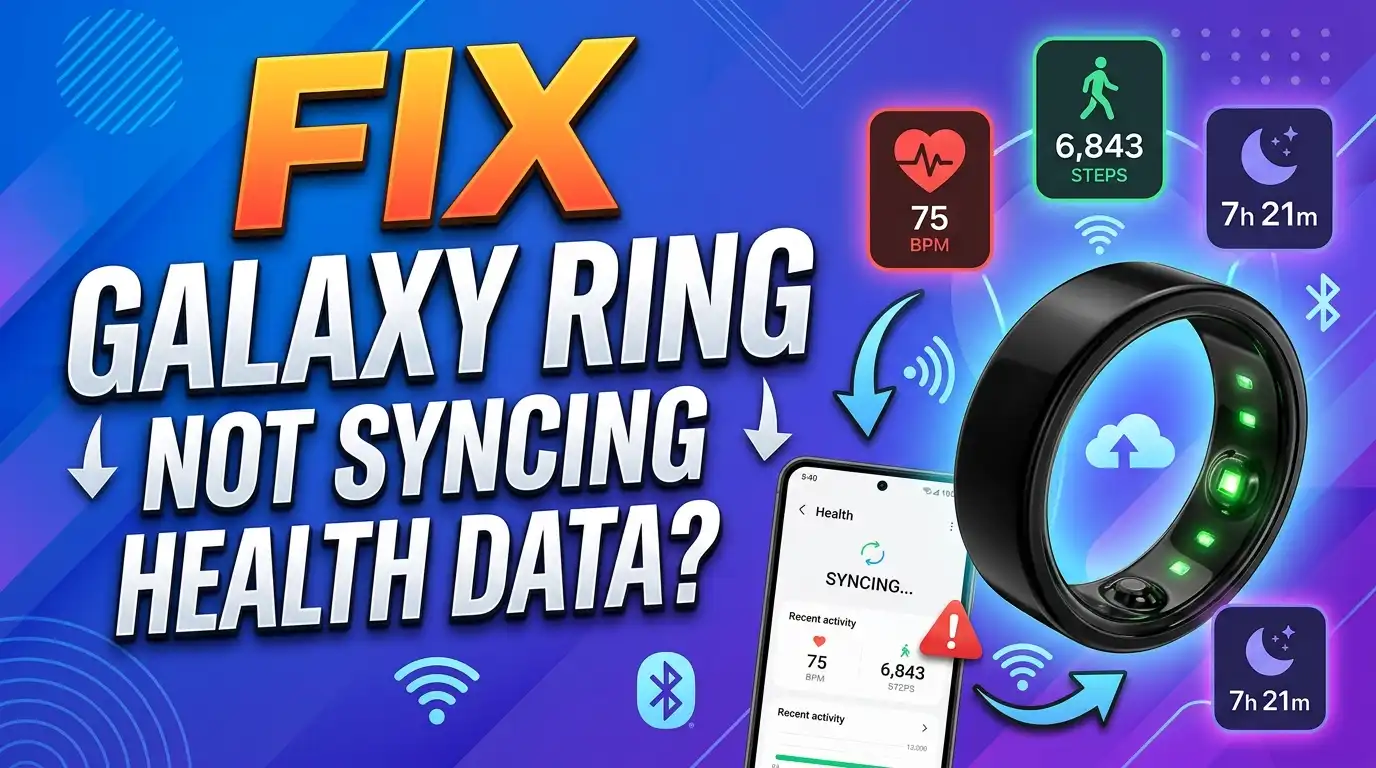
Your Samsung Galaxy Ring tracks your sleep, heart rate, steps, and stress throughout the day. But what happens when all that data refuses to sync with the Samsung Health app? You stare at your phone screen, and the numbers just do not update. No sleep score. No heart rate history. Nothing.
This is a frustrating problem, and you are not alone. Many Galaxy Ring users report that their ring collects health data but fails to send it to their phone.
The good news is that most syncing issues have simple fixes. A Bluetooth glitch, an outdated app, a missing permission, or even the way you wear the ring can block data from transferring.
This guide walks you through every possible cause and solution. You will learn how to restore your sync connection, protect your existing health data, and prevent this issue from happening again.
Key Takeaways
- Check your Bluetooth connection first because the Galaxy Ring depends entirely on Bluetooth to send health data to your phone. A weak or broken Bluetooth link is the most common cause of sync failure.
- Keep your Samsung Health and Galaxy Wearable apps updated to their latest versions. Outdated app software introduces bugs that block health data from syncing properly.
- Restart both your ring and your phone before trying more advanced fixes. A simple reboot clears temporary glitches that cause sync problems in most cases.
- Verify your Samsung Health app permissions and consent settings because missing data sharing consent or denied app permissions can silently prevent all sync activity.
- Clear the Samsung Health app cache if your data still refuses to sync after basic troubleshooting. Corrupted cache files often interfere with data transfer between the ring and your phone.
- Factory reset your Galaxy Ring only as a last resort because this erases all unsynced health data. Always open the Samsung Health app and confirm your data has synced before performing any reset.
Confirm Your Bluetooth Connection Is Active and Stable
The Galaxy Ring relies on Bluetooth to send health data to your phone. If Bluetooth is turned off, unstable, or experiencing interference, your data will not sync. This is the first thing you should check.
Open your phone’s Settings app and tap Connections. Make sure Bluetooth is toggled on. Look for your Galaxy Ring in the list of paired devices. It should show as connected. If it shows as paired but not connected, tap on it to reconnect.
Physical distance matters too. Samsung states that the Galaxy Ring must be within 98 feet of your phone for a stable Bluetooth connection. Walls, electrical equipment, and other wireless devices can reduce this range. Move closer to your phone and try syncing again.
If your ring does not appear in the Bluetooth device list at all, place it in the charging case. Press and hold the Multipurpose button on the case for three seconds. This puts the ring into Bluetooth pairing mode. Your phone should detect the ring and prompt you to connect.
Sometimes other Bluetooth devices cause interference. If you have multiple Bluetooth accessories connected to your phone, try disconnecting a few temporarily. This frees up bandwidth and can help the Galaxy Ring establish a stronger sync connection.
Restart Your Galaxy Ring Using the Charging Case
A frozen or glitchy ring will not sync health data even if everything else is set up correctly. Restarting the ring clears temporary software errors and refreshes the connection with your phone.
Place your Galaxy Ring inside the charging case. Press and hold the Multipurpose button on the center of the case for more than 7 seconds. The ring will reboot. Wait about 30 seconds for the ring to fully restart before removing it from the case.
After the restart, put the ring back on your finger and open the Samsung Health app on your phone. Check if your health data begins to sync. Many users report that a simple reboot resolves their syncing issues immediately.
Keep in mind that restarting the ring does not erase your stored health data. The ring stores data locally until it can sync with your phone. So you do not lose any tracked sleep, steps, or heart rate information by restarting.
If the ring does not respond to the button press, make sure the charging case has battery. The case needs power to communicate the restart command to the ring. Connect the case to a charger and try the restart process again.
Restart Your Phone to Clear Background Glitches
Your phone plays an equal role in the sync process. Background app errors, memory overload, and software glitches on your phone can prevent the Samsung Health app from receiving data from the ring.
Restart your phone by swiping down from the top of the screen and tapping the Power icon. Select Restart and wait for your phone to fully reboot. Once the phone is back on, open the Galaxy Wearable app and check if the ring is connected.
After restarting, open the Samsung Health app and pull down on the main screen to force a manual sync. Watch for the sync indicator at the top of the screen. If data starts appearing, the issue was a temporary phone glitch.
This step is especially important if you recently installed a phone software update. New phone updates can sometimes disrupt existing Bluetooth connections. A restart after an update gives your phone a clean slate to reconnect with the ring.
If you use a Galaxy phone, also check that no battery saving mode is restricting background activity for Samsung Health. Go to Settings, then Battery, and then Background usage limits. Make sure Samsung Health and Galaxy Wearable are not in the sleeping or deep sleeping apps list.
Update the Samsung Health and Galaxy Wearable Apps
Outdated apps are a leading cause of sync failures. Samsung regularly releases updates that fix bugs, improve Bluetooth stability, and patch data transfer issues. Running an old version of Samsung Health or Galaxy Wearable can break the sync process entirely.
Open the Galaxy Store or Google Play Store on your phone. Search for Samsung Health and check if an update is available. Tap Update if you see one. Do the same for the Galaxy Wearable app.
After updating both apps, open Galaxy Wearable and navigate to Ring software update. This checks whether your Galaxy Ring itself has a firmware update available. Samsung has released firmware updates specifically to improve wireless connection stability and data sync performance. Tap the update option and follow the on screen instructions.
Make sure your ring is in the charging case and has at least 30% battery before starting a firmware update. A ring that dies during an update can cause additional problems.
Once all updates are installed, restart your phone and test the sync again. Open Samsung Health and verify that your latest health data now appears. Updated software resolves the majority of sync issues reported by Galaxy Ring users.
Check Samsung Health App Permissions on Your Phone
The Samsung Health app needs specific permissions to receive and store data from your Galaxy Ring. If any required permission is denied, the app cannot sync your health information even though the ring is connected.
Go to your phone’s Settings and tap Apps. Find and tap Samsung Health. Select Permissions and review the list. Make sure permissions for Body sensors, Physical activity, and Notifications are all set to Allow.
Also check the battery optimization settings for Samsung Health. If your phone has put the app into a restricted or optimized state, it may kill the app’s background processes. This prevents the app from syncing data when you are not actively using it.
On Samsung phones, go to Settings, then Apps, then Samsung Health, and tap Battery. Select Unrestricted to allow the app to run freely in the background. This ensures that data syncs automatically throughout the day.
One critical setting that many users miss is the consent toggle. Recent updates to Samsung Health require you to agree to data collection and sharing consent. Open Samsung Health, tap the three dot menu, go to Settings, and look for any consent or privacy agreements that need your approval. Without this consent, the app will not sync data from your ring.
Clear the Samsung Health App Cache
Corrupted cache files can silently block the Samsung Health app from syncing data. The cache stores temporary files that help the app load faster, but these files can become corrupted over time and cause unexpected errors.
Go to Settings on your phone and tap Apps. Find Samsung Health in the app list and tap on it. Select Storage and then tap Clear cache. This removes temporary files without deleting your saved health data.
Do not tap “Clear data” unless you absolutely need to. Clearing data removes all app settings, logged in accounts, and locally stored information. Clearing cache alone is safe and preserves your health records.
After clearing the cache, open Samsung Health and log back in if prompted. Pull down on the main screen to trigger a manual sync. Check if your Galaxy Ring data now appears in the app.
If clearing the Samsung Health cache does not help, repeat the same process for the Galaxy Wearable app. Go to Settings, then Apps, then Galaxy Wearable, then Storage, and tap Clear cache. Both apps work together to manage your ring data, so clearing the cache on both gives you the best chance of fixing the issue.
You should also consider clearing the cache of the Ring Manager app if it is installed separately on your device. Some users have found that Ring Manager cache corruption causes persistent sync failures that the other apps cannot fix on their own.
Verify the Ring Fits Properly on Your Finger
This one surprises many users, but a loose fitting ring can prevent accurate health data collection, which then causes sync issues. If the ring’s sensors do not maintain consistent contact with your skin, the data it collects may be incomplete or invalid.
Samsung recommends wearing the Galaxy Ring on a finger where it fits snugly without being too tight. The ring should not slide around or rotate freely. If it does, the optical sensors on the inside of the ring lose contact with your skin and stop measuring your heart rate, blood oxygen, and other metrics.
Pay attention to the orientation indicator on the outside of the ring. This small marker should face your palm. This positioning aligns the internal sensors with the blood vessels on the underside of your finger for the most accurate readings.
If your ring is too loose, you may need to try wearing it on a different finger where the fit is more secure. Samsung provides a sizing kit for this reason. A ring that does not fit properly will collect unreliable data, and in some cases, it will stop collecting data altogether.
Temperature changes can also affect ring fit. Your fingers may be slightly smaller in cold weather and slightly larger in warm conditions. If your ring only has sync issues at certain times of day or in certain environments, the fit could be the reason.
Check for Conflicts with Galaxy Watch or Other Wearables
If you wear a Galaxy Watch alongside your Galaxy Ring, data conflicts can occur. Samsung Health may prioritize data from one device over the other, and this can make it look like the ring is not syncing.
Samsung Health is designed to merge data from multiple wearables. However, some users report that the ring stops tracking certain metrics when a Galaxy Watch is connected to the same phone. This happens because Samsung Health avoids duplicate data collection.
Open the Samsung Health app and go to the specific health metric you are concerned about, such as sleep or steps. Check which device recorded the data. You may find that your Galaxy Watch data is being displayed instead of your ring data.
If you want the ring to be the primary source for certain metrics, try disconnecting or removing your Galaxy Watch temporarily. Check if the ring data starts syncing again. If it does, the issue is a device priority conflict rather than a true sync failure.
You can manage connected devices in Samsung Health by going to Settings and then Accessories. Review which devices are linked and adjust your preferences. Some users find that unparing and then re-pairing the ring after the watch resolves the data conflict entirely.
Force Sync Your Health Data Manually
Sometimes the Galaxy Ring collects data correctly, but the automatic sync process stalls. You can force a manual sync to push the data from your ring to your phone immediately.
Open the Samsung Health app on your phone. On the main dashboard screen, pull down with your finger from the top of the content area. You will see a loading indicator that shows the app is attempting to sync. Hold the ring close to your phone during this process for the strongest Bluetooth connection.
If the pull to refresh method does not work, try opening the Galaxy Wearable app instead. Navigate to the ring’s settings page and look for a sync or refresh option. The Wearable app communicates directly with the ring’s firmware and can sometimes trigger a data transfer that Samsung Health cannot.
You can also try toggling Bluetooth off and on again before attempting a manual sync. Turn Bluetooth off in your phone’s settings, wait 10 seconds, and then turn it back on. Open Samsung Health and try the pull down sync again. This resets the Bluetooth stack and often resolves stalled connections.
Keep in mind that the Galaxy Ring stores health data locally for a period of time. If your ring has been disconnected from your phone for several hours or days, it may take a few minutes for all the stored data to transfer during sync. Be patient and keep the ring near your phone during this process.
Make Sure Your Phone Meets Compatibility Requirements
The Galaxy Ring does not work with every phone. Samsung requires a phone running Android 11 or higher with the latest version of the Samsung Health app. If your phone does not meet these requirements, syncing will not work reliably.
Check your phone’s Android version by going to Settings, then About phone, and looking at the Software information section. If your phone runs a version older than Android 11, you will need to update your phone’s operating system or use a compatible device.
The Galaxy Ring works with most Android phones, not just Samsung devices. However, some features may be limited on non Samsung phones. If you use a phone from another brand, make sure you have downloaded both Samsung Health and Galaxy Wearable from the Google Play Store and granted all required permissions.
Also verify that your phone has enough storage space for the Samsung Health app to operate. A phone with very low storage may not be able to process incoming health data. Free up space by deleting unused apps, old photos, or clearing download folders.
If you recently switched to a new phone, you need to reset your Galaxy Ring and pair it fresh with the new device. The ring can only be connected to one phone at a time. Open the Galaxy Wearable app on your old phone and tap Reset to disconnect the ring before setting it up on the new phone.
Disable Battery Optimization for All Related Apps
Aggressive battery optimization is a hidden cause of sync failures on many Android phones. Your phone may kill Samsung Health or Galaxy Wearable in the background to save battery, which stops the sync process.
On Samsung phones, go to Settings, then Battery, and then Background usage limits. Check the Sleeping apps and Deep sleeping apps lists. If Samsung Health, Galaxy Wearable, or Ring Manager appear in either list, remove them by tapping the minus icon next to each app.
On non Samsung Android phones, go to Settings, then Apps, then select each app individually. Look for a Battery or Battery optimization option and set it to Unrestricted or Not optimized.
Also check for any third party battery saver apps that may be installed on your phone. Apps like Greenify, AccuBattery, or manufacturer specific power managers can restrict background activity for Samsung Health. Disable or whitelist Samsung Health and Galaxy Wearable in these apps.
After making these changes, restart your phone. The new battery settings take full effect after a reboot. Open Samsung Health and check if your ring data starts syncing consistently. Many users discover that this single change fixes persistent sync issues that no other solution resolved.
Check Your Samsung Account and Internet Connection
Samsung Health syncs data locally between the ring and your phone over Bluetooth. But it also syncs data to Samsung’s cloud servers through your Samsung account. A problem with either your account or your internet connection can cause sync failures in the app.
Open Samsung Health, tap the three dot menu, and go to Settings. Check that your Samsung account is signed in and active. If you see a prompt to sign in or verify your account, follow the instructions. An expired session or account issue can block cloud sync.
Make sure your phone has an active internet connection. Connect to Wi-Fi or enable mobile data. While Bluetooth handles the ring to phone transfer, the app needs internet access to fully process and display some health metrics.
If you recently changed your Samsung account password or enabled two factor authentication, you may need to sign out and sign back into Samsung Health. Go to Settings, tap your profile, and select Sign out. Then sign back in with your updated credentials.
Also check if Samsung’s servers are experiencing downtime. Visit Samsung’s support page or search online for Samsung Health server status. Temporary server issues on Samsung’s end can prevent data from syncing, and the only fix is to wait until the service is restored.
Factory Reset Your Galaxy Ring as a Last Resort
If none of the previous solutions worked, a factory reset of the Galaxy Ring can resolve deep software problems. This erases all settings and data stored on the ring, so use it only after trying everything else.
Before you reset, open Samsung Health on your phone and make sure all your current data is synced. Any unsynced data on the ring will be permanently lost during a factory reset. Pull down on the Samsung Health dashboard to trigger a final sync attempt.
To reset the ring, open the Galaxy Wearable app on your phone. Find the Galaxy Ring settings and tap Reset. Confirm the reset when prompted. The ring will erase its data and return to factory settings.
After the reset, you need to pair the ring with your phone again from scratch. Place the ring in the charging case and hold the Multipurpose button for three seconds to enter pairing mode. Open Galaxy Wearable and follow the setup instructions.
Some users report that a factory reset followed by a fresh pairing fixes stubborn sync issues that persisted for weeks. The process takes about 10 minutes, and your ring will begin collecting and syncing health data as if it were brand new.
Contact Samsung Support for Persistent Issues
If you have completed every step in this guide and your Galaxy Ring still does not sync health data, the problem may be a hardware defect or a deeper software bug that requires Samsung’s direct assistance.
You can reach Samsung Support through several channels. Visit samsung.com/support and use the live chat option for quick help. You can also call Samsung’s customer service line directly. Have your ring model number and phone model ready when you contact them.
Samsung may ask you to perform diagnostic tests or provide logs from the Galaxy Wearable app. They can also initiate a remote service session on Samsung phones where a support agent views your screen and helps troubleshoot in real time.
If your ring is still under warranty, Samsung may offer a replacement if the issue is caused by a hardware fault. Keep your proof of purchase handy. Samsung’s standard warranty covers manufacturing defects that affect normal operation, including Bluetooth and sensor malfunctions.
Do not attempt to open or physically modify the ring. The Galaxy Ring has no user serviceable parts. Any physical tampering voids your warranty and can permanently damage the device. Let Samsung’s certified technicians handle hardware issues.
Prevent Future Sync Issues with Good Habits
Once your Galaxy Ring is syncing properly again, a few simple habits can keep it that way. Prevention is easier than troubleshooting, and these steps take very little effort.
Keep your Samsung Health and Galaxy Wearable apps set to auto update in the Galaxy Store and Google Play Store. This ensures you always have the latest bug fixes and stability improvements. Check for ring firmware updates at least once a month through the Galaxy Wearable app.
Charge your ring regularly and avoid letting the battery drop to zero. A completely dead ring can lose its Bluetooth pairing and may need to be set up again. Charge it when it reaches about 20% to stay safe.
Open the Samsung Health app at least once a day. This gives the app an opportunity to sync any pending data. While background sync should work automatically, manually opening the app serves as a reliable backup.
Avoid pairing too many Bluetooth devices to your phone at once. Each active Bluetooth connection uses resources, and too many connections can cause instability. If you notice sync problems returning, check your Bluetooth device list and disconnect anything you are not using.
Finally, keep your phone’s operating system updated. Android updates include Bluetooth stack improvements that directly affect how your Galaxy Ring communicates with your phone. A phone running the latest software gives you the best sync reliability.
Frequently Asked Questions
Why does my Galaxy Ring stop syncing after a phone update?
Phone software updates can reset Bluetooth connections, change battery optimization settings, or modify app permissions. After a phone update, check that Bluetooth is on, Samsung Health has all permissions enabled, and the app is not being restricted by battery optimization. Restart your phone and ring, then try syncing again.
Can I use the Galaxy Ring with a non Samsung Android phone?
Yes. The Galaxy Ring works with most Android phones running Android 11 or higher. You need to install Samsung Health and Galaxy Wearable from the Google Play Store. Some advanced features may only be available on Samsung phones, but basic health data syncing works on compatible Android devices.
Will I lose my health data if I factory reset the Galaxy Ring?
You will lose any data stored on the ring that has not yet synced with the Samsung Health app. Always open Samsung Health and confirm your latest data is visible before performing a reset. Data that has already synced to the app and your Samsung account will remain safe.
How often does the Galaxy Ring sync with my phone?
The Galaxy Ring syncs automatically throughout the day whenever it has an active Bluetooth connection with your phone. You can also force a manual sync by opening the Samsung Health app and pulling down on the dashboard. If the ring has been disconnected for a while, it may take several minutes to transfer all stored data.
Why does my Galaxy Ring sync sleep data but not step data?
This usually happens when a Galaxy Watch is also connected to your phone. Samsung Health may use the watch as the primary source for step counting while using the ring for sleep tracking. Check the data source listed under each metric in the app. You can adjust device priority by managing your connected accessories in Samsung Health settings.
How do I know if my Galaxy Ring needs a firmware update?
Open the Galaxy Wearable app on your phone and look for the Ring software update option. If an update is available, the app will show a notification or an update prompt. Samsung recommends keeping the ring firmware current because updates often fix connectivity and data sync bugs.

Hi, I’m Amy! I’m passionate about tech and love breaking down complex product specs into simple, actionable advice. I review gadgets, compare tools, and write buying guides to help you spend smarter. Got a question? Drop me a message — I’d love to hear from you!