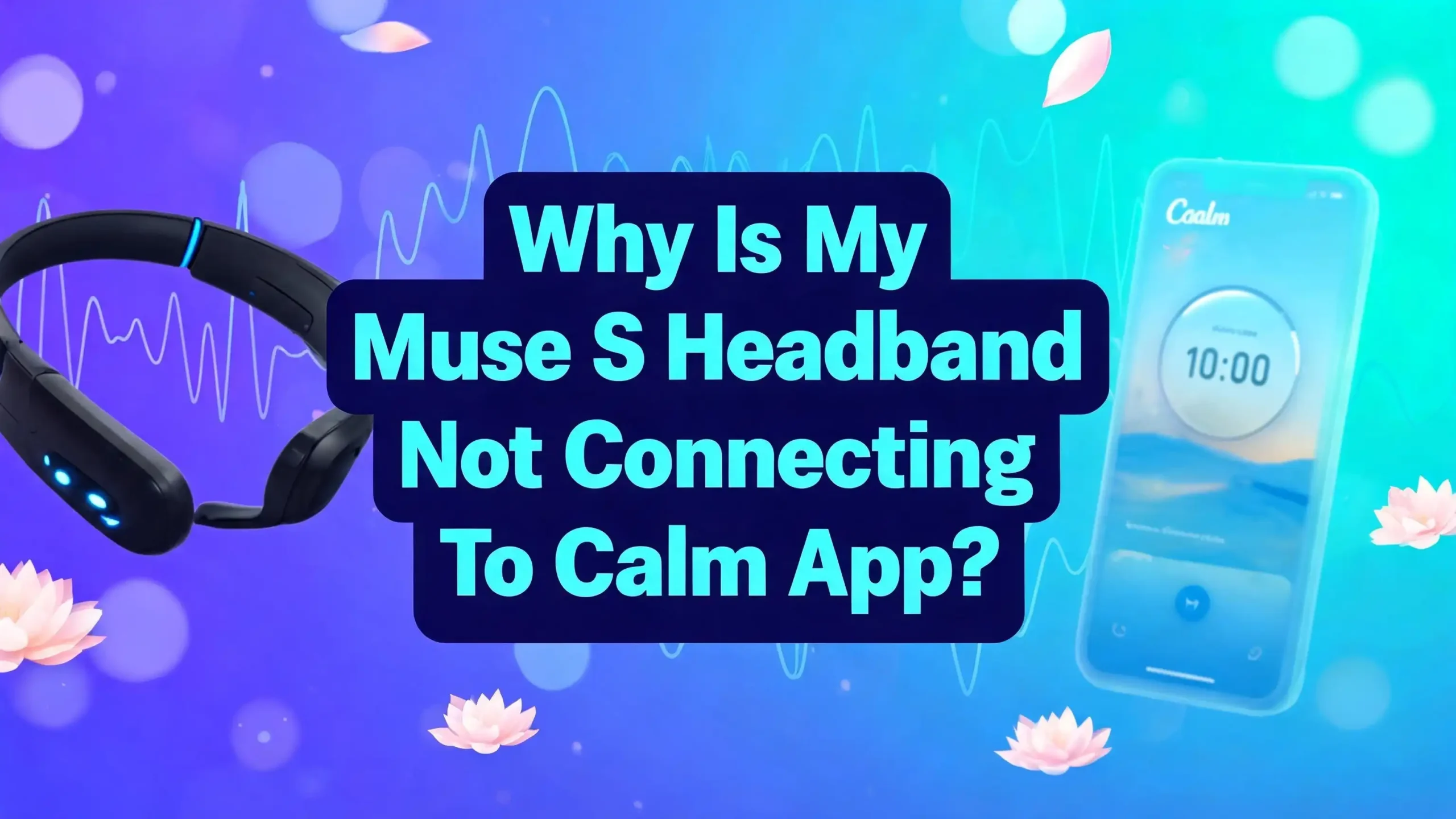
Why Is My Muse S Headband Not Connecting To Calm App?
You just put on your Muse S headband, opened the Calm app, and expected them to work together. But nothing happened. The headband does not show up in Calm. You tried restarting both your phone and the headband, and still nothing changed. This is one of the most common frustrations among meditation technology users.
Here is the truth most people do not realize right away. The Muse S headband and the Calm app are two separate products from two different companies. They were not built to connect to each other. The Muse S headband connects to the official Muse app, while Calm is a standalone meditation and sleep app that does not support EEG headband input.
But that does not mean you are stuck. There are real solutions and workarounds that let you get the best of both your Muse S headband and the guided content you love from Calm. This post will walk you through every detail you need.
Key Takeaways
- The Muse S headband does not natively connect to the Calm app. These are products from different companies with no built in integration. The Muse S pairs only with the official Muse app and select third party apps that use the Muse SDK.
- Calm does not support external EEG or biofeedback headbands. The Calm app is compatible with smartphones, tablets, smart TVs, and smartwatches. It does not list any brain sensing headband as a supported device.
- Your Muse S headband may have a general Bluetooth issue that prevents it from connecting to any app, including the Muse app. Common causes include low battery, outdated firmware, or Bluetooth interference from nearby devices.
- You can still use Calm content while wearing your Muse S headband by running both apps at the same time on your phone or by playing Calm audio through a separate device. This gives you guided content from Calm with real time brain data from Muse.
- Updating your Muse app and phone software fixes most connection problems. Many users report that outdated app versions cause pairing failures. Always check for updates before troubleshooting further.
- A hard reset of the Muse S headband solves persistent pairing problems. You can do this by holding the power button for six seconds until the device powers off completely.
Understanding The Muse S Headband And What It Connects To
The Muse S headband is a brain sensing wearable made by Interaxon. It uses EEG (electroencephalography) sensors to measure your brain activity during meditation and sleep. The device sits on your forehead and behind your ears, picking up electrical signals from your brain in real time.
This headband connects to your phone through Bluetooth Low Energy (BLE). It requires at least Bluetooth LE 4.0, though Bluetooth 5 is recommended for the best experience. The connection happens directly through the Muse app, not through your phone’s general Bluetooth settings.
The Muse S is compatible with iOS 16.1 and above and Android 8 and above. It pairs with the official Muse app, which provides neurofeedback sessions, sleep tracking, and biofeedback experiences. Some third party apps built using the Muse SDK, such as Mind Monitor and Myndlift, also support the headband. However, the Calm app is not one of them.
Many users assume that because both products focus on meditation, they should work together. That assumption is understandable but incorrect. The Muse S sends specialized EEG data that requires a compatible app to receive and process it. Calm was not built to accept this type of data input.
Why The Calm App Does Not Recognize Your Muse S Headband
The Calm app is a meditation, sleep, and relaxation platform made by Calm Inc. It offers guided meditations, sleep stories, breathing exercises, and music. The app runs on iOS, Android, web browsers, Apple TV, Google Chromecast, and select smartwatches.
Calm does not support any external EEG or brain sensing headband. Its list of compatible devices includes smartphones, tablets, computers, Apple Watch, Wear OS devices, and casting hardware. No biofeedback or neurofeedback device appears on the Calm compatibility list.
This means there is no setting, menu option, or hidden feature inside the Calm app that will let your Muse S connect. The app simply does not have the software code to receive Bluetooth data from an EEG headband. It was never built with that capability in mind.
This is the root cause of your problem. You are trying to create a connection that does not exist at the software level. Understanding this fact will save you hours of frustration and help you focus on solutions that actually work.
Common Bluetooth Problems That Affect Your Muse S Headband
Even though the Calm app does not support the Muse S, many users also experience genuine Bluetooth connection problems with the official Muse app. If your headband is not connecting to any app at all, the issue may be with the headband itself or your phone’s Bluetooth settings.
Low battery is one of the most frequent causes. The Muse S may power on with a low charge, but it cannot maintain a stable Bluetooth connection without enough battery. Charge your headband for at least three hours using a USB wall charger that delivers a maximum of 5 volts and 2 amps. Chargers with higher voltage can damage the device.
Bluetooth interference from other devices is another common problem. Wi-Fi routers, microwaves, and other 2.4GHz devices can disrupt BLE signals. Move at least 10 feet away from your router and other wireless devices when you try to connect your Muse S.
Your Muse S also cannot connect while it is plugged in and charging. This is a hardware limitation. Always unplug the headband before attempting to pair it with any app. If you forget this step, the headband will power on but will not appear as a connectable device.
How To Properly Connect Your Muse S To The Muse App
Since the Calm app does not support the Muse S, your primary connection target is the official Muse app. Follow these steps carefully to establish a proper Bluetooth connection.
Step 1: Download or update the Muse app from the Apple App Store or Google Play Store. Make sure you have the latest version installed. Outdated versions have caused Bluetooth failures in the past.
Step 2: Turn on Bluetooth and location services on your phone. On Android, you also need to enable the “Nearby Devices” permission for the Muse app in your phone’s settings.
Step 3: Charge your Muse S fully and then unplug it. Press the power button to turn it on. A light indicator will confirm that the device is active.
Step 4: Open the Muse app and tap the Train tab. Then tap the Bluetooth icon in the top left corner of the screen. Your Muse S should appear in the list of available devices within a few seconds.
Step 5: Tap your Muse S device name to connect. The app will confirm the connection, and you can begin a session immediately.
Do not pair the Muse S through your phone’s Bluetooth settings. The connection must happen through the Muse app itself. Pairing through general settings often causes conflicts and prevents the app from finding the headband.
Performing A Hard Reset On Your Muse S Headband
A hard reset clears the internal cache of the Muse S and can fix persistent pairing problems. This step is useful when the headband is stuck in Bluetooth search mode, will not power off normally, or refuses to connect after multiple attempts.
To hard reset your Muse S, press and hold the power button for six seconds. The device will power off completely. Wait at least 10 seconds before turning it back on. This gives the internal Bluetooth module time to clear its previous connection data.
After the reset, try connecting through the Muse app again using the steps described in the previous section. Many users report that a hard reset resolves connection problems immediately.
If the standard six second hold does not work, some community members have found success with a 30 second hold on the power button. This performs a deeper reset that clears more cached data from the device.
After the hard reset, you should also forget the Muse S from your phone’s Bluetooth settings. Go to your phone’s Bluetooth menu, find the Muse device, and select “Forget This Device.” Then open the Muse app and pair from scratch. This combination of a hard reset and a fresh pairing solves the majority of stubborn connection problems.
Updating Your Muse App And Firmware
Software updates play a major role in connection reliability. Interaxon releases regular updates to the Muse app that include bug fixes, Bluetooth improvements, and new features. Running an old version of the app can directly cause pairing failures.
Go to your app store and check for updates to the Muse app. Install any available update before you try to connect again. Some connection bugs have been traced to specific app versions. For example, version 51.0 of the Muse app caused Bluetooth issues for certain headband models, and a hotfix in version 51.1 resolved the problem.
Firmware updates for the Muse S headband itself are delivered through the Muse app. Once connected, the app will notify you if a firmware update is available. Always accept these updates. They improve the headband’s Bluetooth performance and fix known bugs.
Also update your phone’s operating system. Bluetooth behavior changes with OS updates, and an outdated operating system can create compatibility gaps. Apple iOS 16.1 or later and Android 8 or later are the minimum requirements for the Muse app. Using the latest OS version is strongly recommended.
Using Calm And Muse S At The Same Time
You do not have to choose between the Calm app and the Muse S headband. You can use both simultaneously with a simple workaround. This method gives you guided meditations from Calm while still collecting EEG brain data through the Muse app.
Option 1: Dual app method on one phone. Start your Muse S session in the Muse app first. Then switch to the Calm app and play a guided meditation or sleep story. The Muse app will continue running in the background and recording your brain data. On Android, make sure battery optimization is turned off for the Muse app so it does not get shut down by the operating system.
Option 2: Two device method. Play your Calm content on a second device such as a tablet, laptop, or smart speaker. Use your primary phone to run the Muse app and connect to the Muse S headband. This avoids any potential audio conflicts between the two apps.
Both methods let you enjoy Calm’s content library while getting real time neurofeedback from your Muse S. You will see your brain activity data, calm scores, and session metrics in the Muse app after your session ends. This is the closest you can get to a combined Muse S and Calm experience.
Checking Your Phone’s Bluetooth Settings And Permissions
Incorrect phone settings cause a large percentage of Muse S connection failures. Even if everything looks fine on the surface, a single missing permission can block the pairing process entirely.
On iOS devices, go to Settings, then find the Muse app, and make sure Bluetooth is toggled on. Also check that location services are enabled, as some Bluetooth features depend on location permissions.
On Android devices, the permissions list is longer. Open Settings, tap Apps, find the Muse app, and tap Permissions. Make sure “Nearby Devices” is set to Allow. Also verify that location services are turned on at the system level. Without these permissions, the Muse app cannot scan for Bluetooth devices.
Another important Android setting is battery optimization. Android aggressively manages background apps to save battery. If the Muse app is optimized, the system may close it during your session. Go to the Muse app’s battery settings and switch “Allow background usage” to on. Set the battery optimization to “Unrestricted.”
If you have changed these settings and the headband still does not connect, try turning on Airplane Mode on your phone. Then manually turn Bluetooth back on. This clears all wireless connections and gives the Muse S a clean Bluetooth environment to connect in. Several users have confirmed that this trick resolves stubborn pairing issues.
Dealing With Bluetooth Interference And Multi Device Conflicts
Bluetooth Low Energy operates on the 2.4GHz frequency band, which is shared with Wi-Fi routers, cordless phones, baby monitors, and microwave ovens. These devices can create interference that disrupts the connection between your Muse S and your phone.
To reduce interference, meditate in a room with fewer active wireless devices. Turn off Wi-Fi on your phone if you do not need it during the session. Keep your phone within three feet of your headband for the strongest signal.
Another common conflict arises when your phone is connected to multiple Bluetooth devices at the same time. If you are using Bluetooth headphones, a smartwatch, and trying to connect the Muse S simultaneously, the phone’s Bluetooth controller may become overwhelmed.
The Muse S does not support multi point Bluetooth. It can only connect to one device at a time. If the headband was previously connected to a different phone or tablet, it may still be holding that connection. Turn off Bluetooth on all other devices that have previously connected to the headband. Then try pairing with your primary device again.
If you use Bluetooth headphones or AirPods, pair them to your phone first before connecting the Muse S through the Muse app. This sequence prevents pairing conflicts between the audio device and the headband.
Alternative Apps That Work With The Muse S Headband
If you enjoy the Calm app’s approach to meditation and want something similar that works with your Muse S, several alternatives exist. These apps were built to receive EEG data from the Muse headband.
The official Muse app is the primary option. It offers guided meditations, neurofeedback sessions, biofeedback training, sleep tracking, and brain health metrics. A premium subscription unlocks additional content, including the ability to play your own audio during sessions.
Mind Monitor is a popular third party app that displays detailed EEG data from the Muse S headband. It shows brainwave powerbands and provides recording features for users who want to analyze their brain data in depth.
Myndlift is another option that uses the Muse headband for neurofeedback training. It provides structured programs and progress tracking, offering a more clinical approach to brain training.
The Muse app’s premium “Play Your Own Content” feature may be exactly what you need. It lets you play any audio, podcast, or downloaded meditation from your phone library while the Muse S tracks your brain activity. You could record or download Calm style meditations and play them through this feature.
Troubleshooting When Your Muse S Will Not Connect To Any App
If your Muse S headband refuses to connect to the Muse app or any other compatible app, follow this complete troubleshooting sequence.
First, charge the headband fully. Plug it in for at least three hours, then unplug it before trying to connect. A fully charged Muse S eliminates low power issues.
Second, force stop all apps on your phone. Close every running app, including the Muse app. Then turn off Bluetooth for 60 seconds and turn it back on. This clears stale Bluetooth connections.
Third, forget the Muse S from your phone’s Bluetooth list. Go to Settings, find the Muse device under Bluetooth, and tap Forget. This removes the old pairing data and forces a fresh connection.
Fourth, perform a hard reset on the headband. Hold the power button for six seconds. Wait 10 seconds. Then power the headband on again.
Fifth, restart your phone. A full restart clears temporary Bluetooth caches and resets the phone’s wireless stack. After the restart, open the Muse app and try to connect.
If none of these steps work, try connecting on a different phone or tablet. This tells you whether the problem is with the headband or your specific device. If the Muse S connects on another device, the issue is likely a phone specific Bluetooth bug. Contact Muse support for further help.
When To Contact Muse Support For Help
Some connection problems go beyond what you can fix on your own. If you have tried every step in this guide and your Muse S still will not connect, it is time to reach out to the Muse support team.
Contact Muse support if your headband’s LED light does not turn on even after a full charge. This may indicate a hardware defect or a damaged battery. The support team can arrange a replacement if your device is still under warranty.
You should also contact support if the headband connects briefly but drops the connection within seconds. This pattern sometimes points to a firmware corruption issue that requires a special recovery process only available through the support team.
Visit the official Muse website and go to the Contact page to submit a support ticket. Include your headband model, serial number, phone model, operating system version, and Muse app version in your message. The more detail you provide, the faster the support team can diagnose and resolve your problem.
Keep in mind that Muse support handles issues related to the Muse headband and the Muse app only. They cannot help with Calm app issues or integration requests between the two products. For Calm related questions, contact the Calm support team separately.
Final Thoughts On Using Your Muse S Headband Effectively
The Muse S headband is a powerful meditation and sleep tracking tool. It provides real time brain data that no standard meditation app can offer on its own. While it does not connect to the Calm app directly, the workarounds described in this post give you practical ways to enjoy both products.
Focus on building a strong connection between your Muse S and the official Muse app first. Once that connection is stable, you can layer in content from Calm or any other meditation source using the dual app method or two device setup.
Keep your Muse app updated, keep your headband charged, and keep your phone’s Bluetooth permissions properly configured. These three habits prevent the vast majority of connection problems.
The meditation technology space continues to grow. Future updates from either Muse or Calm could introduce new integrations. For now, use the solutions in this guide to get the most out of your Muse S headband and your preferred meditation content.
Frequently Asked Questions
Can the Muse S headband connect directly to the Calm app?
No, the Muse S headband cannot connect to the Calm app. The Calm app does not support external EEG or brain sensing headbands. The Muse S was built to connect with the official Muse app and a few third party apps that use the Muse SDK. Calm and Muse are separate products from separate companies with no built in integration between them.
How do I reset my Muse S headband when it will not connect?
Press and hold the power button on your Muse S for six seconds to perform a hard reset. The device will power off completely. Wait at least 10 seconds, then turn it back on. After the reset, open the Muse app and try to pair the headband again. Also forget the Muse S from your phone’s Bluetooth settings before re pairing for the best results.
Can I use the Calm app and the Muse S headband at the same time?
Yes, you can use both simultaneously. Start your session in the Muse app first, then switch to the Calm app to play guided content. The Muse app will continue running in the background. You can also play Calm content on a second device while using the Muse app on your primary phone. This lets you combine Calm’s audio with Muse’s brain tracking.
Why does my Muse S keep disconnecting from the Muse app?
Frequent disconnections usually result from low battery, Bluetooth interference, or battery optimization settings on Android. Charge the headband fully before each session. Move away from Wi-Fi routers and other wireless devices. On Android, turn off battery optimization for the Muse app to prevent the system from closing it in the background.
What apps are compatible with the Muse S headband?
The Muse S headband works with the official Muse app, Mind Monitor, Myndlift, and other apps built using the Muse SDK. The official Muse app is the most feature rich option, offering neurofeedback, biofeedback, sleep tracking, and brain health metrics. Check the Muse SDK partners page for a complete list of compatible third party apps.
Do I need a subscription to use the Muse S headband?
No, you do not need a paid subscription to use the basic features of the Muse S headband with the Muse app. Free features include neurofeedback meditation sessions and session data. A premium subscription unlocks additional content, sleep experiences, brain health metrics, and the ability to play your own audio during sessions.

Hi, I’m Amy! I’m passionate about tech and love breaking down complex product specs into simple, actionable advice. I review gadgets, compare tools, and write buying guides to help you spend smarter. Got a question? Drop me a message — I’d love to hear from you!