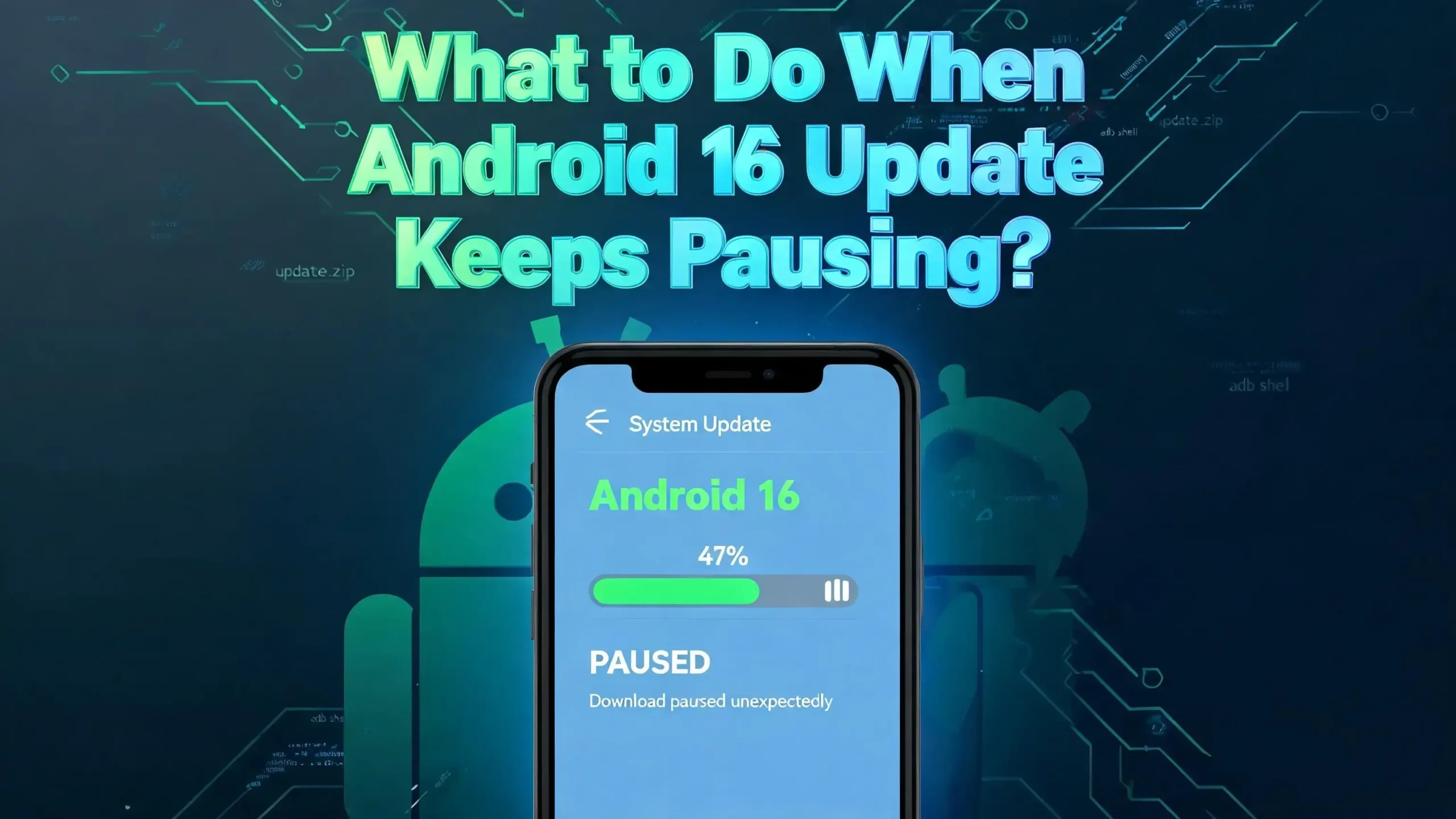
What to Do When Android 16 Update Keeps Pausing?
You just got the notification that Android 16 is ready to install. You tap “Download,” sit back, and wait. Then it happens. The update pauses. You hit resume, and it pauses again. You try once more, and the same frustrating loop continues.
The good news? This issue is almost always fixable without a trip to the service center or a factory reset.
This post walks you through every practical solution to get your Android 16 update running smoothly again. Each fix is simple, tested, and explained step by step.
Read through each section carefully, try the fixes in order, and your phone should be running Android 16 before you finish your next cup of coffee.
In a Nutshell
- Unstable Wi-Fi is the number one reason your Android 16 update keeps pausing. The download requires a strong and consistent internet connection throughout the entire process, and even brief drops can cause the system to pause automatically.
- Insufficient storage space can silently halt your update. Android 16 requires several gigabytes of free space for both the download file and the installation process, so your phone needs more room than just the size of the update file itself.
- Background apps and battery optimization settings can interfere with the download. Your phone may pause the update to save battery or free up resources for other running apps without telling you directly.
- Corrupted cache files from previous update attempts can block new downloads. Clearing the cache for Google Play Services and the system update service often resolves persistent pausing issues immediately.
- A simple restart fixes more update problems than most people expect. Rebooting your device clears temporary glitches in memory and refreshes the system processes responsible for downloading and installing updates.
- VPN apps and custom DNS settings can interrupt the connection between your device and the update server. Turning these off before starting the update removes a common but overlooked obstacle.
Check Your Wi-Fi Connection First
A weak or unstable Wi-Fi connection is the most common cause of a paused Android 16 update. Your phone needs a reliable internet connection for the entire duration of the download. Even a brief disconnection can trigger the system to pause automatically.
Start by opening your browser and loading any website. If the page loads slowly or fails, your Wi-Fi is the problem. Move closer to your router and try again. Walls, floors, and electronic devices can weaken the signal between your phone and the router.
Restart your router by unplugging it for 30 seconds and plugging it back in. This clears the router’s memory and often fixes connection drops. Wait two minutes for the router to fully boot before reconnecting your phone.
Also, check if other devices on your network are using heavy bandwidth. Streaming videos, large downloads on a laptop, or multiple gaming sessions can slow your connection enough to pause the update. Ask others on your network to pause their heavy usage while your phone completes the download.
If your home Wi-Fi remains unstable, try a different network. A friend’s house, a library, or a workplace Wi-Fi can provide the stable connection you need. Avoid using mobile data for system updates unless you have an unlimited plan, as Android 16 update files are typically several gigabytes in size.
Free Up Storage Space on Your Device
Android 16 needs significant free storage to download, unpack, and install properly. Most users underestimate how much space is required. The update file itself may be 2 to 4 GB, but the installation process needs additional temporary space to work with.
Open your Settings app and go to Storage. Check how much free space you have. As a safe benchmark, aim for at least 10 GB of free space before starting the update. This gives the system enough room for the download file and the installation buffers.
Start clearing space by removing apps you no longer use. Go to Settings, then Apps, and sort by size. You will likely find several large apps or games you forgot about. Uninstall them to reclaim storage quickly.
Next, clear your photo and video clutter. Back up your media to Google Photos or another cloud service first, then delete the local copies. Old downloads, large PDFs, and cached offline content from streaming apps also eat up storage silently. Check your Downloads folder and clear anything you no longer need.
Clearing app caches is another fast way to free up space. Go to Settings, then Storage, and tap on “Other apps.” Select the apps with the largest caches and tap “Clear cache.” This does not delete your data or login information. It only removes temporary files the app stored on your device.
Restart Your Phone Before Retrying
A simple restart can fix the Android 16 update pausing issue more often than you might think. When your phone runs for days without a reboot, temporary files and background processes pile up. These can interfere with system operations like downloading and installing updates.
Press and hold the power button on your device. Select “Restart” from the menu that appears. If your phone has a combined power and volume button shortcut, use that instead. Wait for the device to fully boot up before attempting the update again.
A restart does several helpful things at once. It clears the RAM, stops all running apps and background services, and refreshes the operating system’s core processes. The update service gets a clean slate to work with after a reboot.
If a normal restart does not help, try a forced restart. On most Pixel devices, press and hold the power button for 30 seconds. On Samsung devices, hold the power button and volume down button together for about 10 seconds. This forces the hardware to reboot even if the software is frozen or unresponsive.
After the restart, do not open any apps. Go directly to Settings, then System, then System update, and tap “Check for update.” Download the update immediately before other apps start consuming resources and bandwidth. This gives the update process priority access to your phone’s memory and internet connection.
Clear Cache for Google Play Services
Google Play Services manages the update delivery system on most Android devices. If its cache files become corrupted, the update can pause repeatedly. Clearing this cache forces the service to rebuild fresh files and often resolves the problem instantly.
Go to Settings, then Apps, then tap “See all apps.” Scroll down and find Google Play Services. Tap on it, then select Storage and cache. Tap “Clear cache.” Do not tap “Clear storage” because that will reset your Google account settings and could cause other apps to malfunction.
While you are in the Apps section, also find Google Play Store and clear its cache the same way. The Play Store and Play Services work together during system updates, so clearing both caches ensures a clean process.
After clearing the caches, restart your phone. This ensures the system fully rebuilds the necessary files from scratch. Then navigate back to the system update section and try downloading Android 16 again.
If the update still pauses, go back to Google Play Services and this time tap “Clear storage” as well. You will need to sign back into your Google account on some apps, but this deeper reset often fixes stubborn update problems that cache clearing alone cannot solve. This step is safe and does not delete your personal files, photos, or app data.
Disable VPN and Custom DNS Settings
VPN apps and custom DNS configurations can interfere with the Android 16 update download. These tools route your internet traffic through different servers, which can slow down the connection or cause the update server to reject the download request.
Open your VPN app and disconnect it completely. If your VPN is set to connect automatically, go into the VPN app’s settings and disable the auto-connect feature before starting the update. Some VPN apps run in the background even when you think they are off.
To check for custom DNS settings, go to Settings, then Network and internet, then Private DNS. If you see a custom DNS provider listed there, change the setting to “Automatic” or “Off” for the duration of the update. Custom DNS services like Cloudflare or AdGuard DNS can sometimes block or slow connections to Google’s update servers.
Also check if you have any ad-blocking apps installed that use a local VPN to filter traffic. Apps like Blokada, AdGuard, or DNS66 create a VPN tunnel on your device to block ads. This tunnel can interfere with the update download. Disable these apps temporarily until the update completes.
After the update finishes installing successfully, you can turn your VPN, custom DNS, and ad blockers back on. These tools are important for privacy and security, so do remember to reactivate them once Android 16 is running on your device.
Turn Off Battery Optimization for System Updates
Android’s battery optimization feature can pause downloads and background processes to save power. This includes system updates. If your phone’s battery saver is active or if the battery level is low, the system may automatically pause the Android 16 download.
First, make sure your phone is charged to at least 50% before starting the update. Better yet, plug your phone into its charger and keep it connected throughout the entire download and installation process. Many devices refuse to install system updates below a certain battery threshold.
Next, check if Battery Saver mode is turned on. Go to Settings, then Battery, and look for Battery Saver or Power Saving Mode. Turn it off before attempting the update. Battery Saver limits background activity, reduces performance, and can restrict network access, all of which directly affect the update process.
On some devices, you can also disable battery optimization for specific system services. Go to Settings, then Apps, then find the system update app or Google Play Services. Tap on it, select Battery, and choose “Unrestricted” or “Not optimized.” This tells your phone to let that service run freely without power-saving restrictions.
Adaptive Battery, which learns your usage patterns and restricts rarely used apps, can also play a role. While it generally helps performance, it may sometimes restrict background update processes. Disabling it temporarily through Settings, Battery, and Adaptive Battery can remove another potential barrier to your update completing successfully.
Try Downloading the Update in Safe Mode
Safe Mode disables all third-party apps on your device. This eliminates the possibility that a downloaded app is interfering with the update process. Security apps, file managers, system cleaners, and even some social media apps can block or pause system downloads.
To enter Safe Mode on most Android devices, press and hold the power button. When the power menu appears, press and hold the “Power off” option. A prompt will ask if you want to restart in Safe Mode. Tap “OK” and wait for the phone to reboot.
You will see “Safe Mode” displayed in the bottom corner of your screen. Now go to Settings, then System, then System update. Try downloading Android 16 again. Without third-party apps running in the background, the update has full access to your device’s resources and network connection.
If the update downloads successfully in Safe Mode, that confirms a third-party app was causing the problem. After the update installs, restart your phone normally to exit Safe Mode. Then investigate which app was responsible by checking recently installed or updated apps.
If you cannot identify the problematic app, uninstall apps one by one, starting with security apps, VPNs, and system optimization tools. These categories most commonly conflict with system updates. Each time you uninstall an app, try the update again in normal mode to see if the issue resolves.
Reset Network Settings
Corrupted network configurations can prevent your phone from maintaining a stable connection to the update server. Resetting your network settings clears all saved Wi-Fi passwords, Bluetooth pairings, and mobile data configurations. This gives your device a fresh network setup.
Go to Settings, then System, then Reset options. Tap “Reset Wi-Fi, mobile, and Bluetooth.” Confirm the action when prompted. Your phone will restart, and all network settings will return to their factory defaults.
After the reset, reconnect to your Wi-Fi network by entering the password manually. Make sure you connect to a 5 GHz network if available, as it generally provides faster and more stable speeds than a 2.4 GHz network for large downloads like system updates.
This fix is especially effective if you recently changed router settings, switched internet providers, or installed apps that modified your network configuration. It also helps if your phone previously connected to a captive portal (like hotel or airport Wi-Fi) that left behind conflicting network data.
You do not lose any personal data, photos, apps, or files from this reset. Only network-related settings are cleared. You will need to re-enter Wi-Fi passwords and re-pair Bluetooth devices afterward, but this is a small inconvenience compared to the benefit of getting your update to work properly.
Use a Computer to Install the Update Manually
If the over-the-air update keeps pausing no matter what you try, installing the update manually through a computer is a reliable alternative. Google provides official system images and OTA files for Pixel devices that you can apply yourself.
For Google Pixel owners, visit the official Android developer website and find the factory images or OTA images page for your specific device model. Download the correct file for your phone. Connect your phone to your computer using a USB cable and enable USB debugging in Developer Options.
You can then use ADB (Android Debug Bridge) to sideload the update. Open a command prompt or terminal window on your computer and type adb sideload filename.zip, replacing “filename.zip” with the actual file name. Your phone will install the update directly from the computer without relying on Wi-Fi.
For Samsung users, the Samsung Smart Switch desktop application can help. Connect your Samsung phone to your computer, open Smart Switch, and it will detect if an update is available. The app downloads the update through your computer’s internet connection and installs it on your phone, bypassing the phone’s own download process entirely.
This method avoids all the common problems that cause over-the-air updates to pause. Your computer’s wired internet connection is more stable, and the sideload process does not depend on Google Play Services or battery optimization settings. It is the most direct path to getting Android 16 on your device.
Check If Your Device Is Compatible With Android 16
Your update may keep pausing because your device is not fully supported or has limited compatibility with Android 16. Not every Android phone receives this update, and some older devices may show the update notification but struggle to complete the download.
For Google Pixel devices, Android 16 supports the Pixel 6 and newer models, including the Pixel 6 Pro, Pixel 6a, Pixel 7 series, Pixel 7a, Pixel Fold, Pixel Tablet, Pixel 8 series, Pixel 8a, Pixel 9 series, and newer devices. If your phone is older than the Pixel 6, it will not receive Android 16.
Samsung Galaxy devices also receive Android 16, but on a different timeline. Samsung’s One UI update schedule means many Galaxy S, Galaxy Z, and Galaxy A series phones will get the update later in 2025 and into 2026. If your Samsung device is showing an update but it keeps failing, check Samsung’s official update schedule for your specific model and region.
Other brands like OnePlus, Xiaomi, Motorola, and OPPO also roll out Android 16, but their timelines vary widely. Visit your phone manufacturer’s official support page to confirm whether your exact model is on the Android 16 update list.
If your phone is confirmed compatible but the update still pauses, the issue lies with your device’s software or network rather than compatibility. Continue with the other fixes in this guide. If your phone is not on the supported list, you will need to stay on your current Android version or consider upgrading your hardware.
Perform a Factory Reset as a Last Resort
If nothing else works, a factory reset can resolve deep software issues that prevent the Android 16 update from completing. This erases all data on your phone and returns it to its original settings. Use this option only after trying every other fix in this guide.
Before you reset, back up everything. Use Google Backup to save your contacts, photos, app data, and messages to the cloud. Connect your phone to a computer and copy important files manually as well. Check that your backup is complete by verifying it in your Google account settings.
To perform the factory reset, go to Settings, then System, then Reset options, then “Erase all data (factory reset).” Follow the prompts and confirm your decision. Your phone will restart and begin the reset process, which takes several minutes.
After the reset, set up your phone with your Google account but do not restore your apps yet. First, check for the Android 16 update immediately. Go to Settings, System, System update, and download the update on a clean system. This eliminates any software conflicts from previously installed apps.
Once Android 16 is installed and running, you can restore your apps and data from your backup. A factory reset combined with a fresh update installation resolves nearly every persistent update issue. While it takes more time and effort, it gives your phone the cleanest possible starting point for the new operating system. Many users on community forums have reported that this was the only method that finally resolved their pausing update after all other attempts failed.
Contact Your Device Manufacturer for Support
If you have tried every fix and the Android 16 update still pauses, the problem may be hardware-related or tied to a known issue with your specific device model. Your device manufacturer’s support team can provide solutions that are specific to your phone.
For Google Pixel users, visit the Pixel Phone Help community or contact Google support directly through the Settings app. Go to Settings, then Tips and Support, and select the option to chat or call with a support agent. Google’s team can run remote diagnostics and may push the update to your device manually.
Samsung users can use the Samsung Members app for direct support. The app includes diagnostic tools that check your phone’s hardware and software health. It also connects you to Samsung’s technical support team, who can schedule a repair or provide device-specific troubleshooting steps.
For other Android brands, visit the manufacturer’s official website and look for their support or contact page. Most major brands offer live chat, email support, and phone support. Have your device model number, current software version, and a description of the problem ready before contacting them.
In some cases, manufacturers issue server-side fixes for known update problems. Your support agent may tell you to wait for a patch or a revised update file. This is normal during major Android releases, as the first few weeks often involve minor fixes to the rollout process. Being patient and checking back in a few days can sometimes be the simplest solution of all.
Frequently Asked Questions
Why does my Android 16 update keep pausing at the same percentage?
This usually happens because of a corrupted download file from a previous attempt. Your phone tries to resume from the corrupted point and fails every time. Clear the cache for Google Play Services and the Google Play Store, restart your phone, and try the download again from the beginning. This forces the system to start a fresh download instead of resuming the broken one. A stable Wi-Fi connection also prevents the download from stopping at the same spot repeatedly.
Can I use mobile data to download the Android 16 update?
Most Android phones default to Wi-Fi for system updates because the files are large, often 2 to 4 GB. Some devices allow you to enable mobile data downloads in the update settings. However, this is not recommended unless you have a truly unlimited data plan with fast speeds. Mobile data connections are less stable than Wi-Fi and more likely to cause the download to pause. If Wi-Fi is not available, using a mobile hotspot from another device can serve as a workaround.
Will I lose my data if the Android 16 update keeps failing?
No. A failed or paused update does not delete your personal data. Your photos, apps, contacts, and files remain safe during a failed download. The risk only comes if you perform a factory reset, which erases everything. Always back up your data before attempting any drastic troubleshooting steps. If the update pauses, your phone simply stays on the previous Android version until the update completes successfully.
How long should the Android 16 update take to download and install?
The download time depends on your internet speed, but it typically takes 10 to 30 minutes on a stable Wi-Fi connection. The installation process after the download adds another 15 to 30 minutes. Your phone will restart during installation. If the entire process takes longer than an hour, something is likely wrong. Check your Wi-Fi speed, free up more storage, and try again. Do not interrupt the installation once it begins, as this could cause software issues.
What should I do if my phone gets stuck during the Android 16 installation?
If your phone appears frozen during the installation screen for more than an hour, perform a forced restart. On Pixel phones, hold the power button for 30 seconds. On Samsung phones, hold the power and volume down buttons together for 10 seconds. Your phone should reboot to its previous working state. Then try the update again. If this happens repeatedly, use ADB sideloading from a computer or contact your device manufacturer for support.
Is it safe to skip the Android 16 update entirely?
You can delay the update, but skipping it permanently is not recommended. Android 16 includes important security patches that protect your phone against new threats. It also contains bug fixes and performance improvements. If the update causes too many issues during installation, waiting a few weeks is reasonable. Manufacturers often release improved update files that fix initial rollout problems. Check for the update again after a week or two, as a newer version may download more smoothly.

Hi, I’m Amy! I’m passionate about tech and love breaking down complex product specs into simple, actionable advice. I review gadgets, compare tools, and write buying guides to help you spend smarter. Got a question? Drop me a message — I’d love to hear from you!